Screenshots
What NEX looks like in daily use: the web dashboard, NEX Monitor, the integration with the GNOME and KDE Plasma desktops, on Debian 13 and on Ubuntu 26.04 LTS, and the installation of a node from the ready-made virtual machine images. All images come from three-node laboratory clusters running on NEXFS, and they follow the theme of this page: switch between light and dark to see both.
Web dashboard
The dashboard (https://NODE:7443) is reached from any browser with a
cluster user. The details are in the dashboard guide.
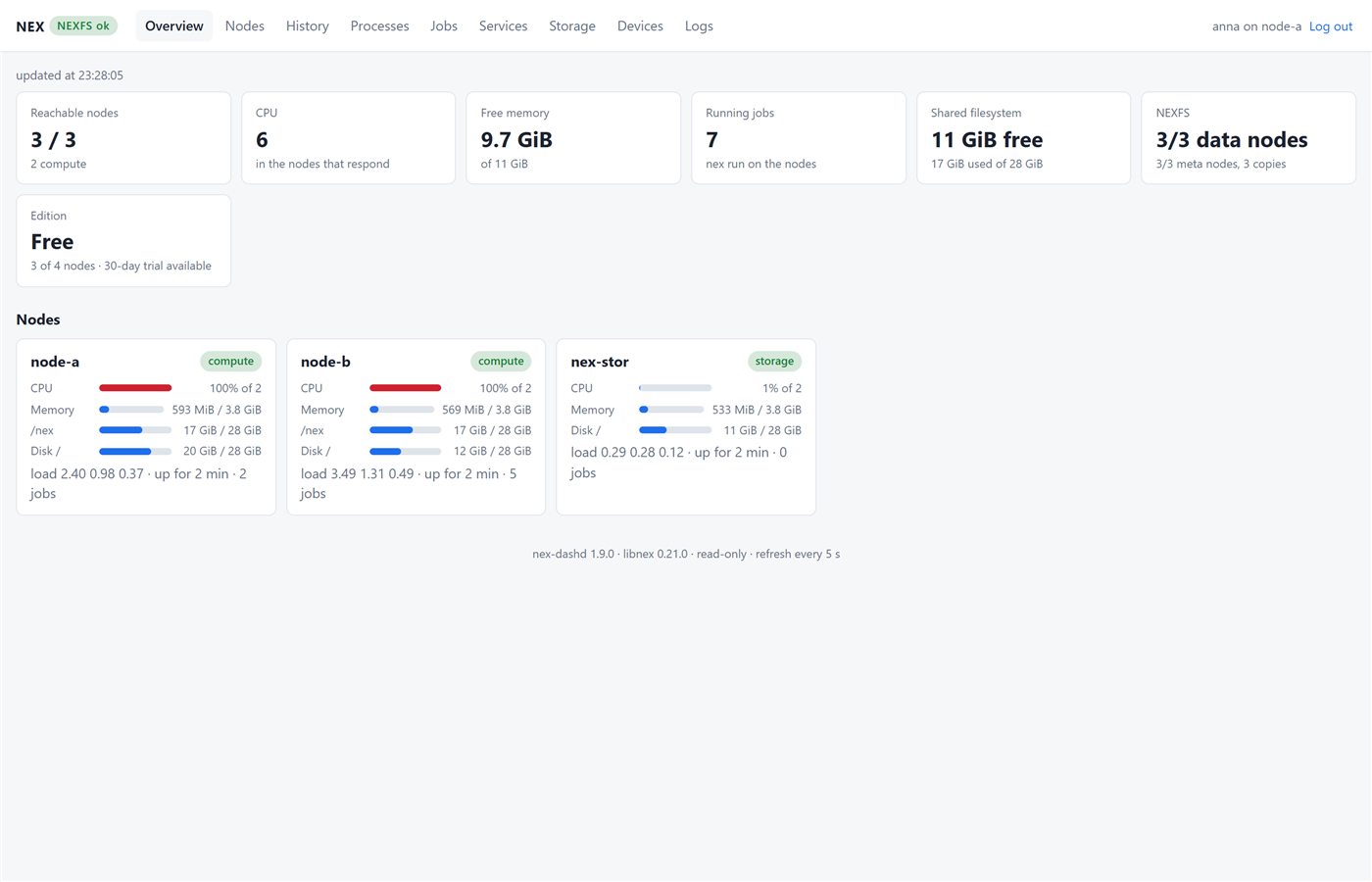
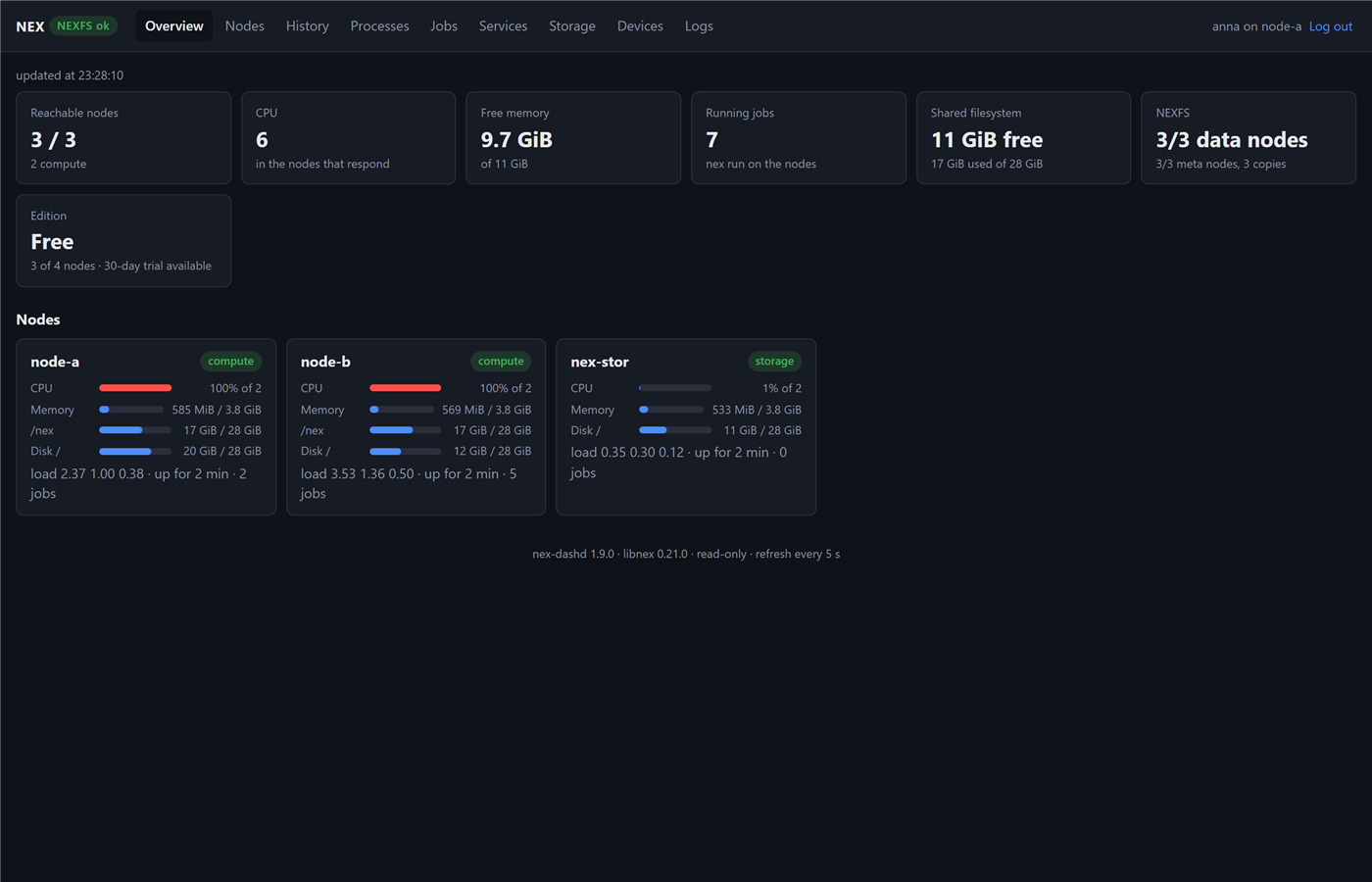
Overview: reachable nodes, CPUs, free memory, running jobs, the shared filesystem and the state of NEXFS, then one card per node.
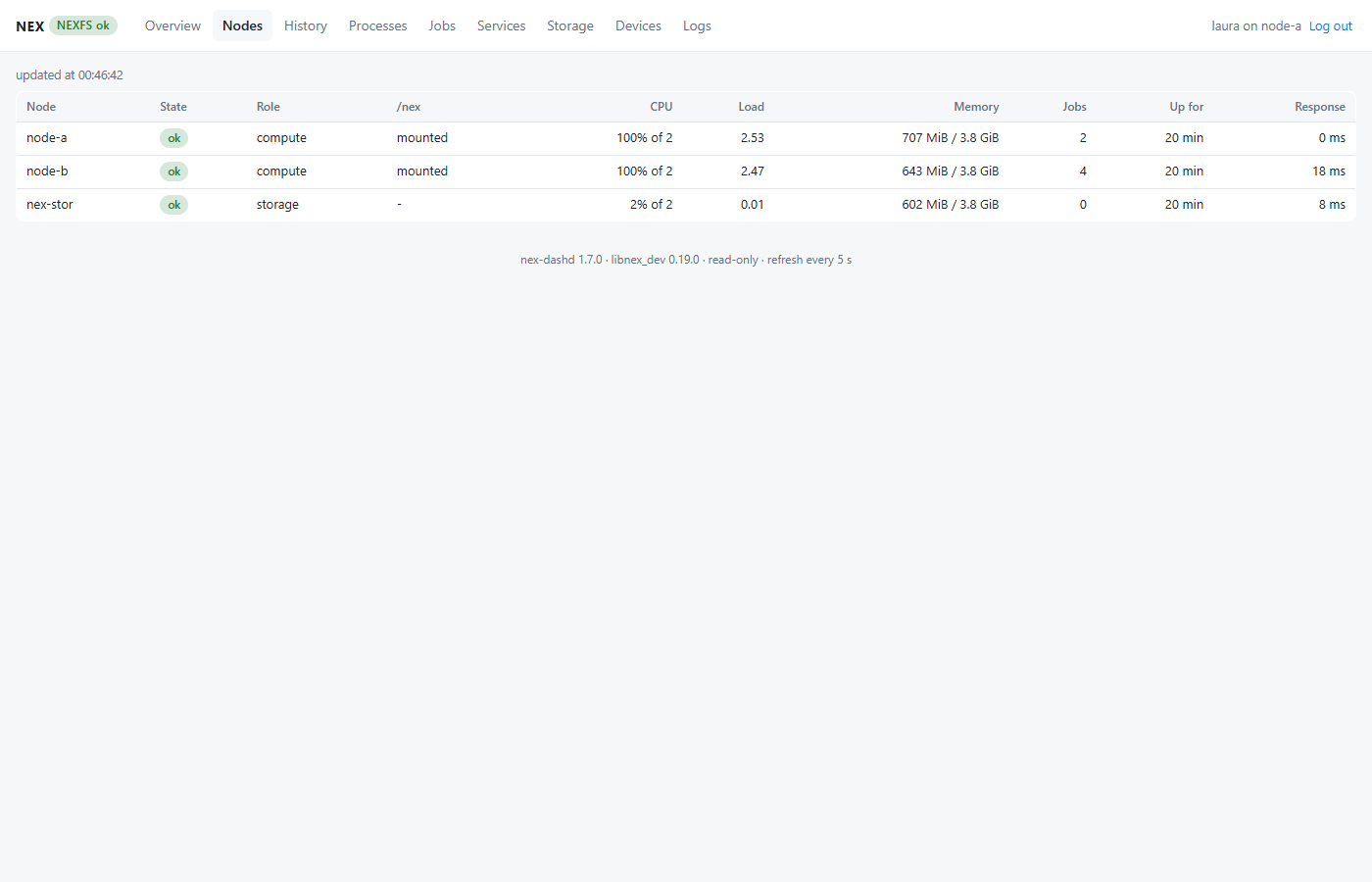
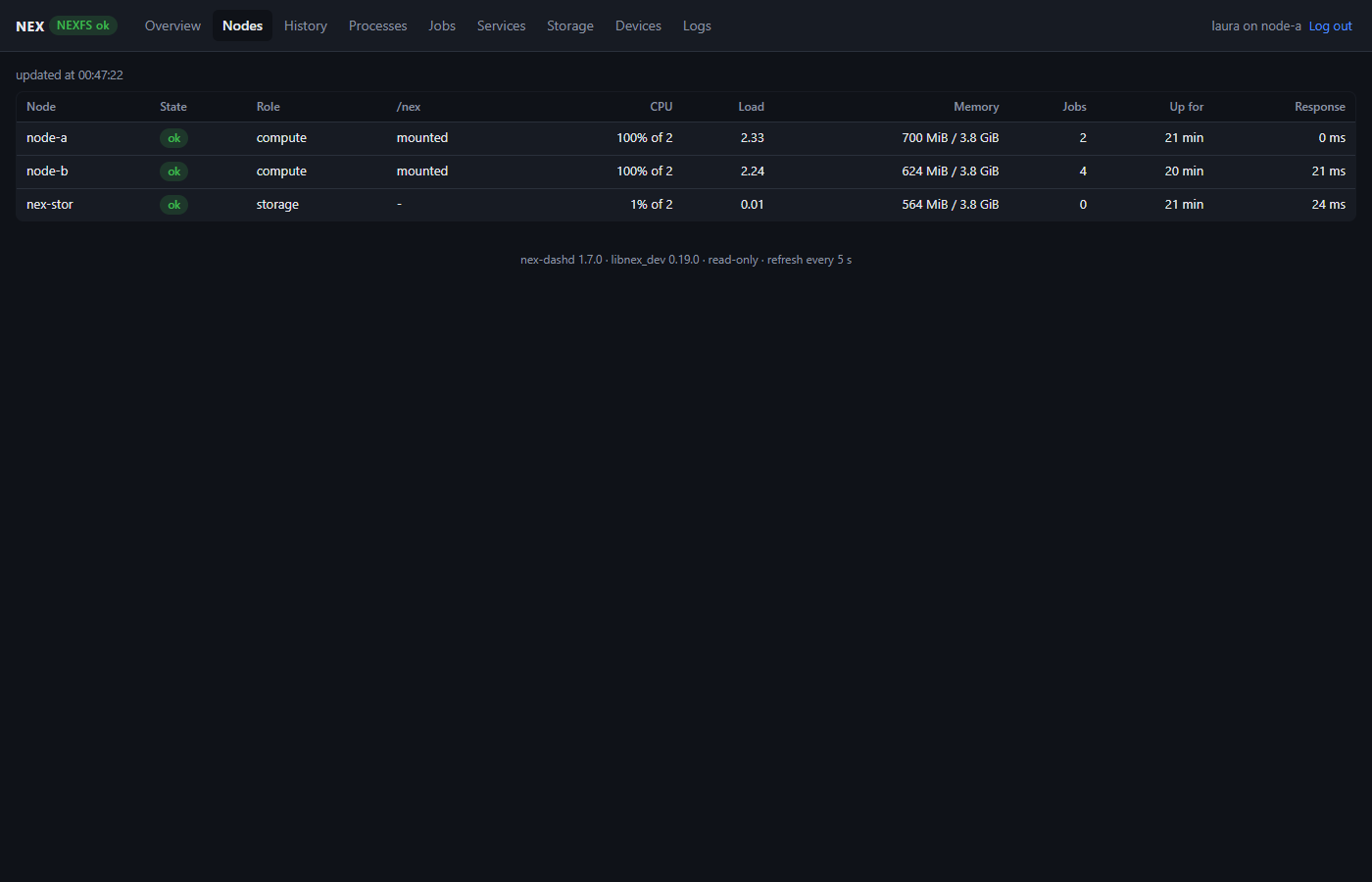
Nodes: role, /nex mount, CPU, load, memory, jobs and response time of
every node.
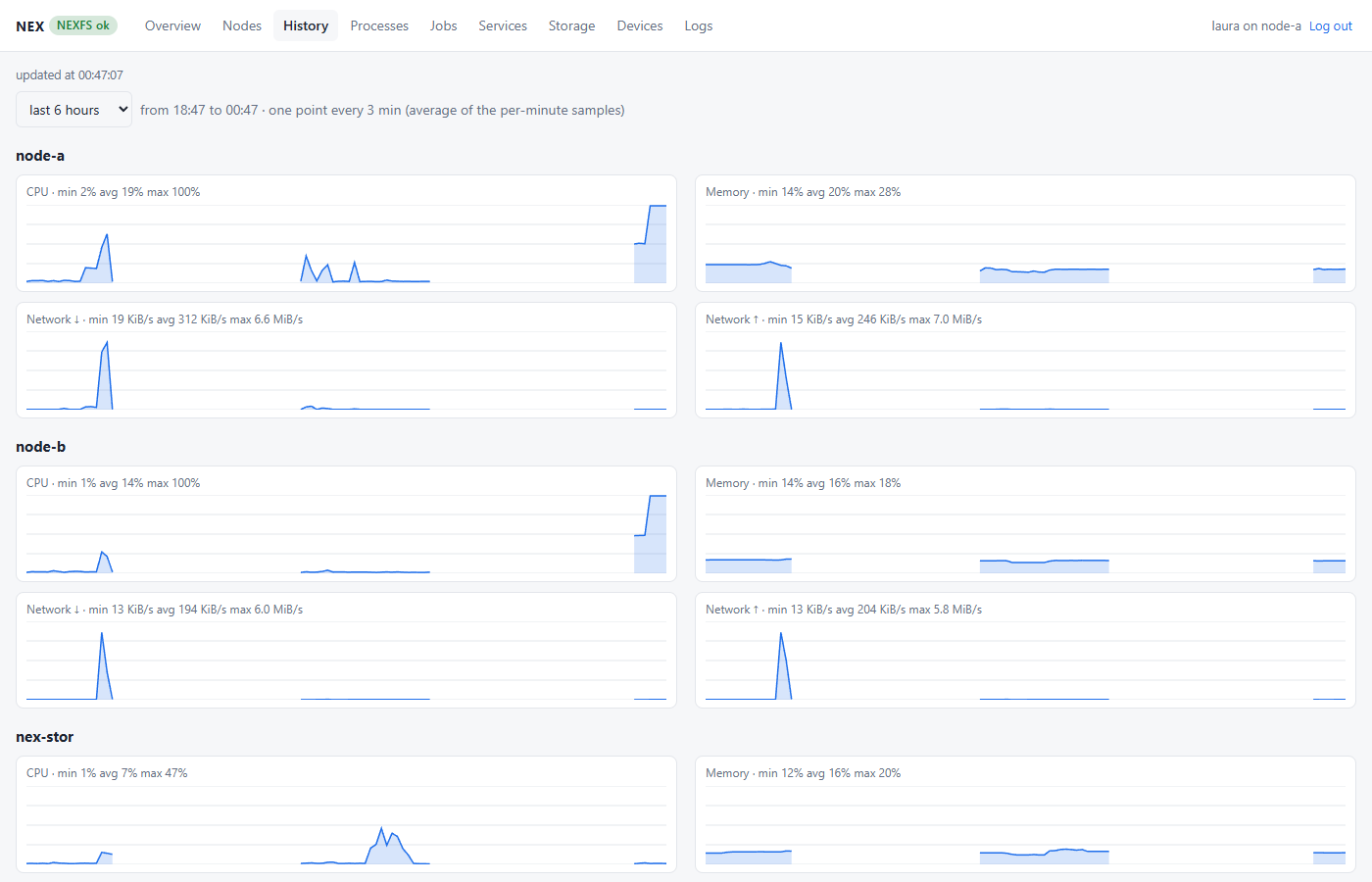
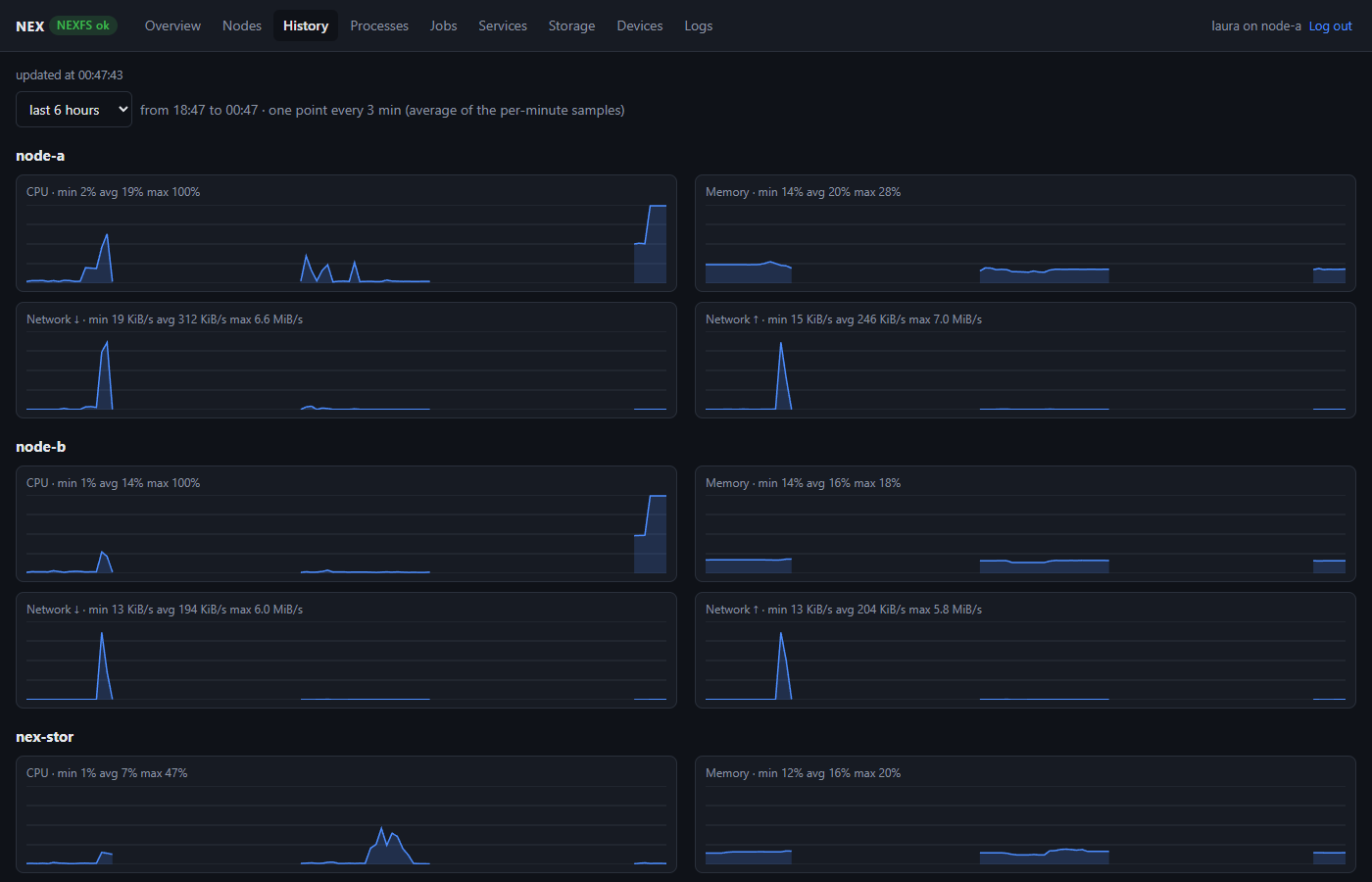
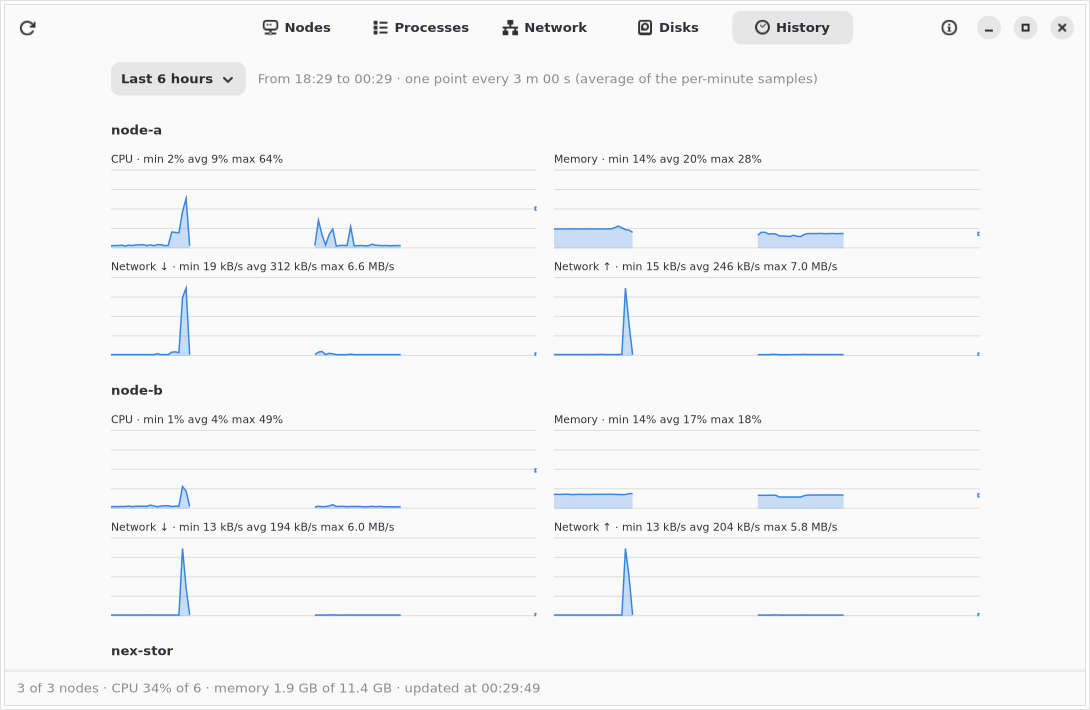
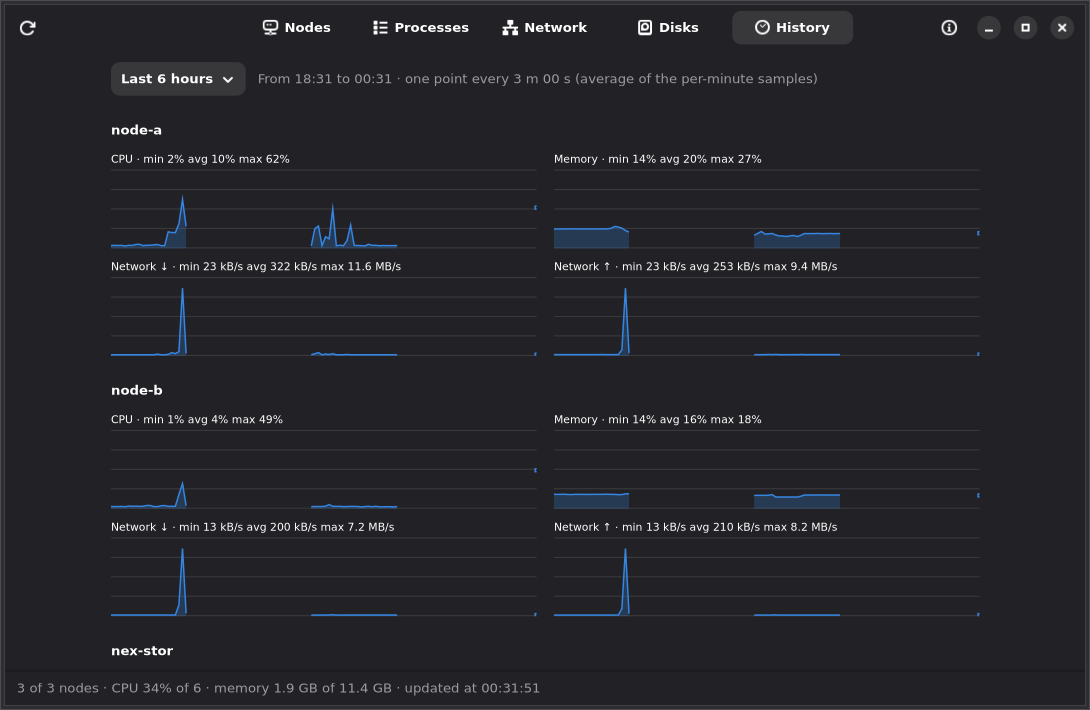
History: CPU, memory and network of each node over the last hours.
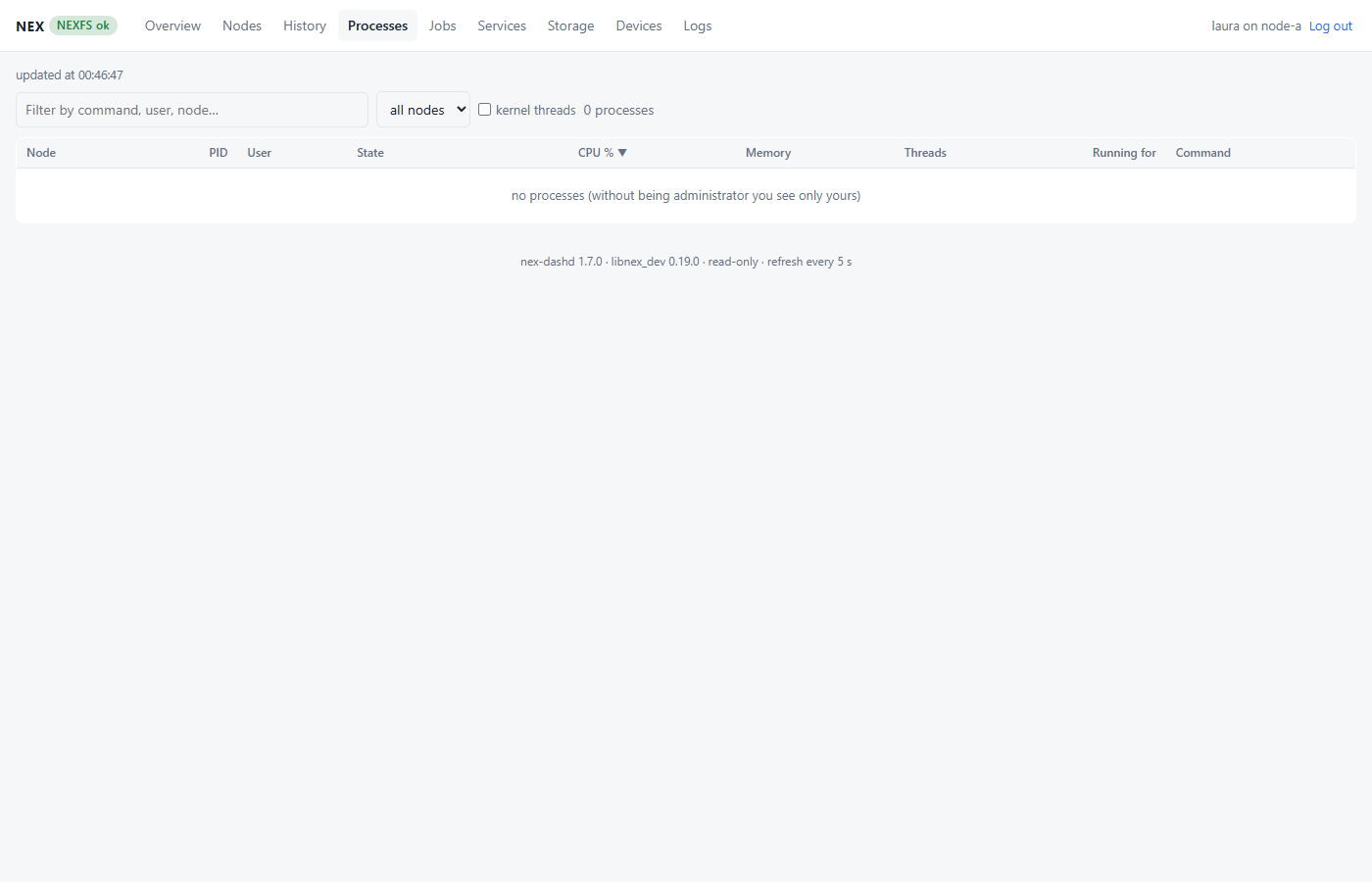
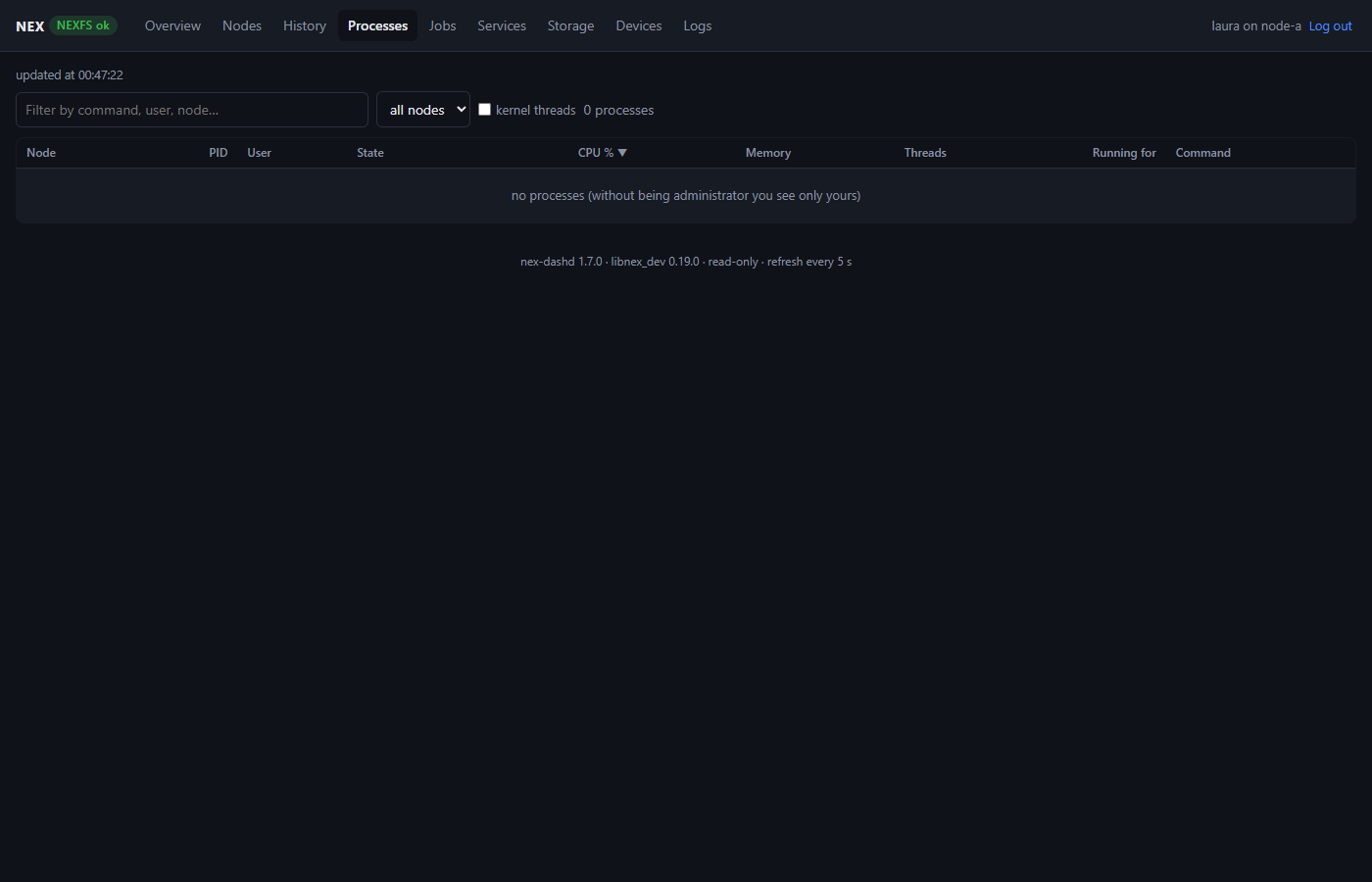
Processes: the processes of the whole cluster in one list, with filters by command, user and node.
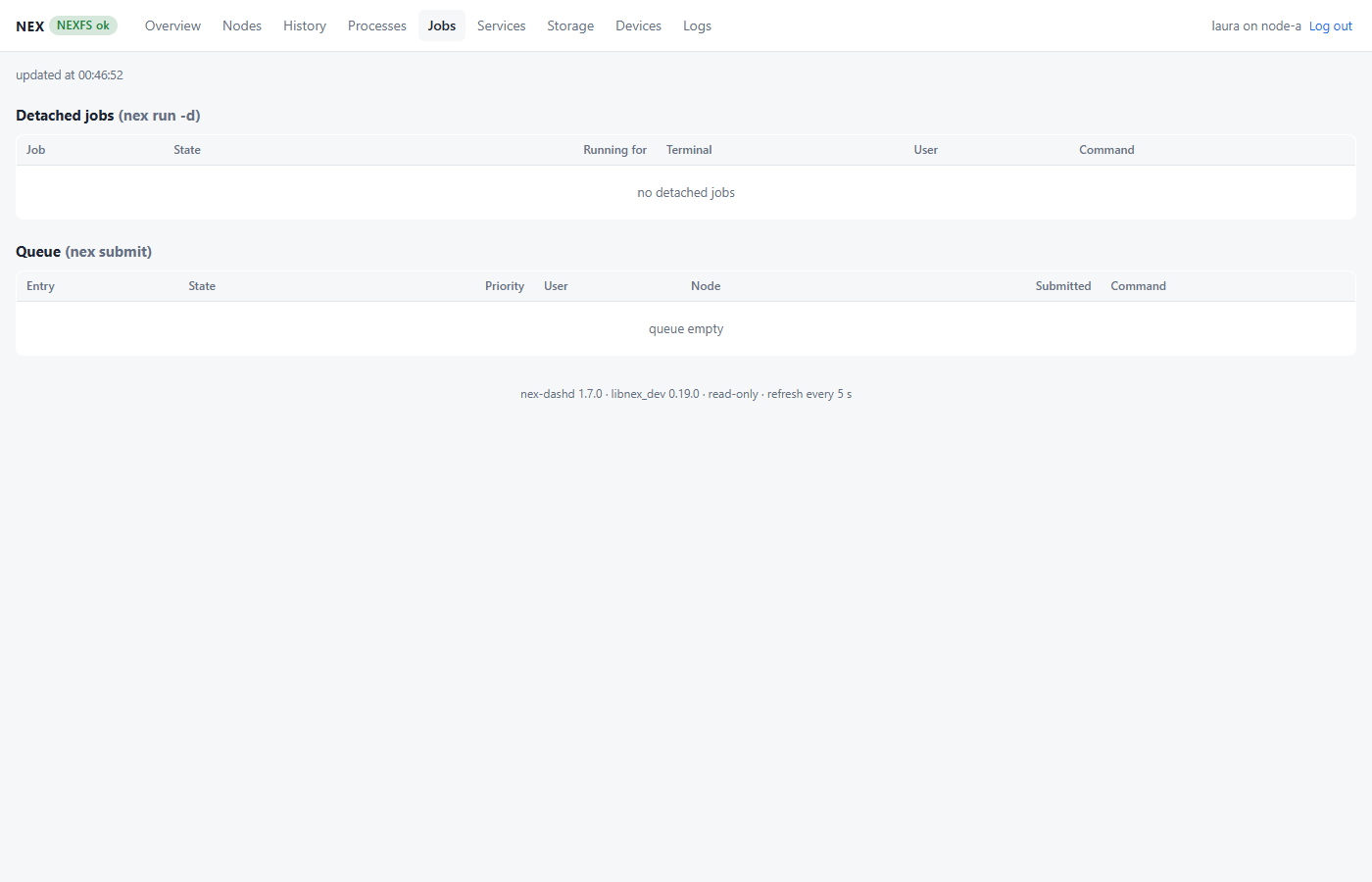
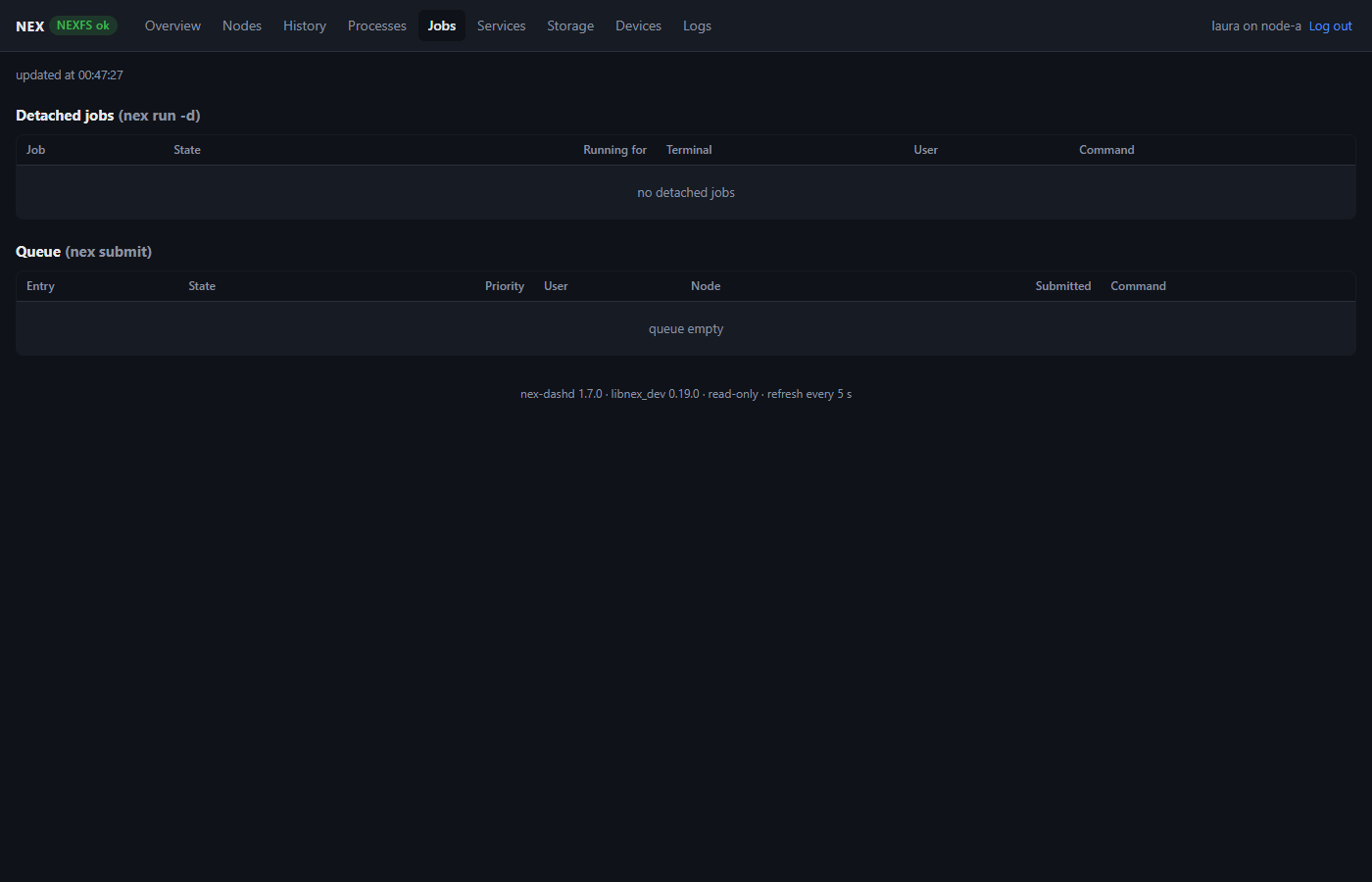
Jobs: the detached jobs (nex run -d) and the queue (nex submit).
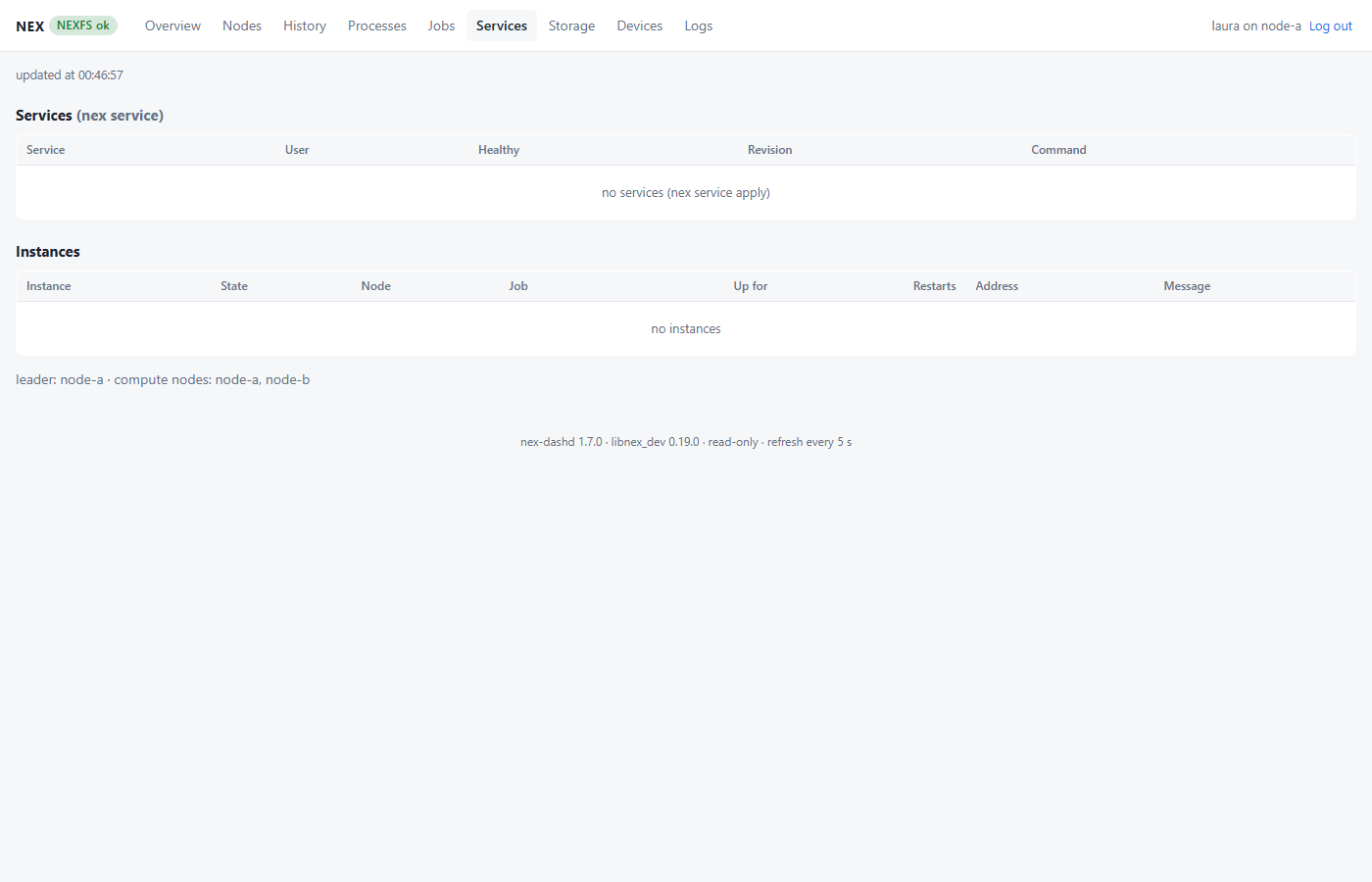
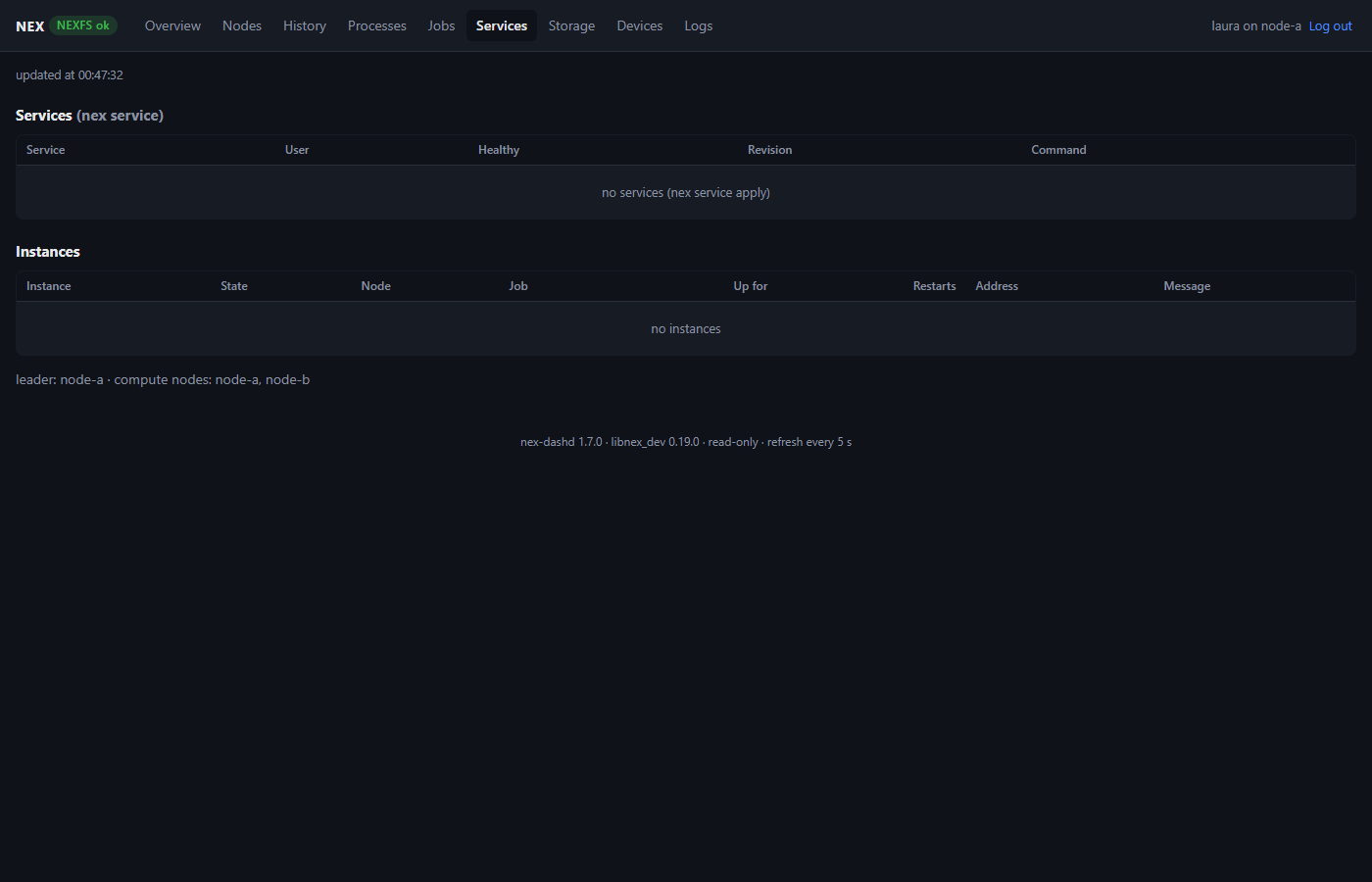
Services: the services started with nex service, their health checks
and their instances on the nodes.
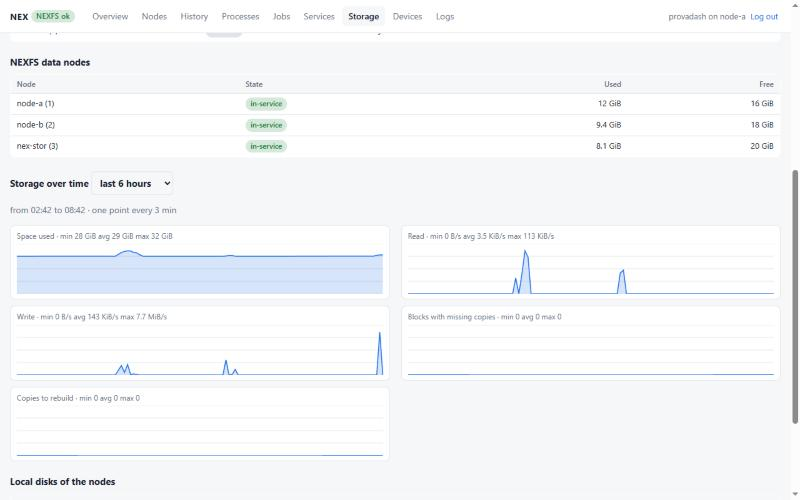
Storage: the NEXFS console. Health, metadata and data nodes, blocks, space, state level and warnings.
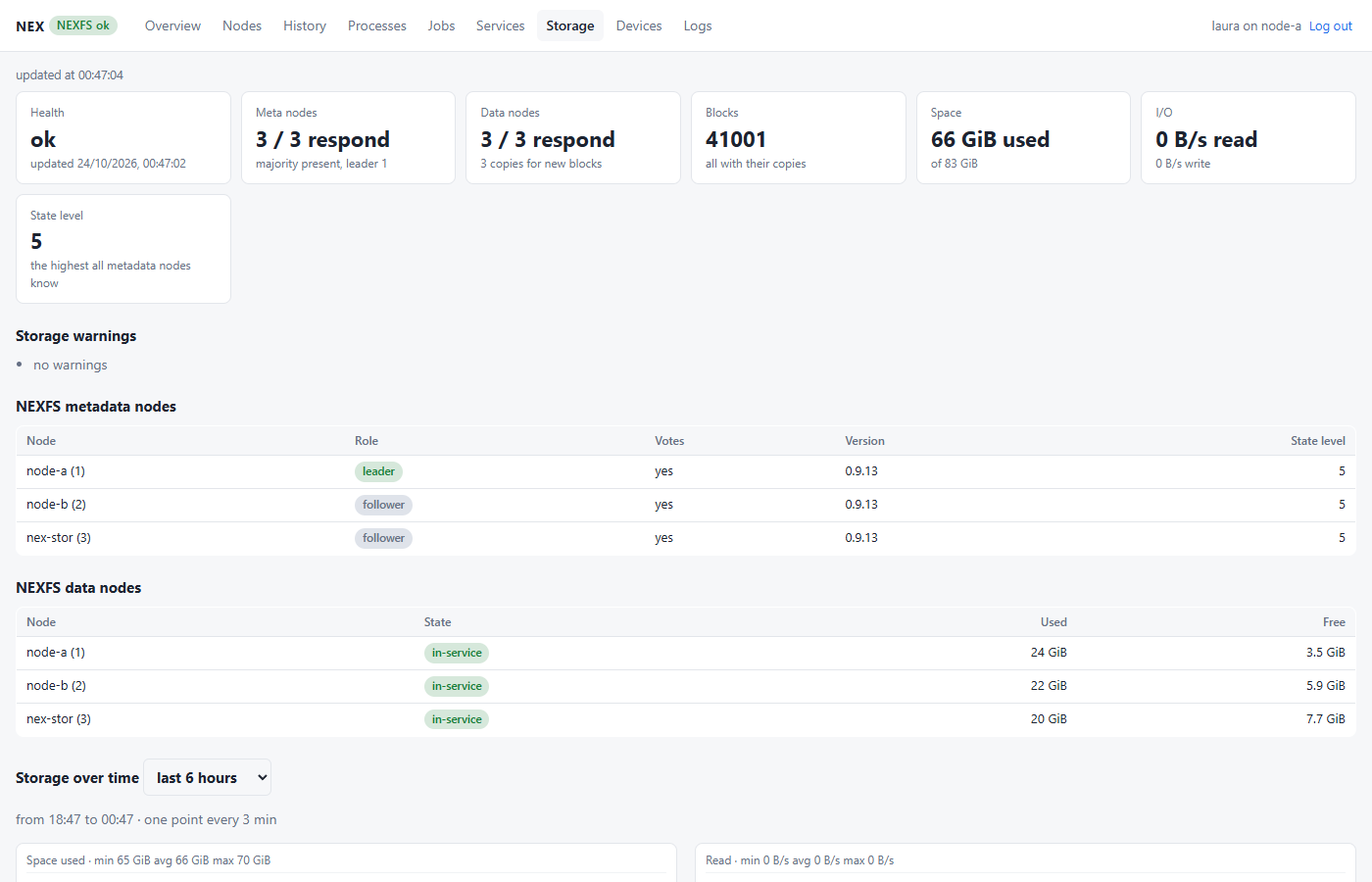
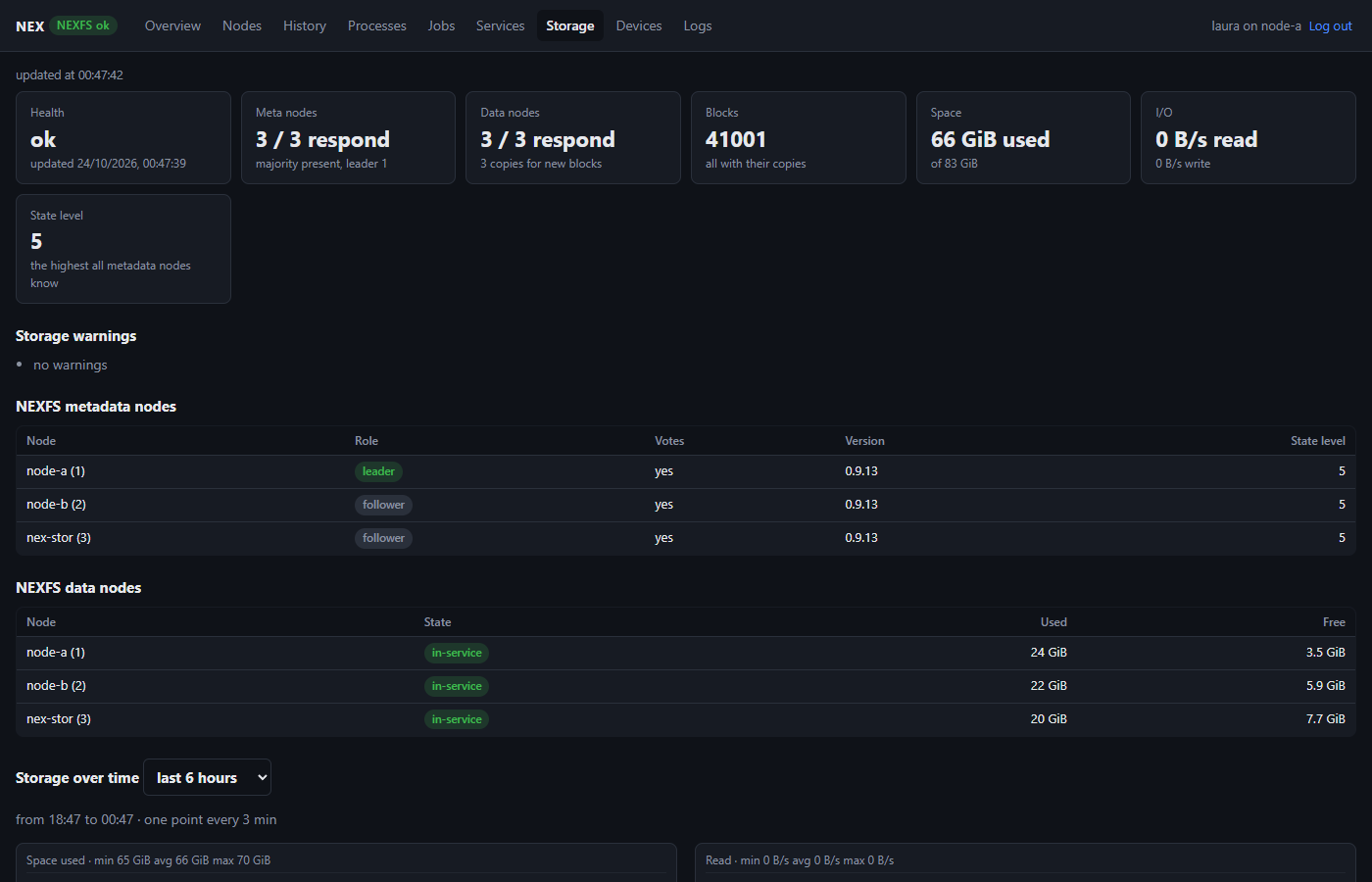
Lower on the same page, the storage over time: space used, reads, writes and any block waiting for its copies.
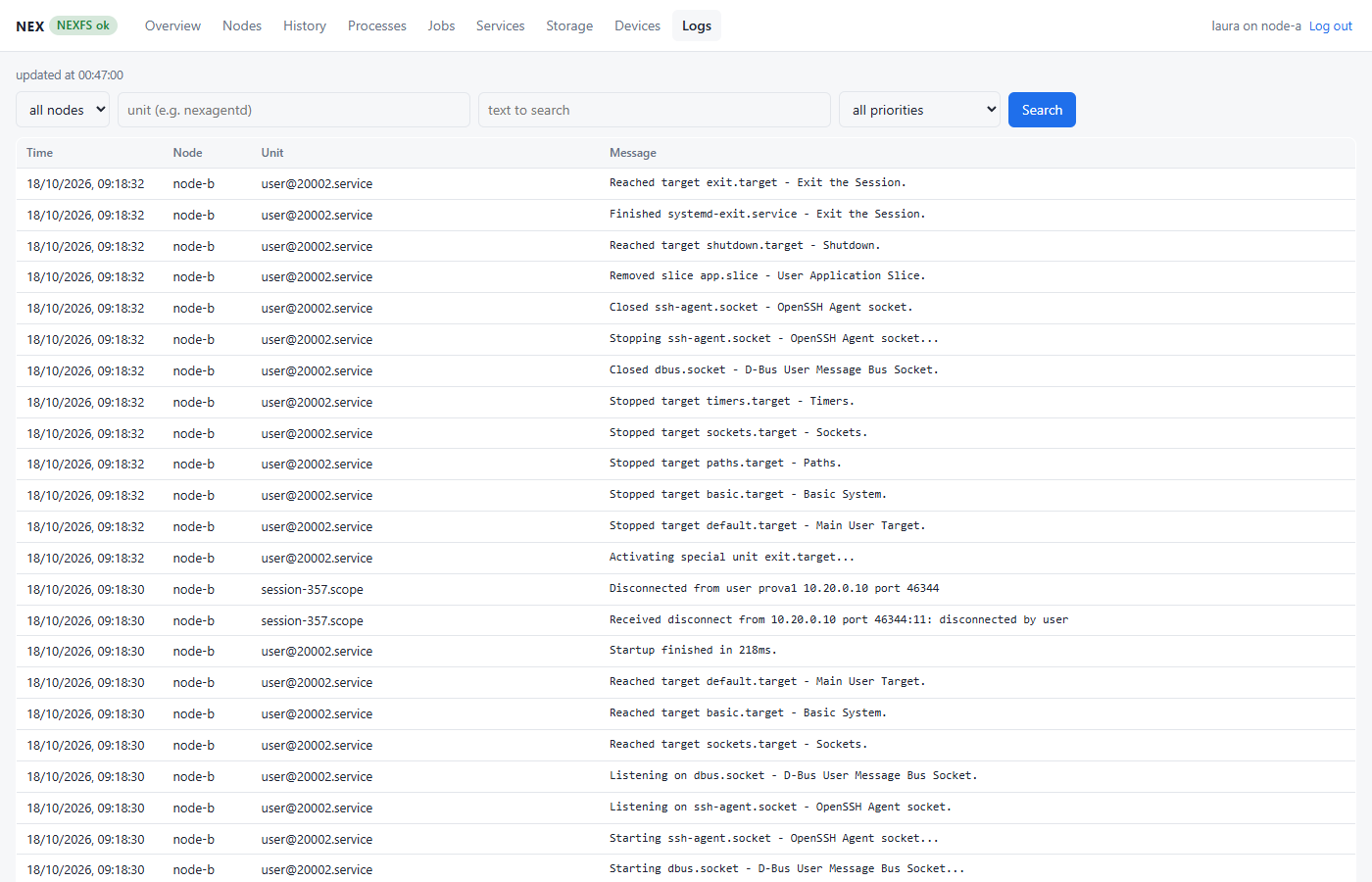
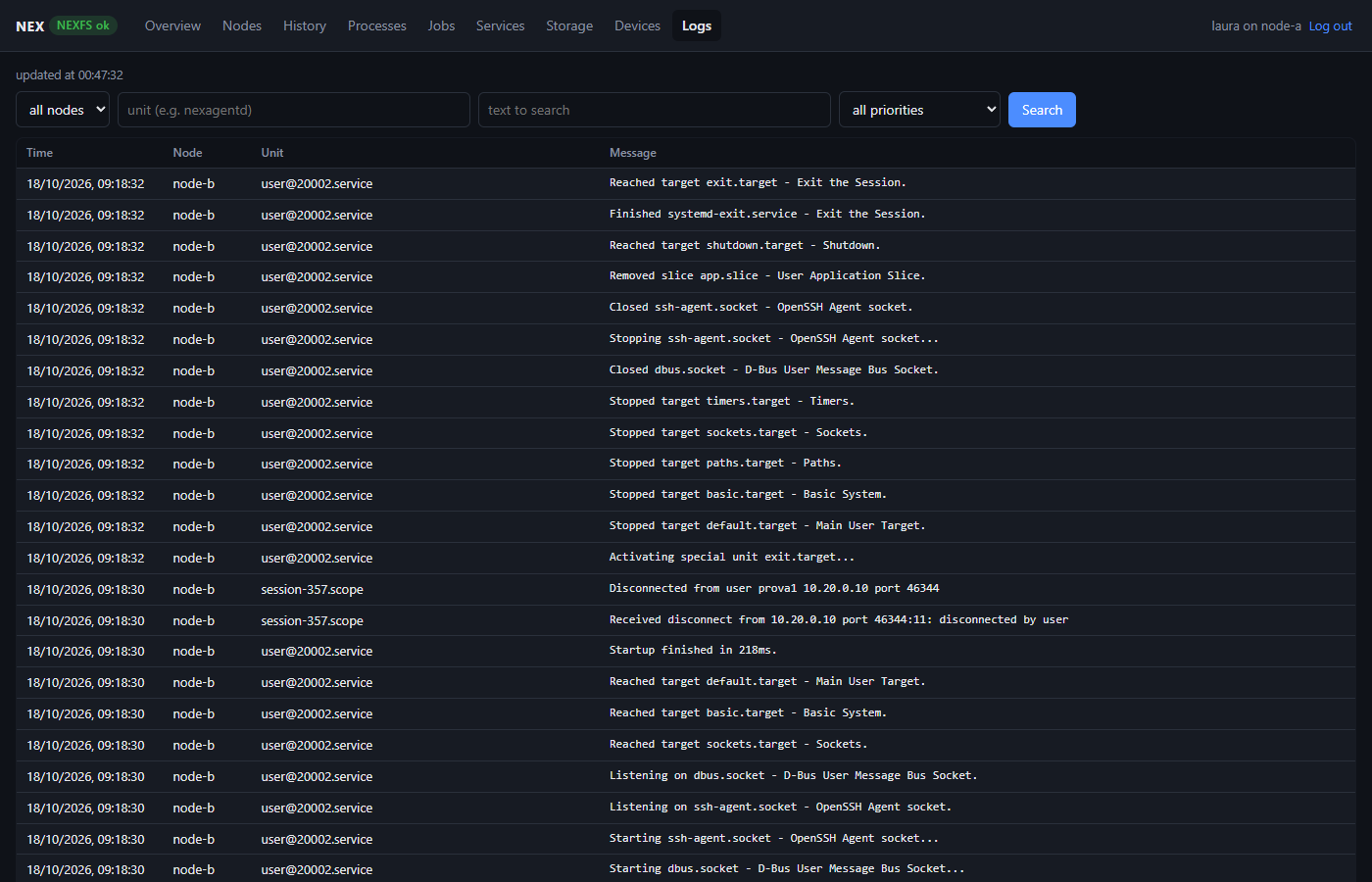
Logs: the system journal of all nodes, searchable by node, unit, text and priority.
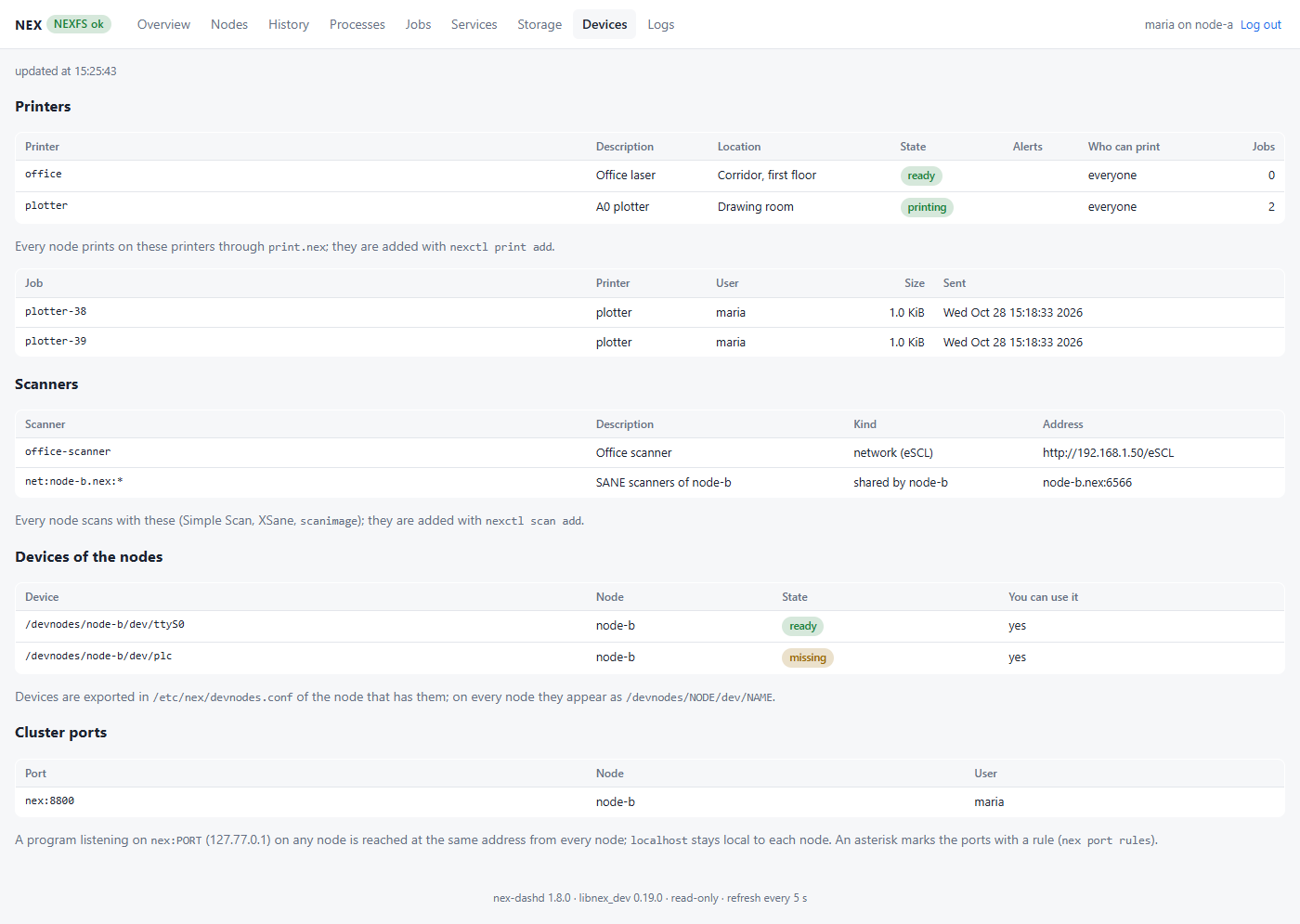
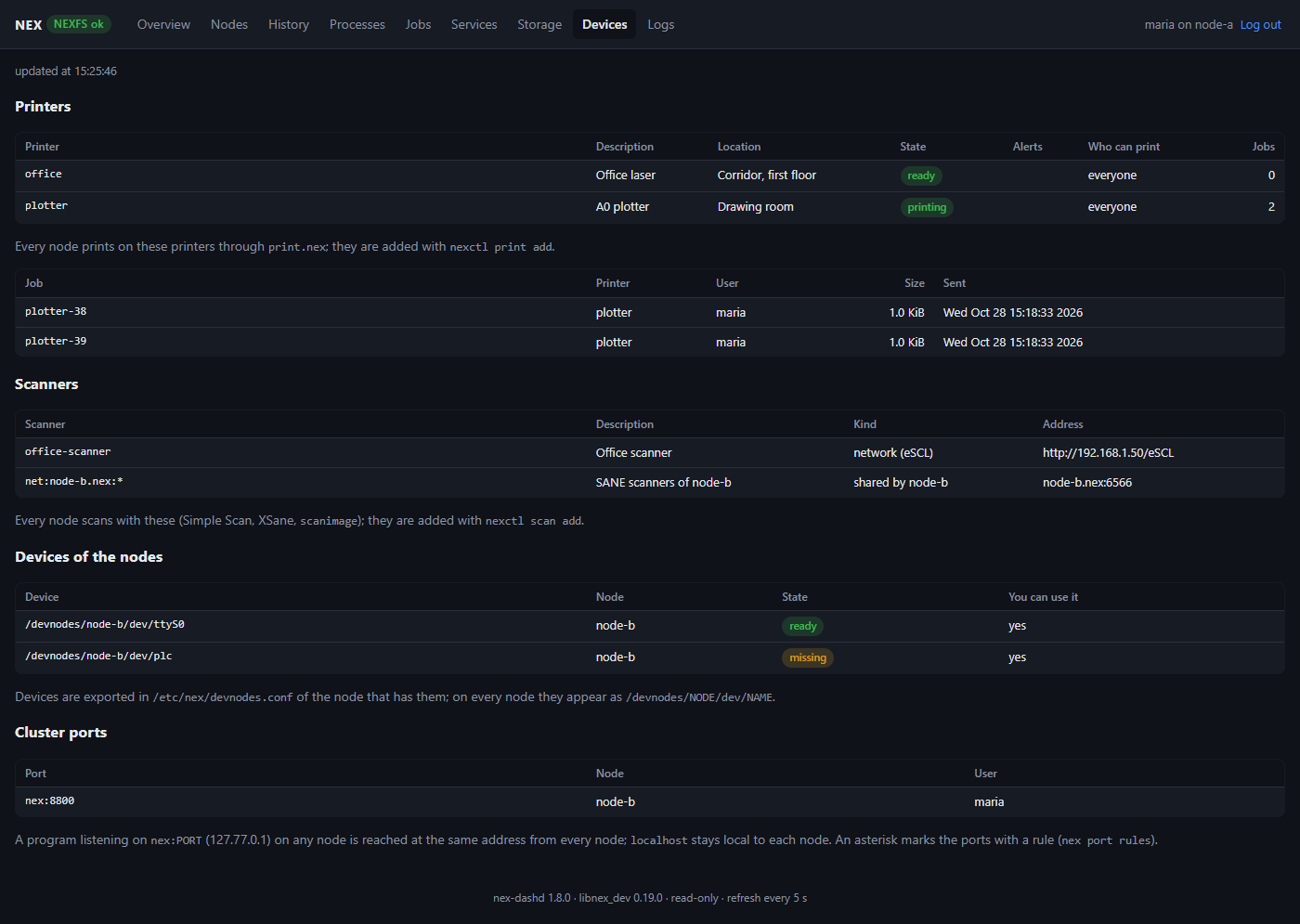
Devices: the printers of the cluster with their state and the jobs
waiting, the scanners, the devices that the nodes share in /devnodes
(serial ports, disks, USB, sockets) and the cluster ports.
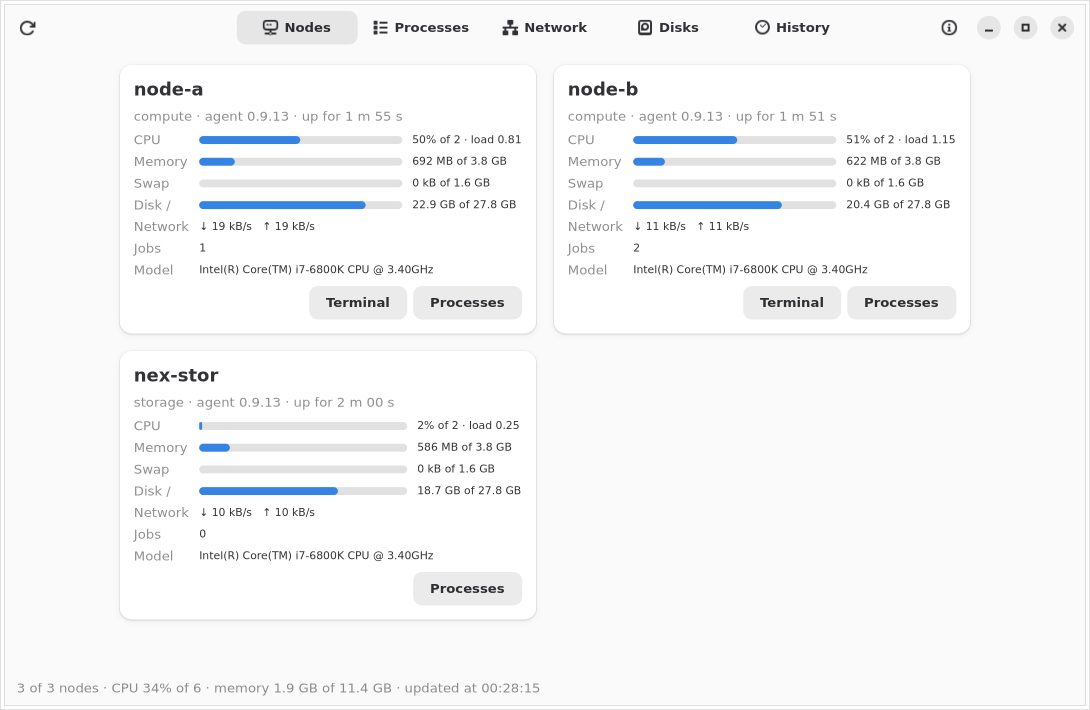
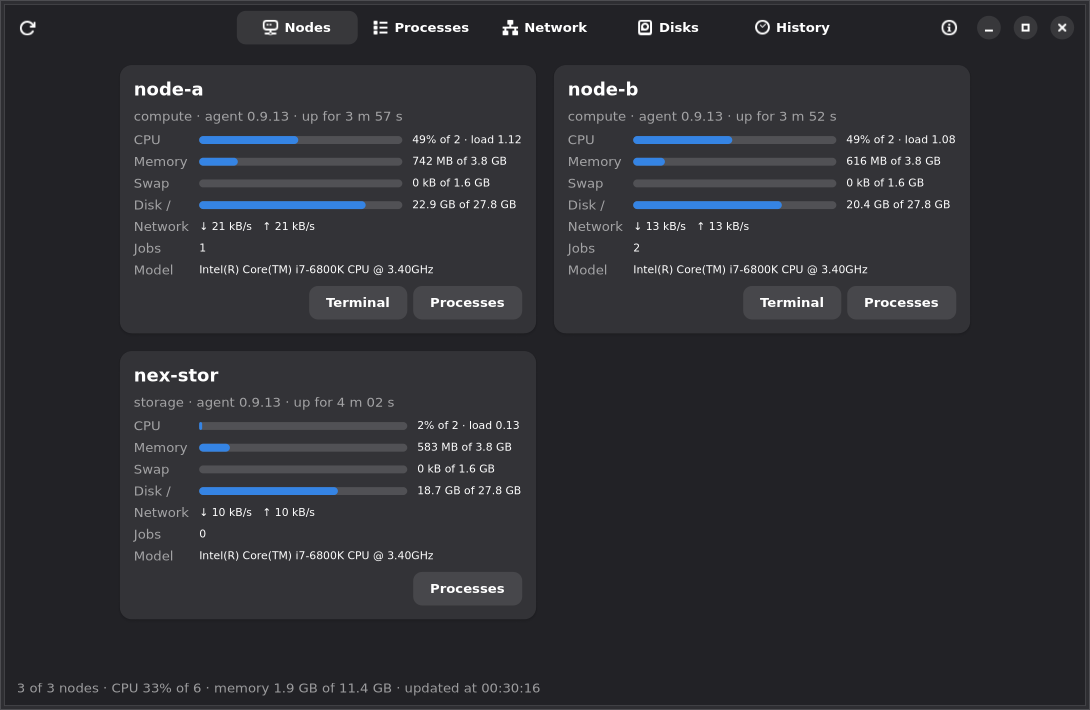
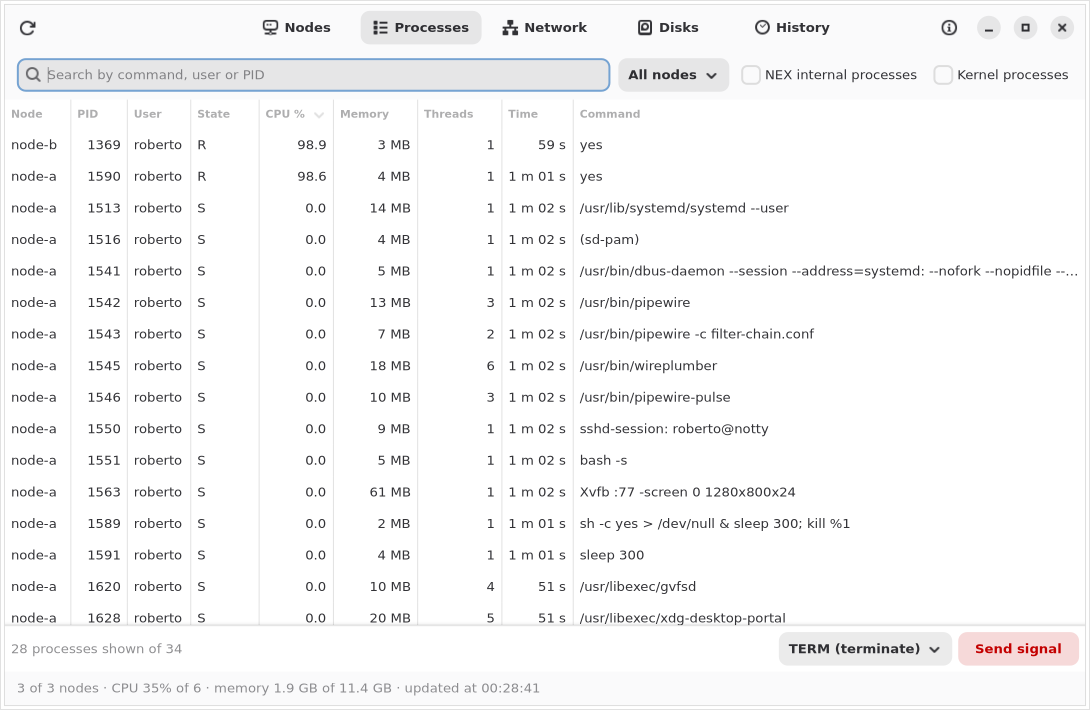
NEX Monitor
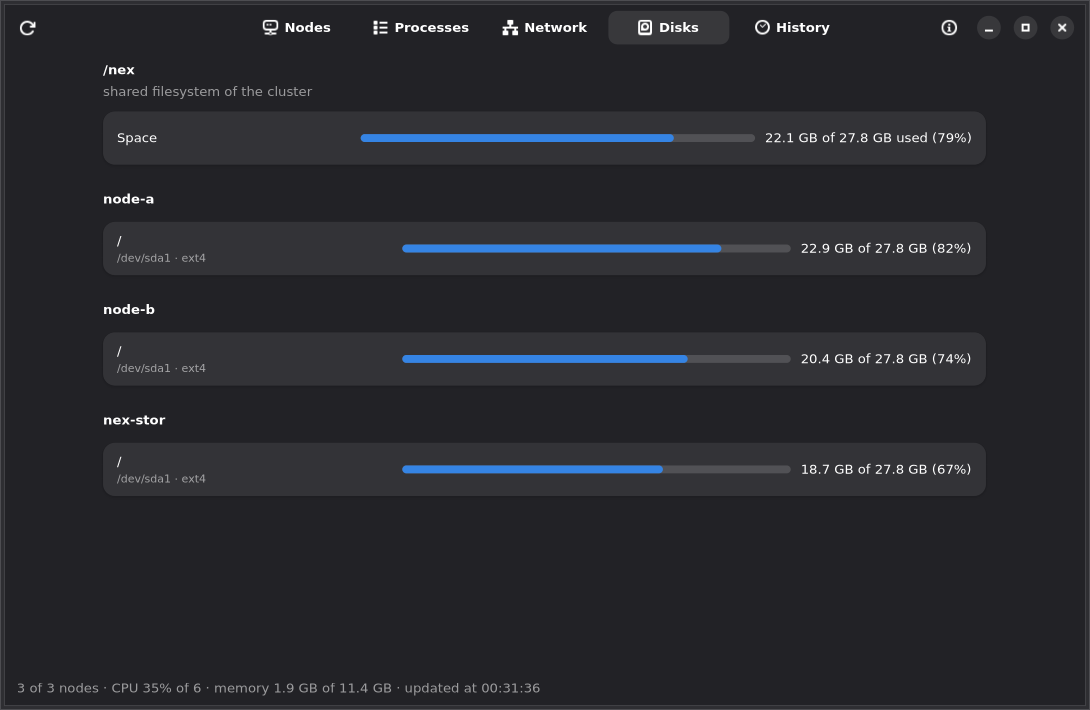
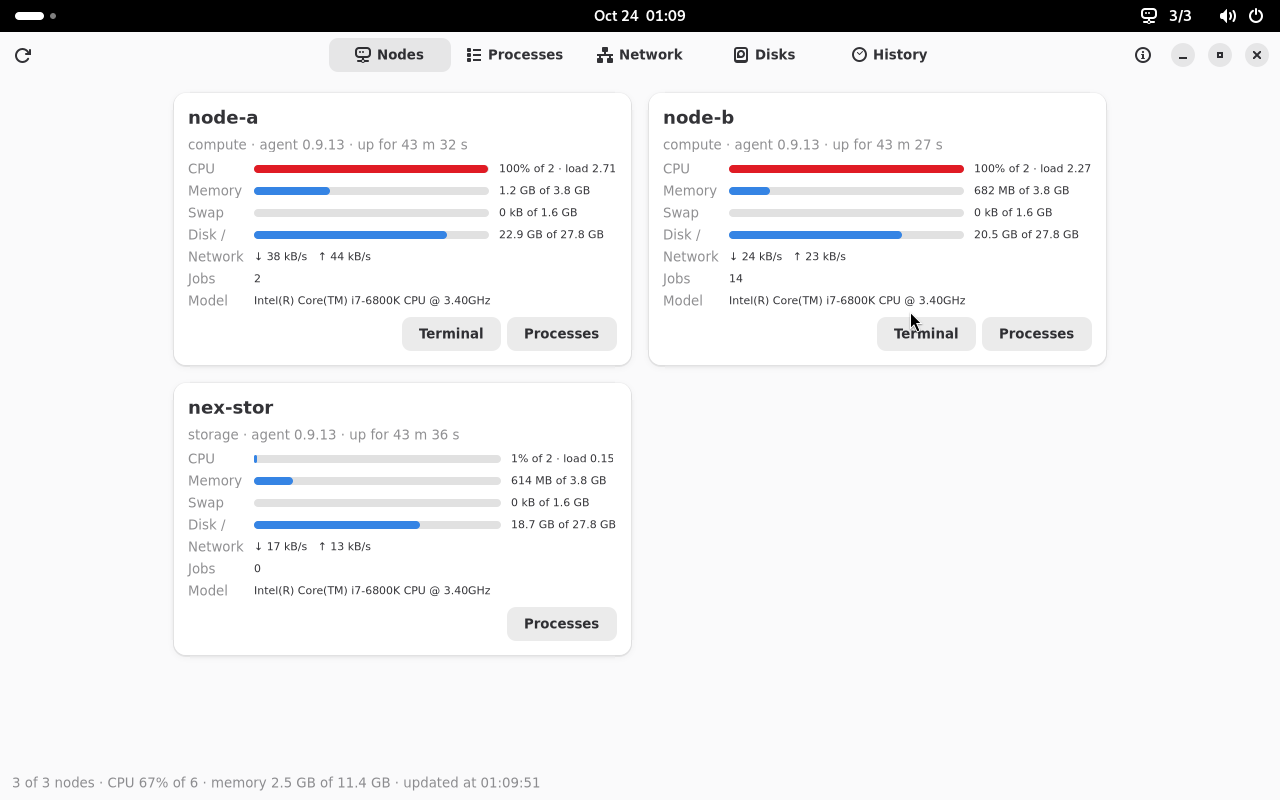
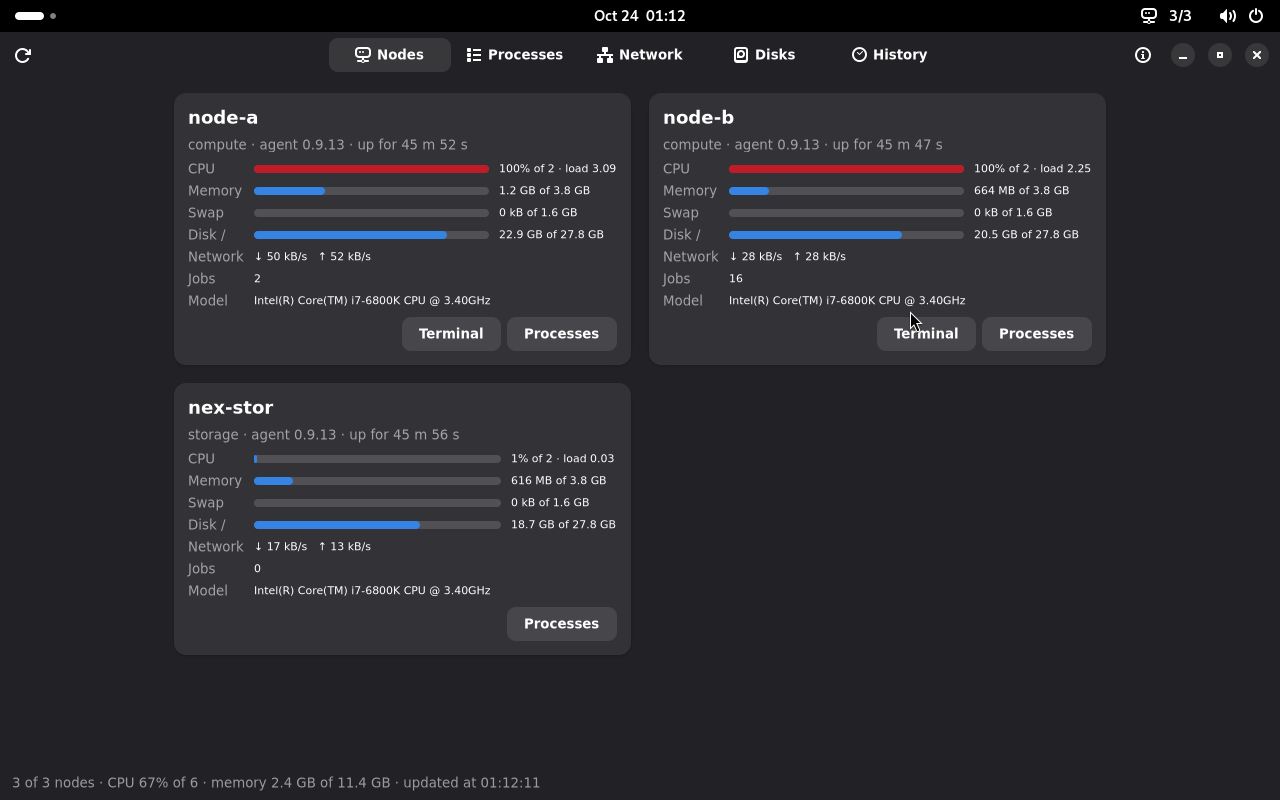
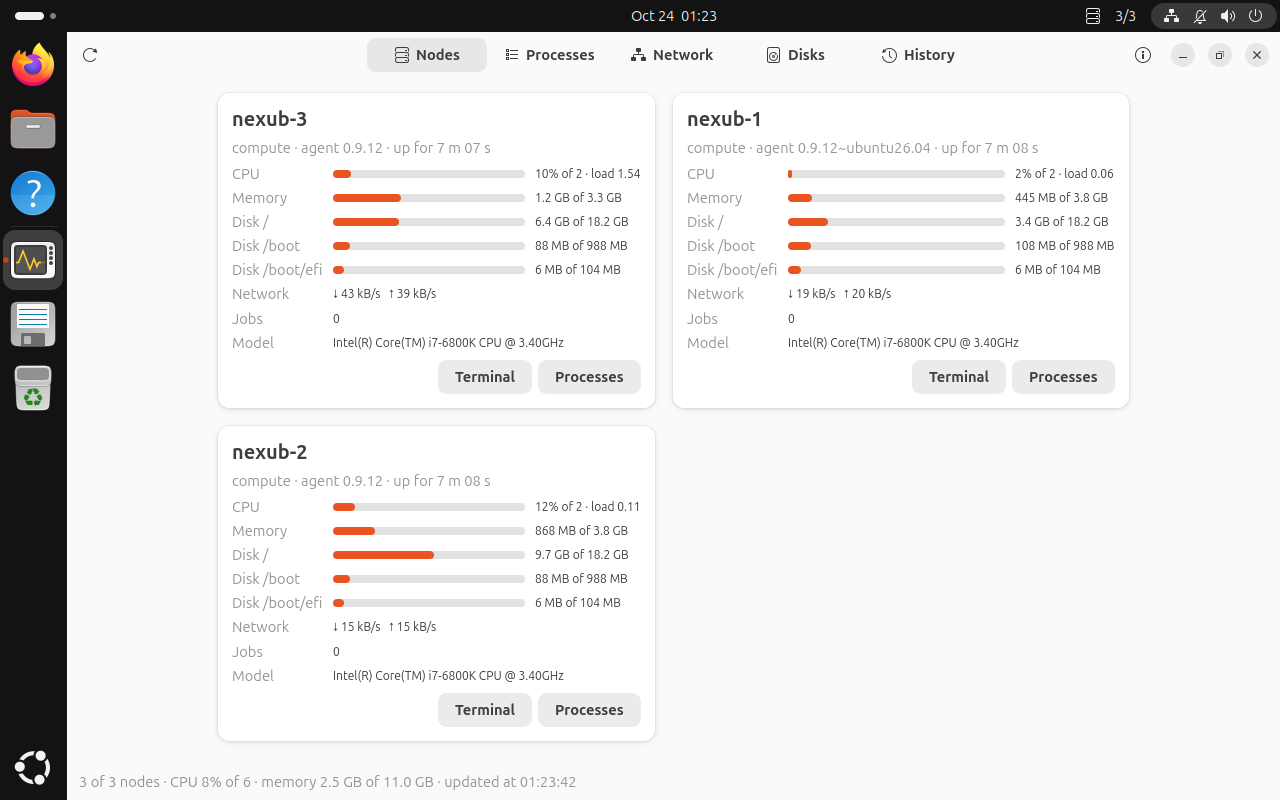
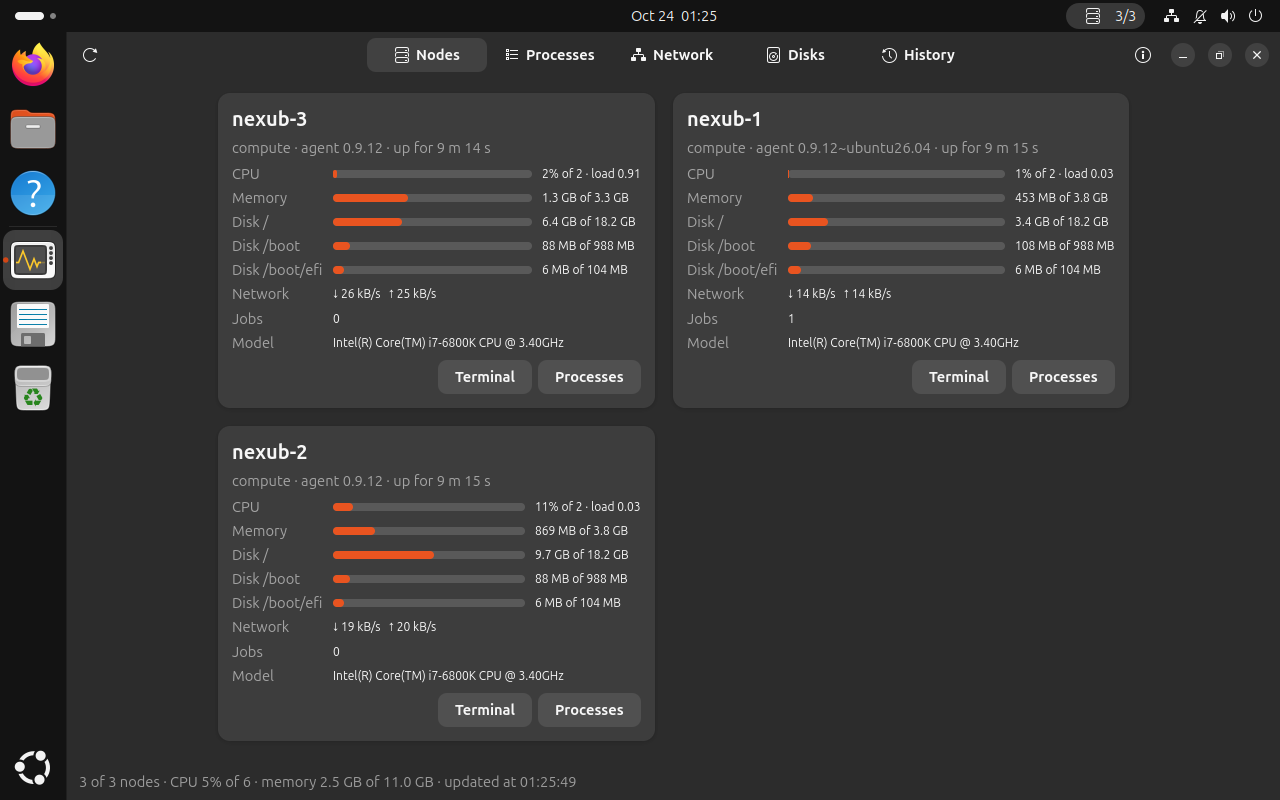
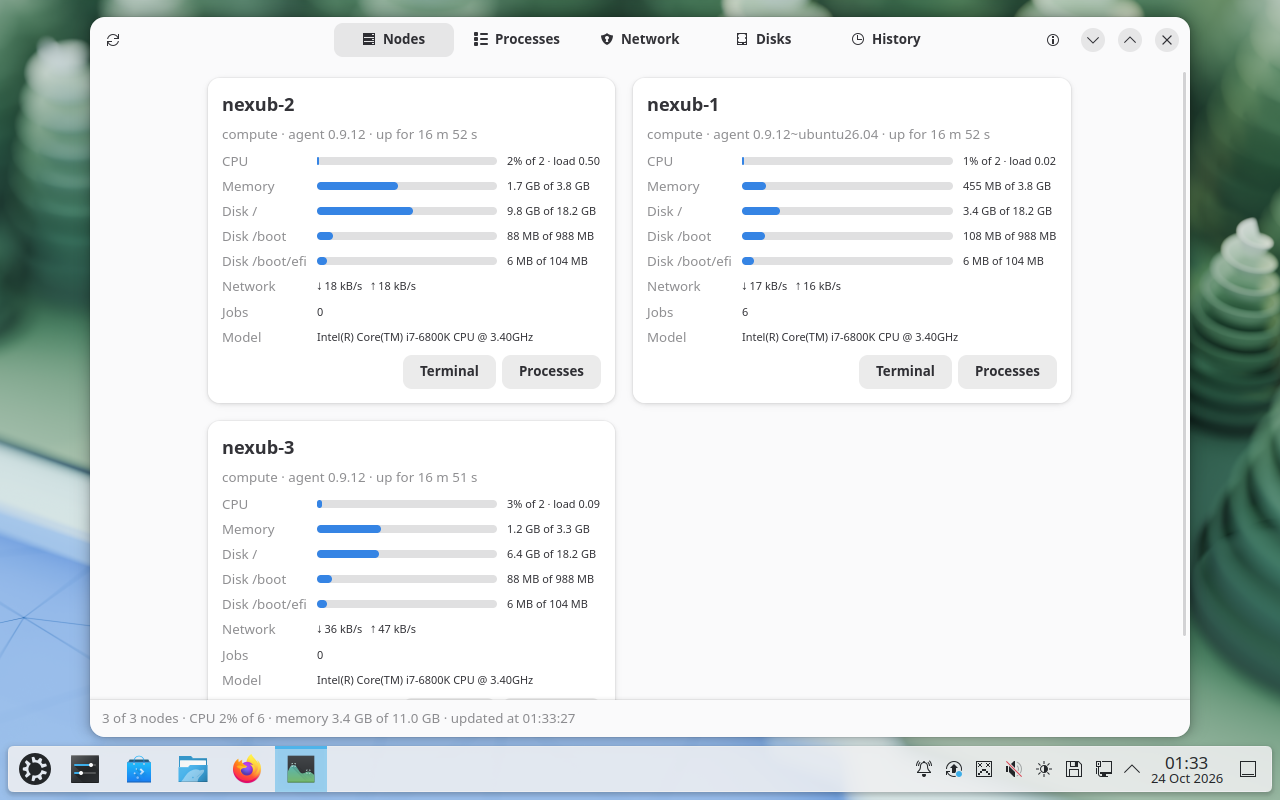
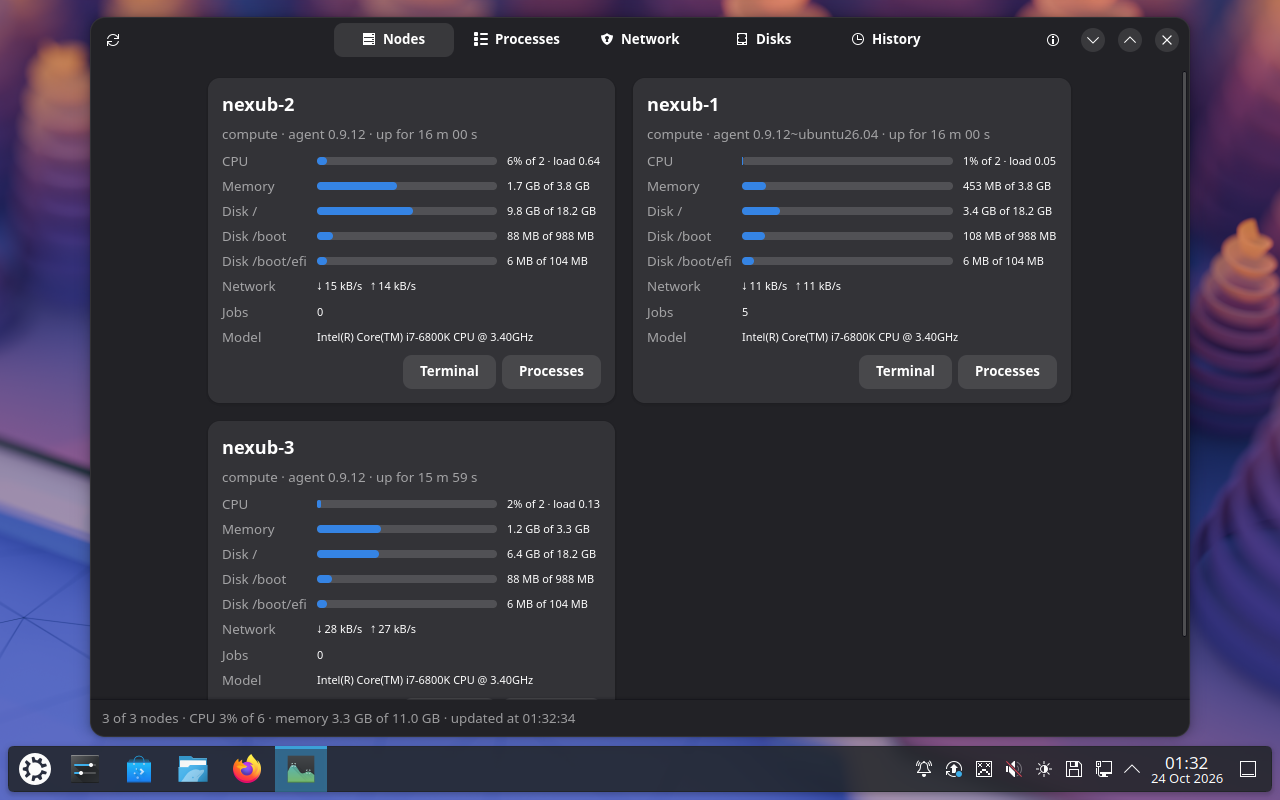
The desktop application for the cluster, in the style of GNOME System Monitor: every node, every process and every disk in one window. See the desktop guide.
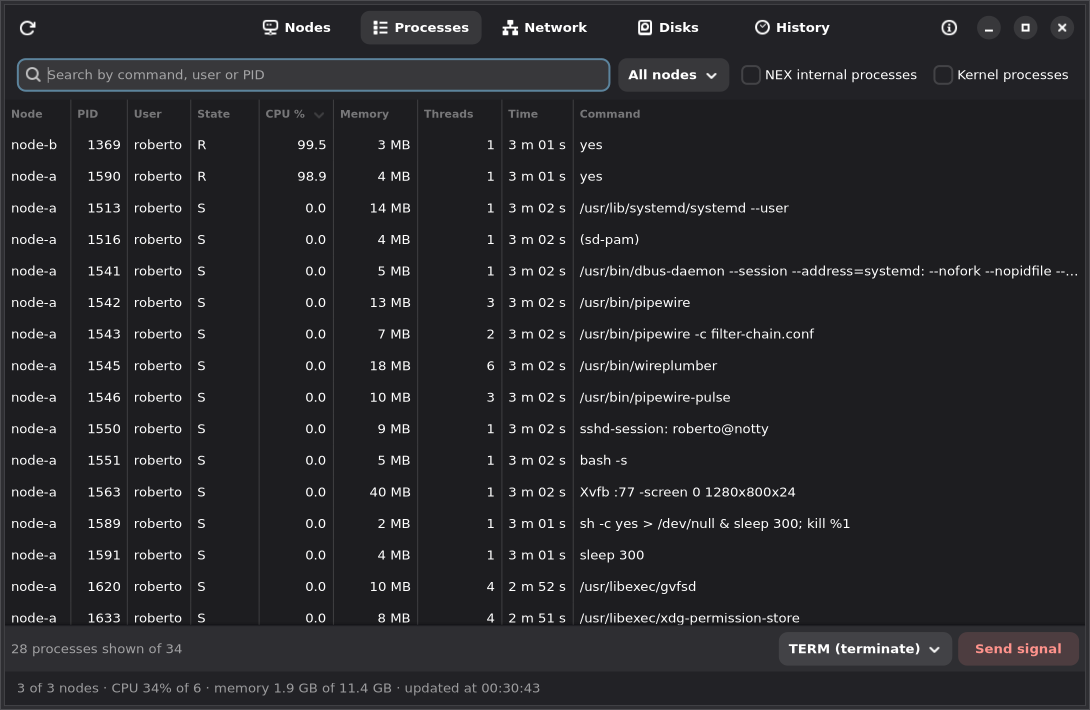
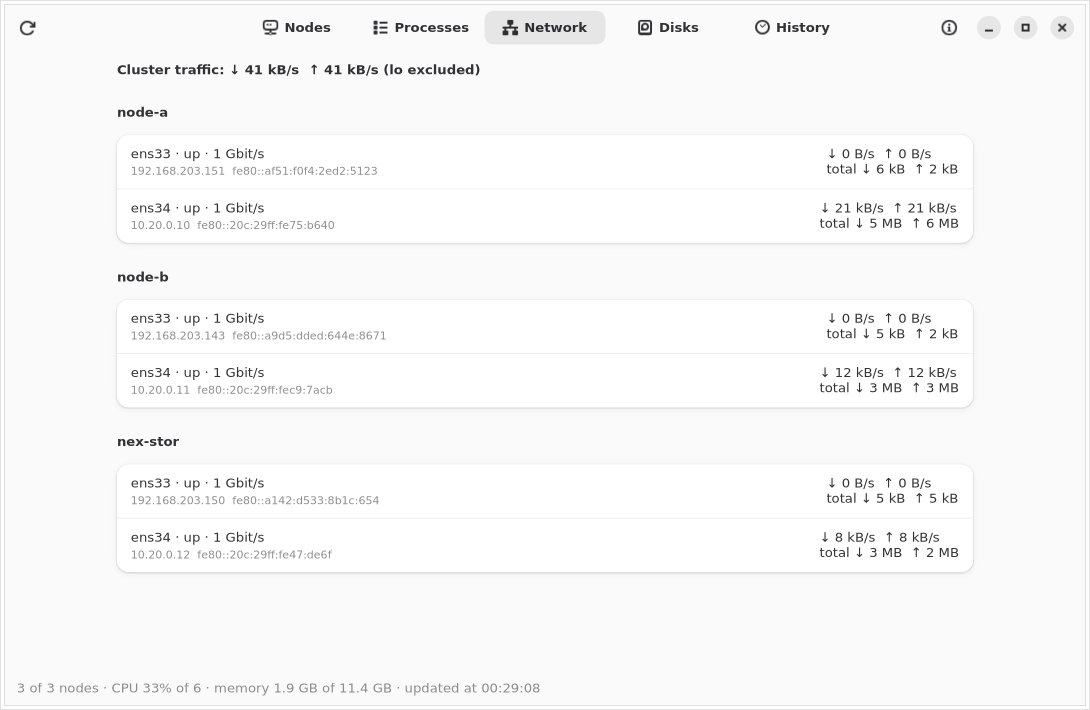
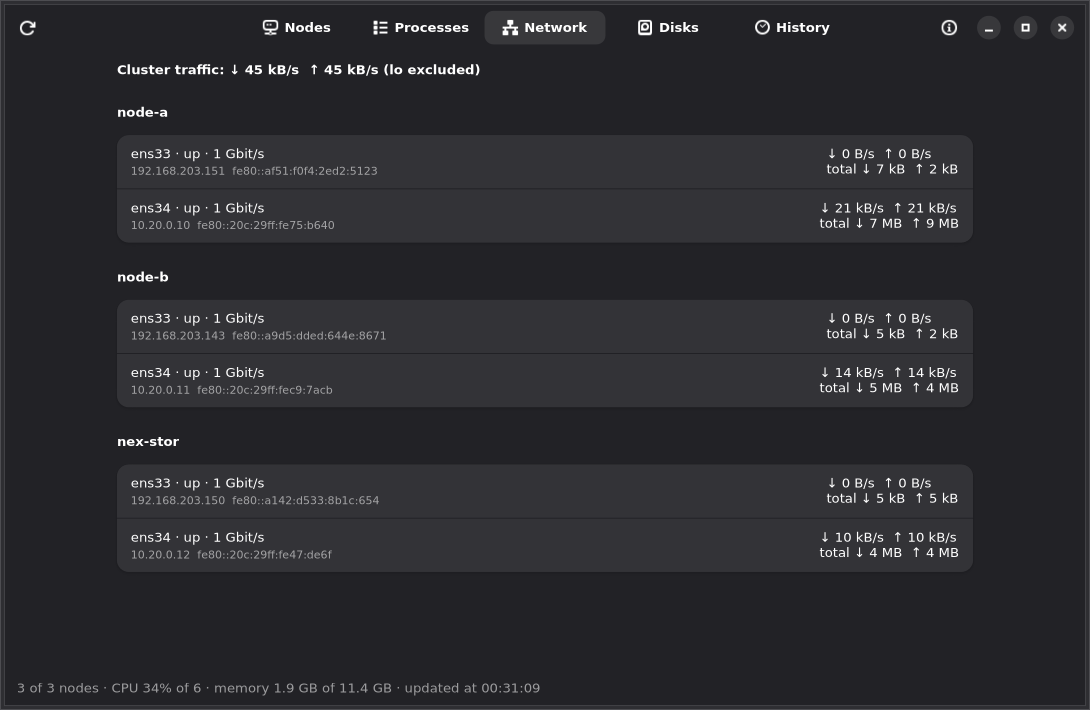
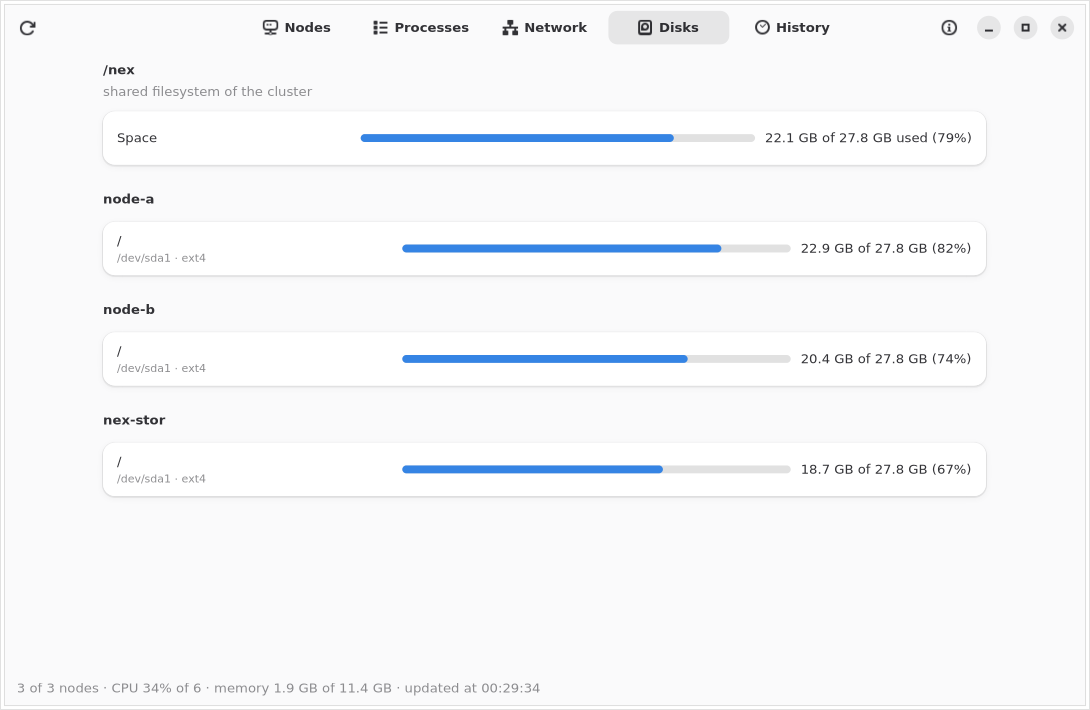
GNOME integration (Debian 13)
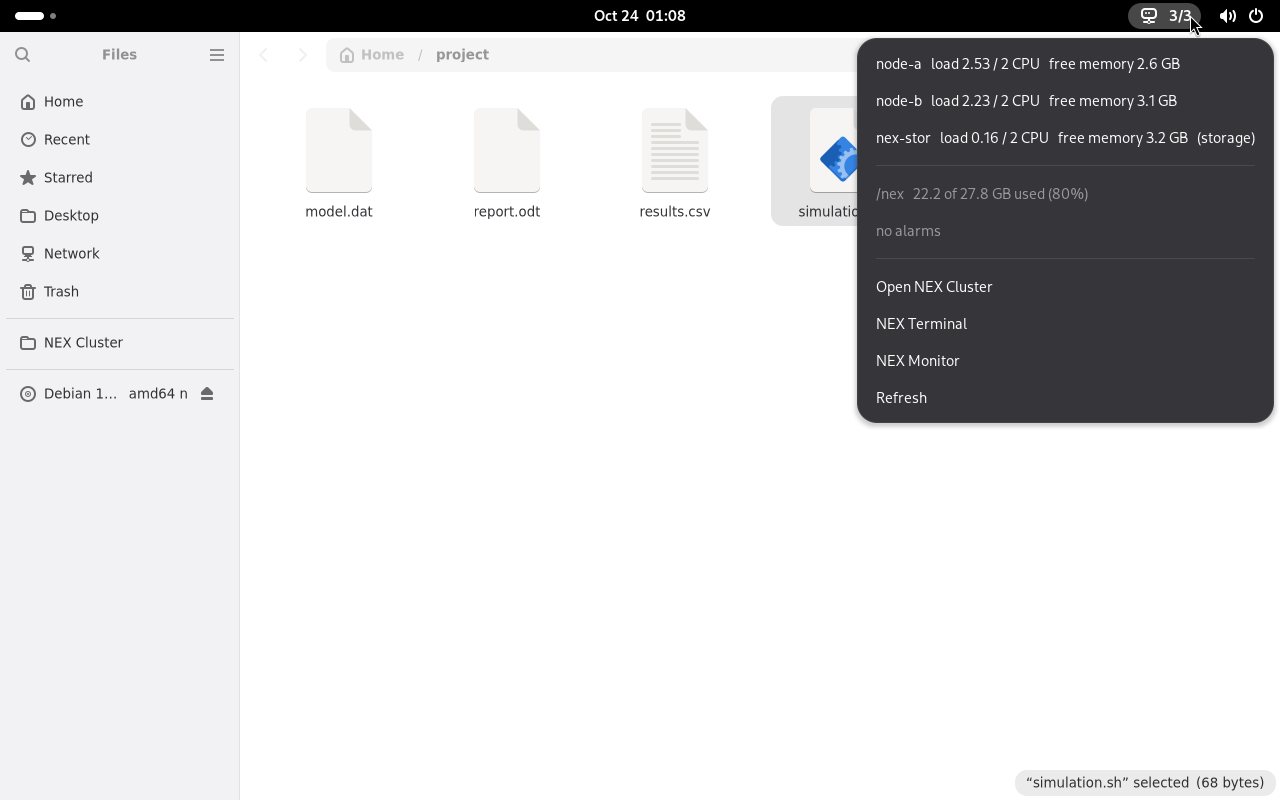
On a node with the GNOME desktop, the cluster becomes part of the desktop: an indicator in the top bar, search, the file manager, terminals and programs of other nodes, notifications. These images are from GNOME 48 on Debian 13.
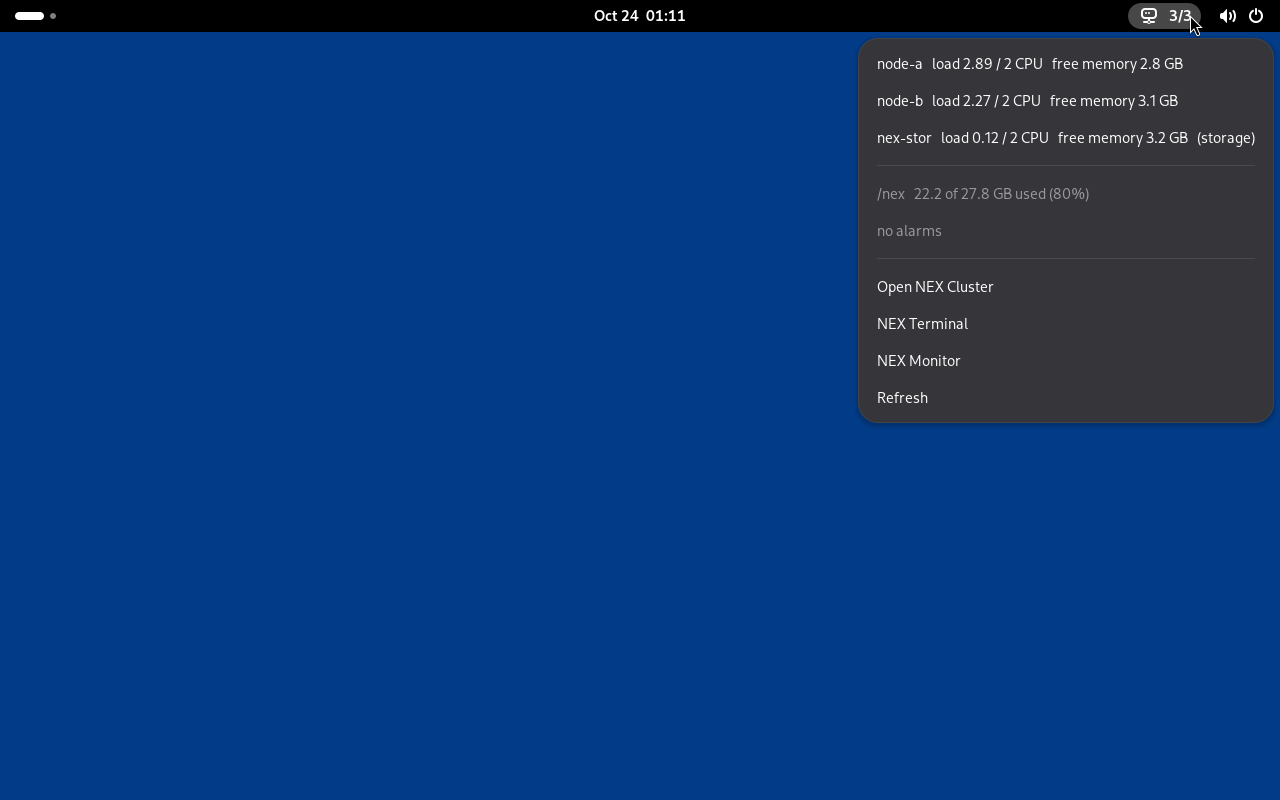
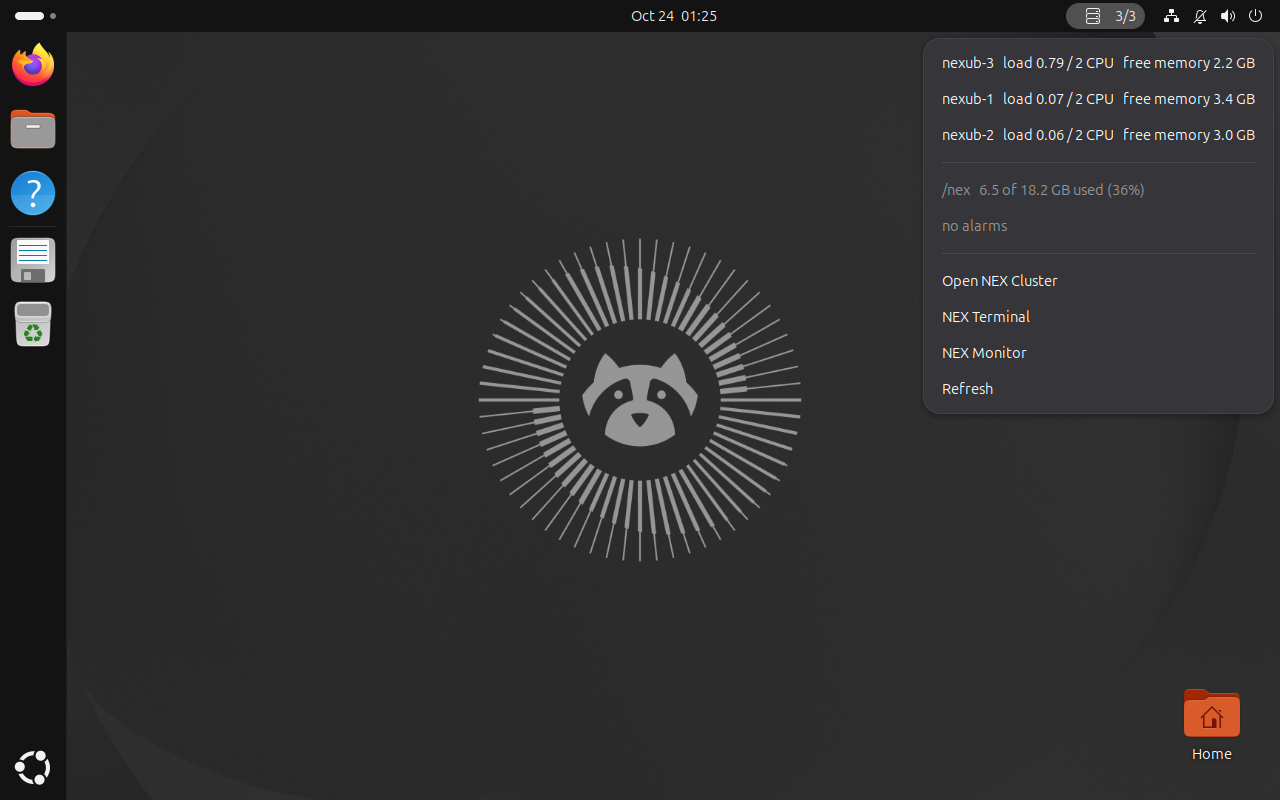
The indicator in the top bar: the nodes with their load and free memory, the shared filesystem, alarms, and quick access to the cluster.
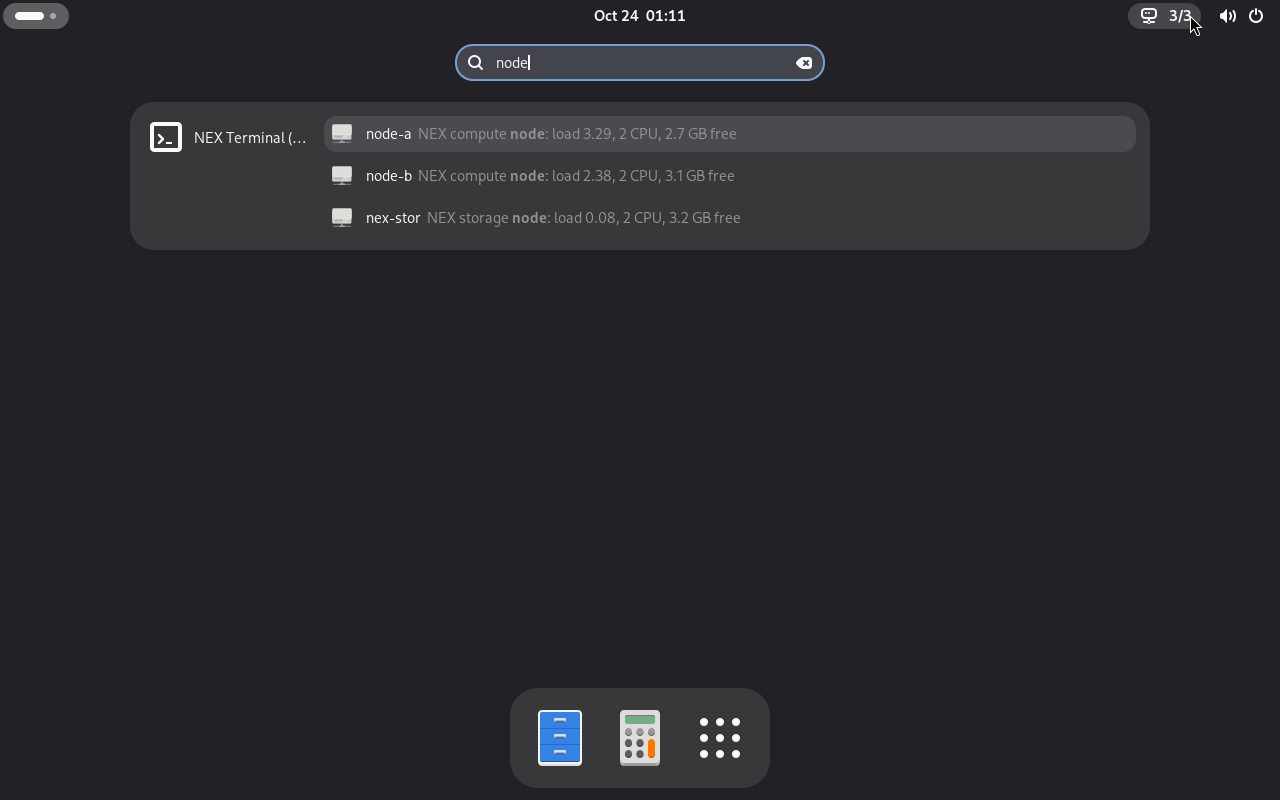
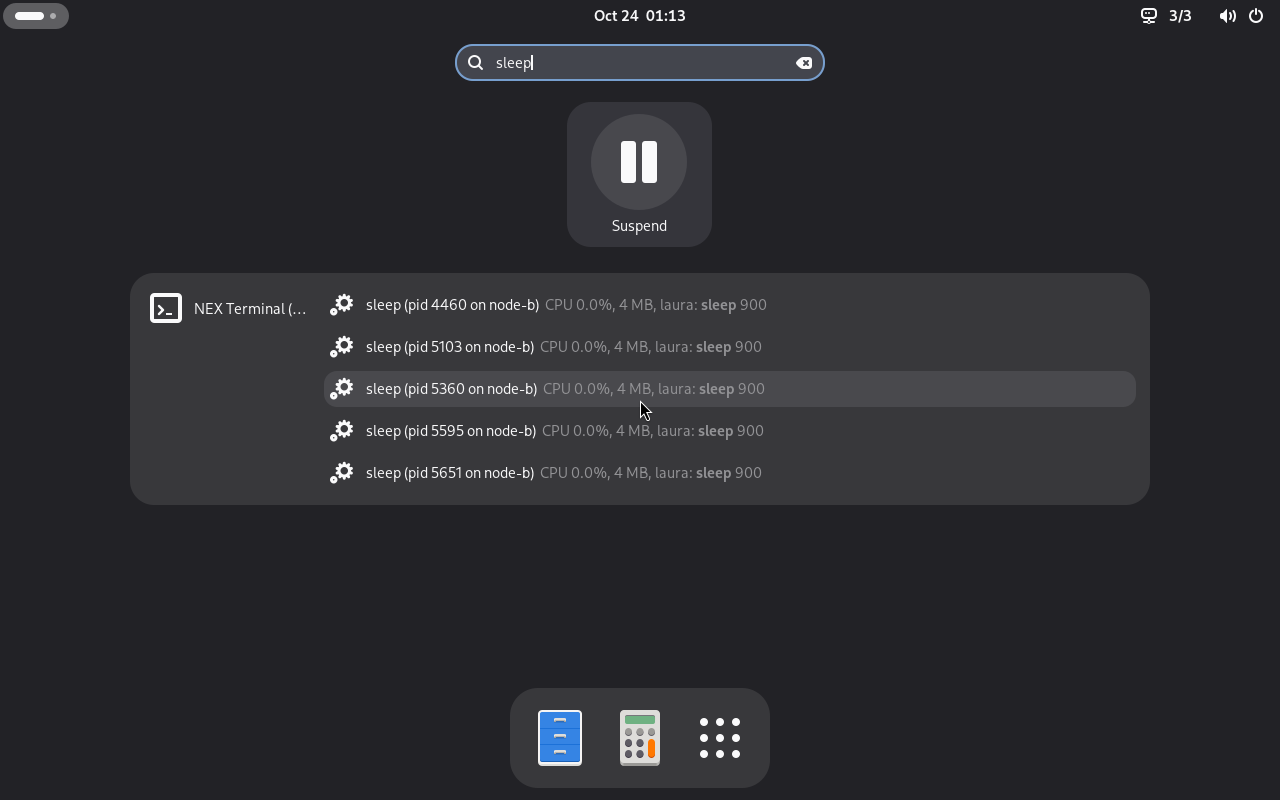
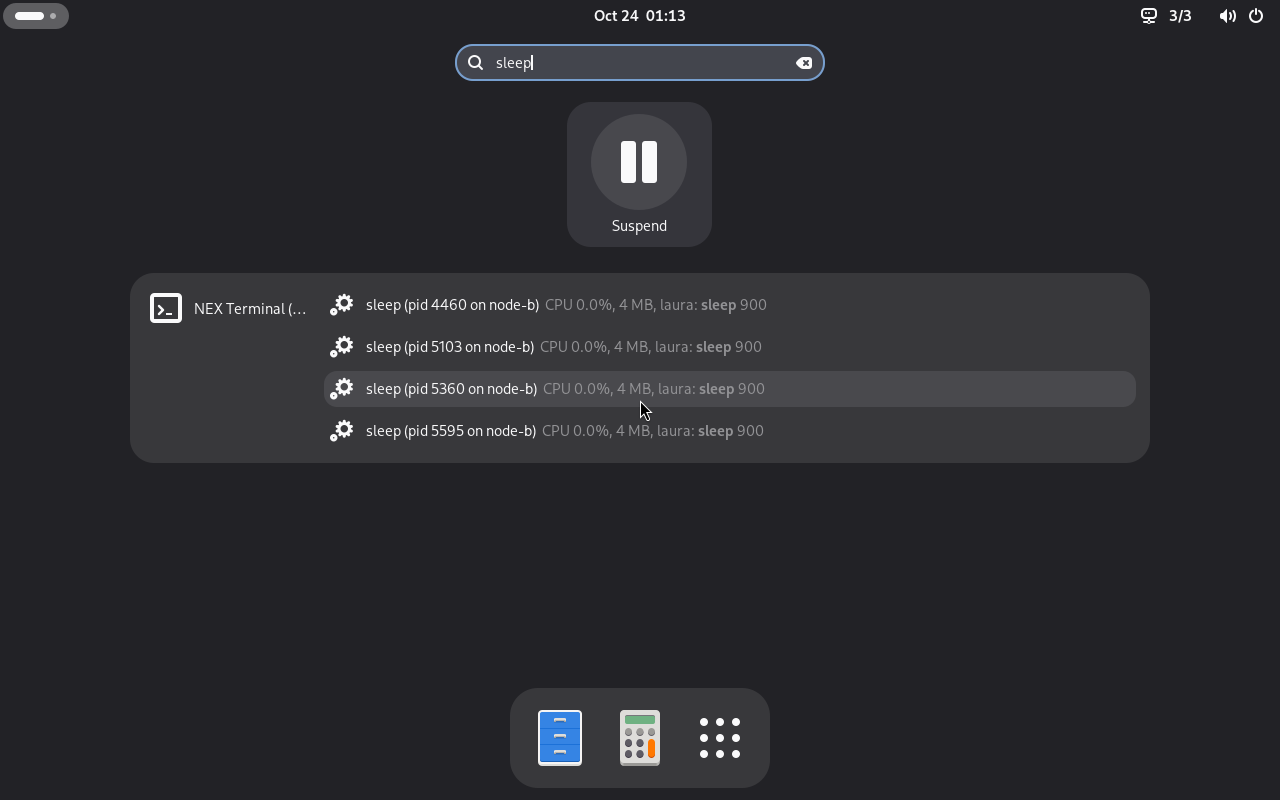
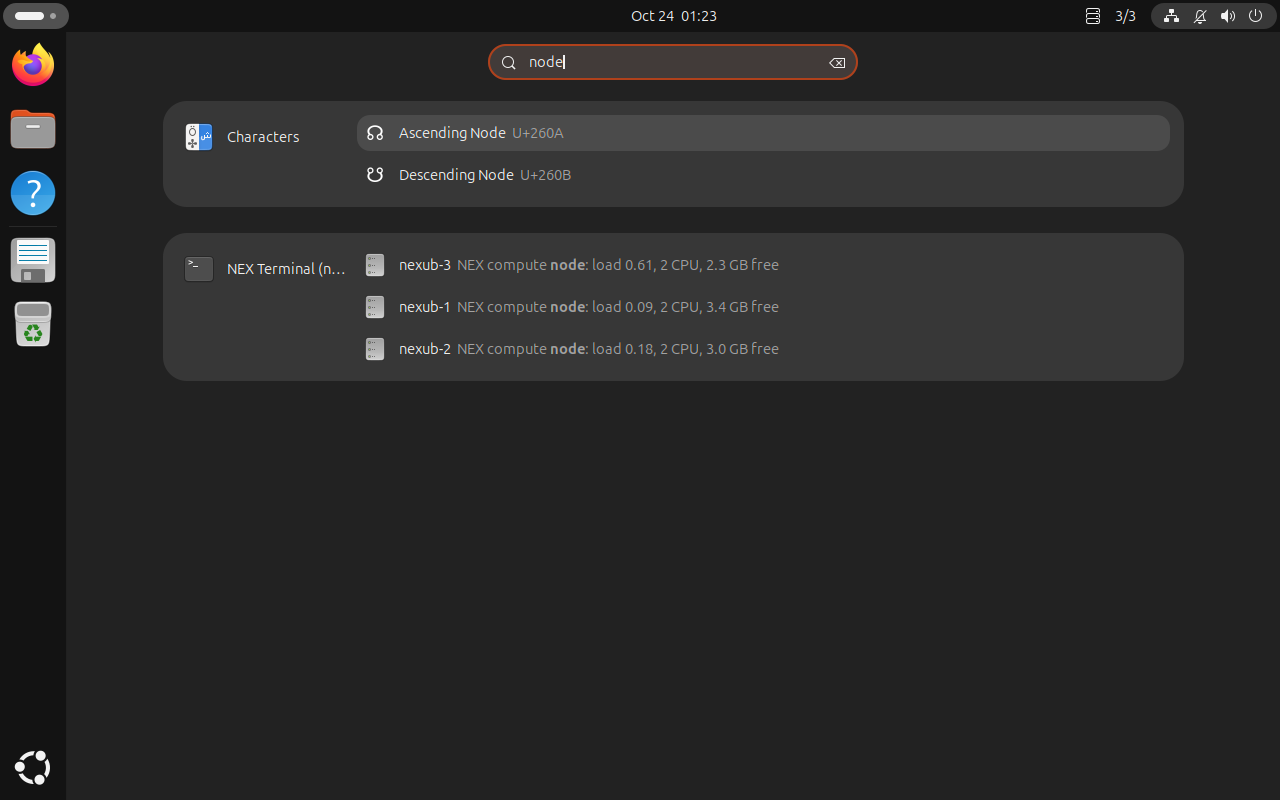
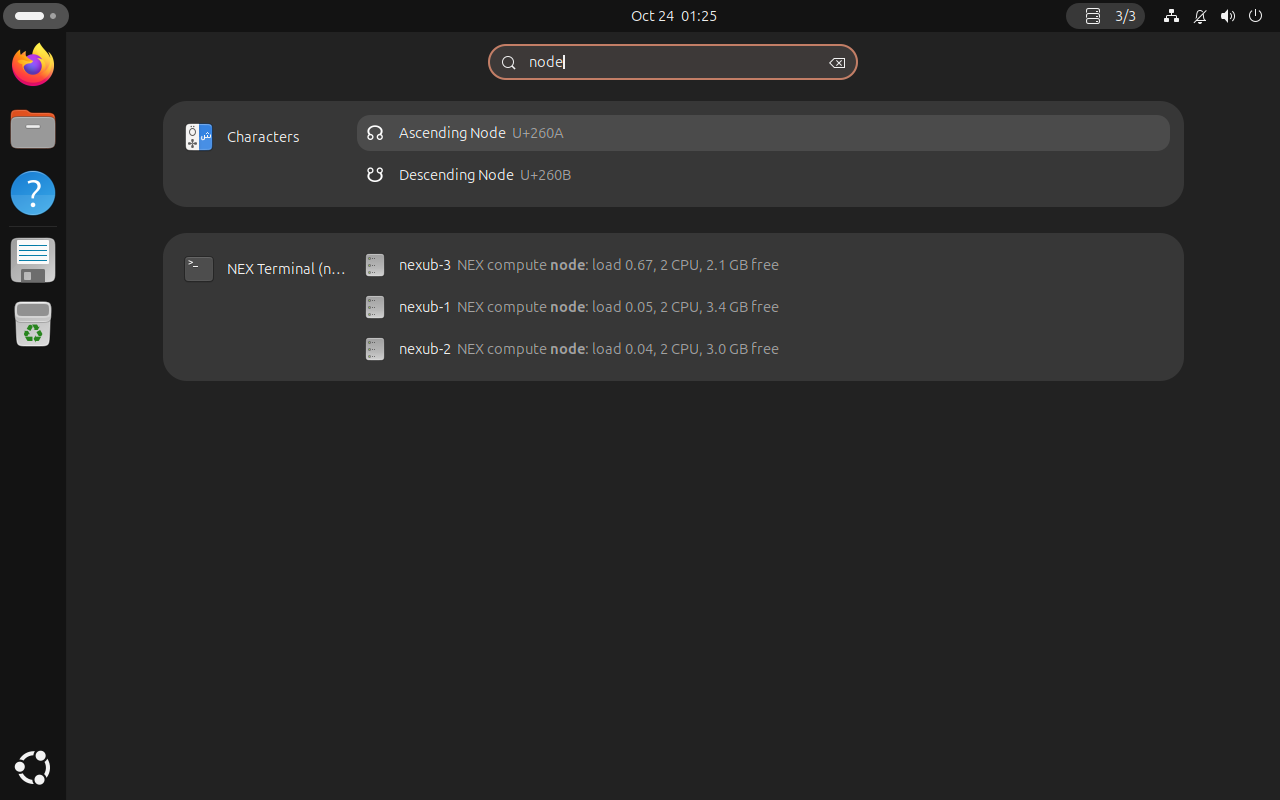
The GNOME search also finds the nodes and the processes of the cluster.
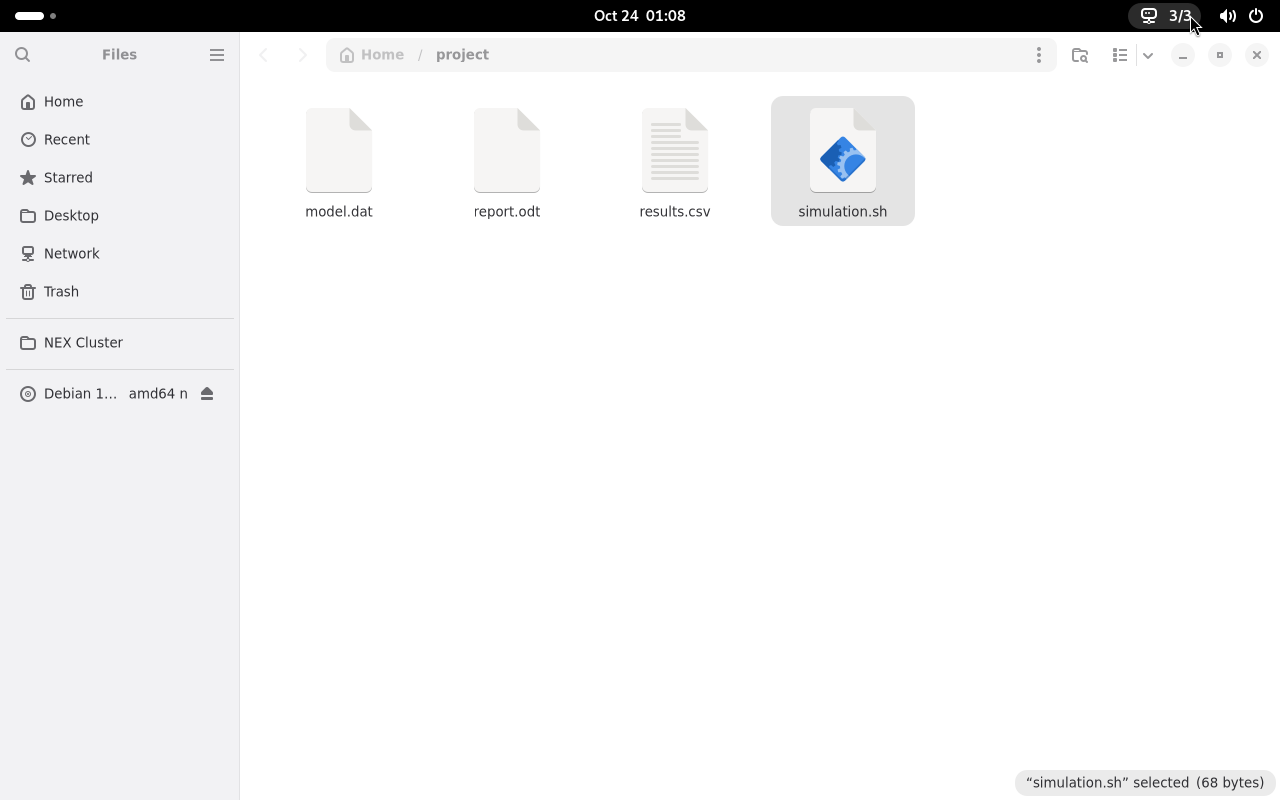
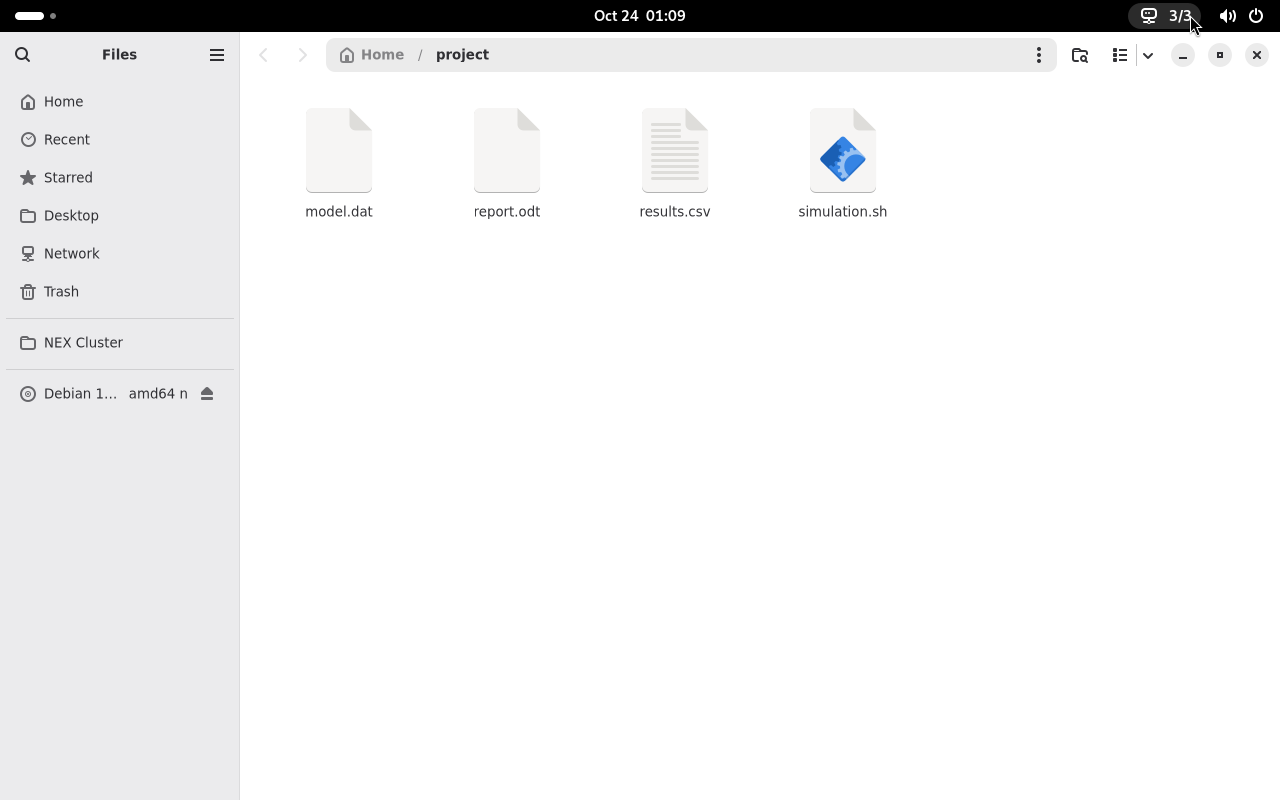
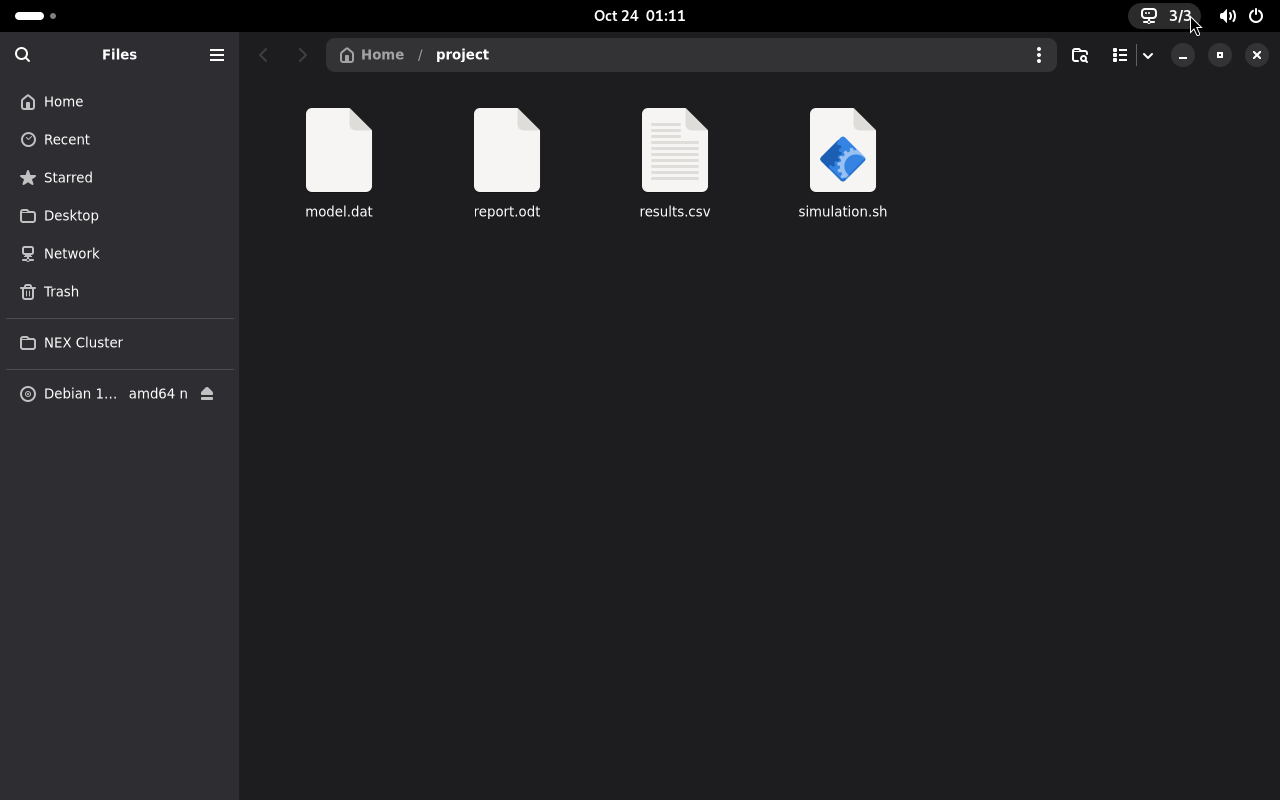
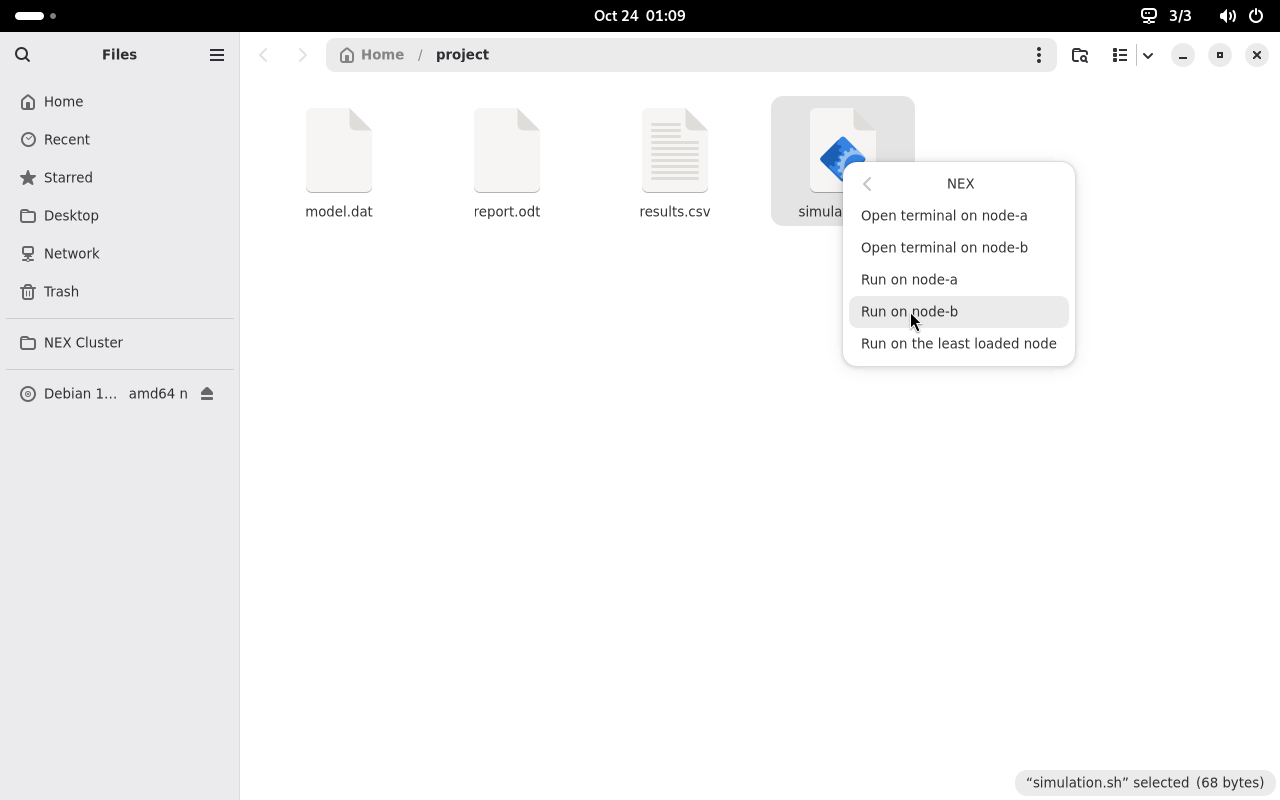
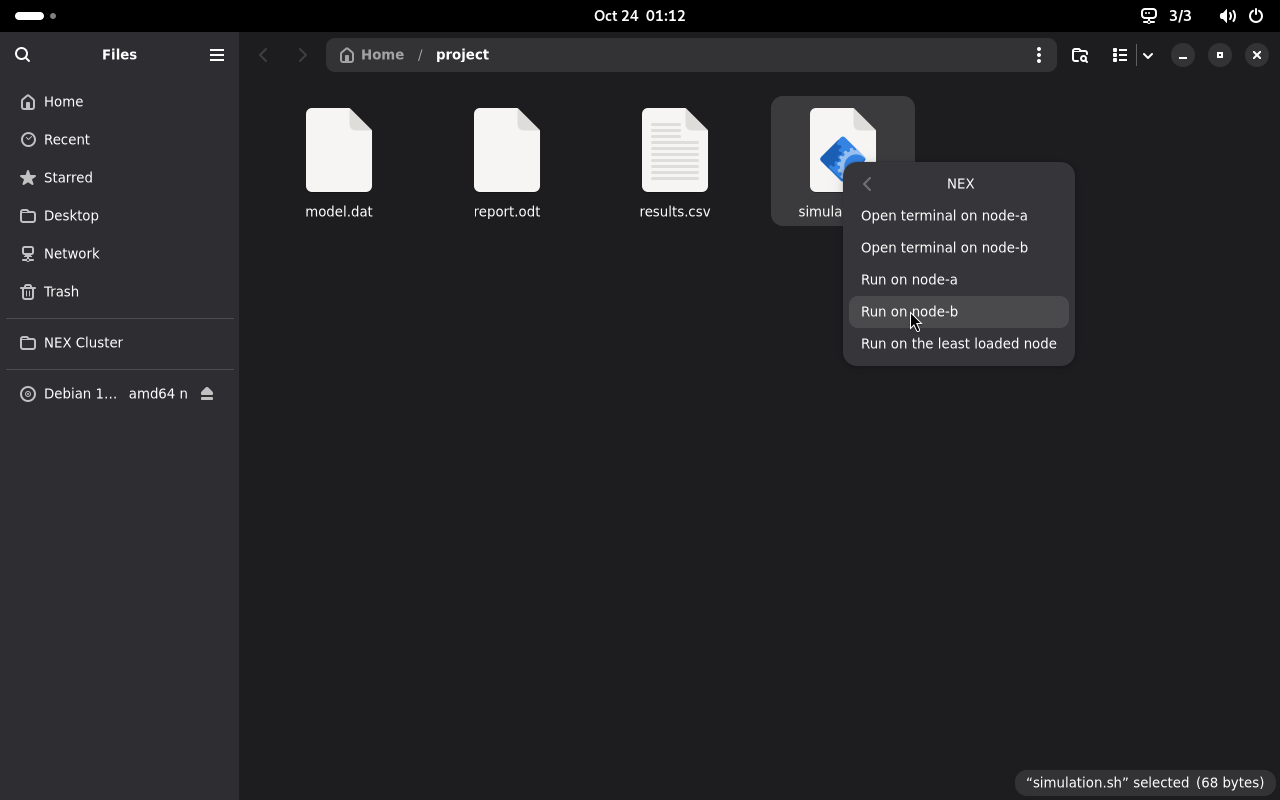
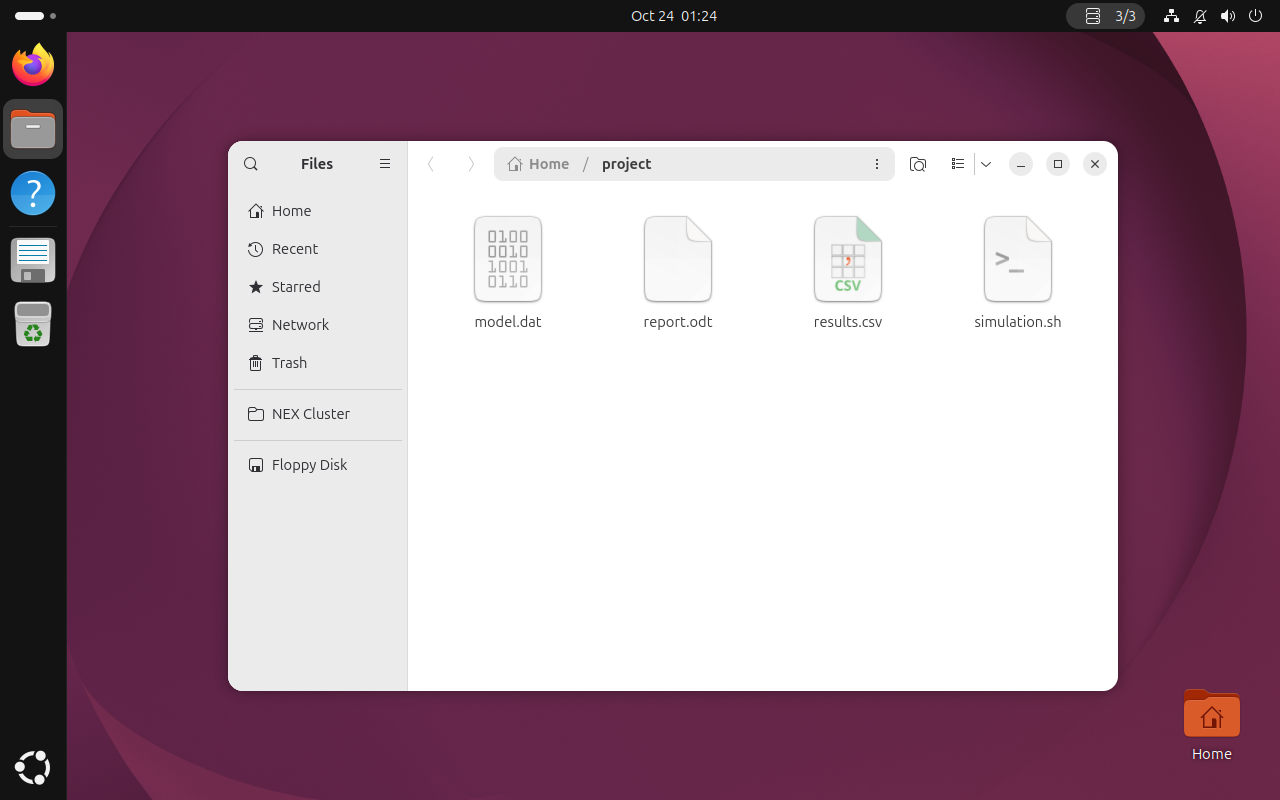
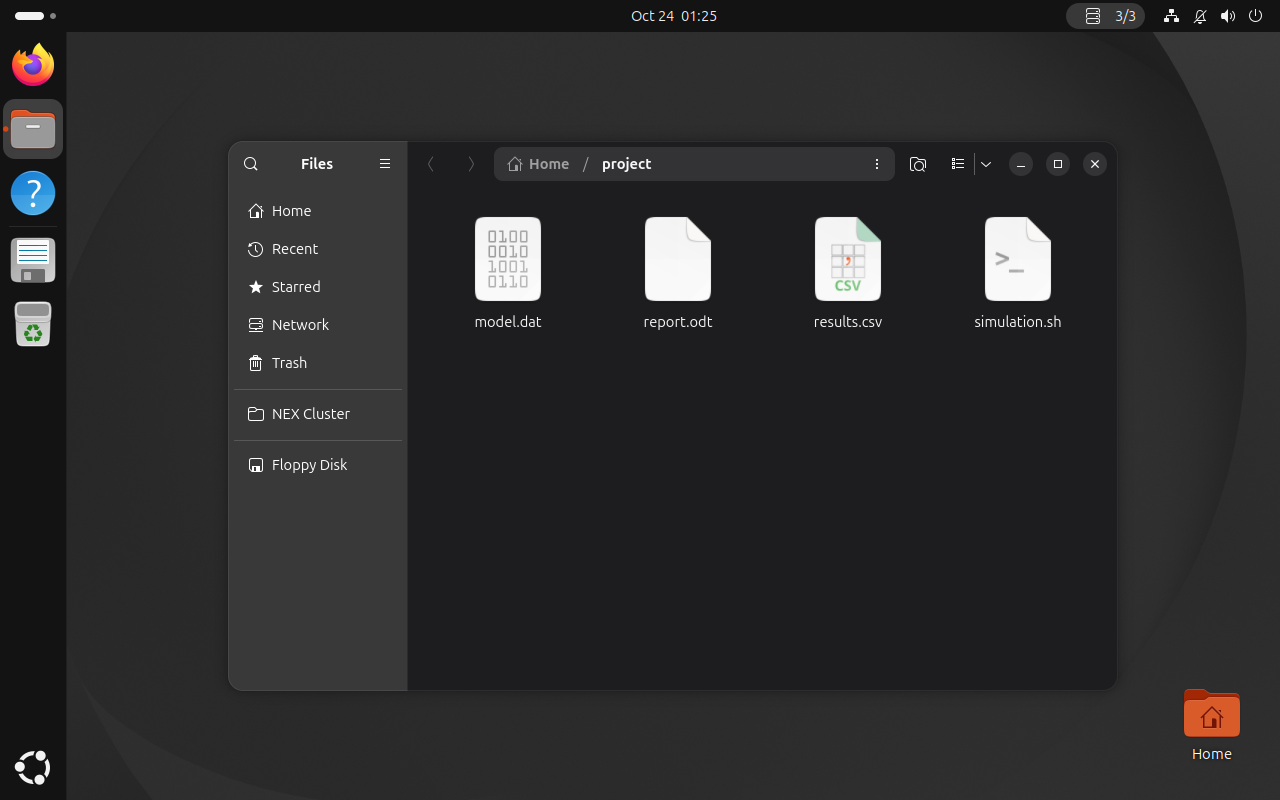
In Files (Nautilus), the cluster bookmark and the NEX menu on the right click: open a terminal or run a program on another node.
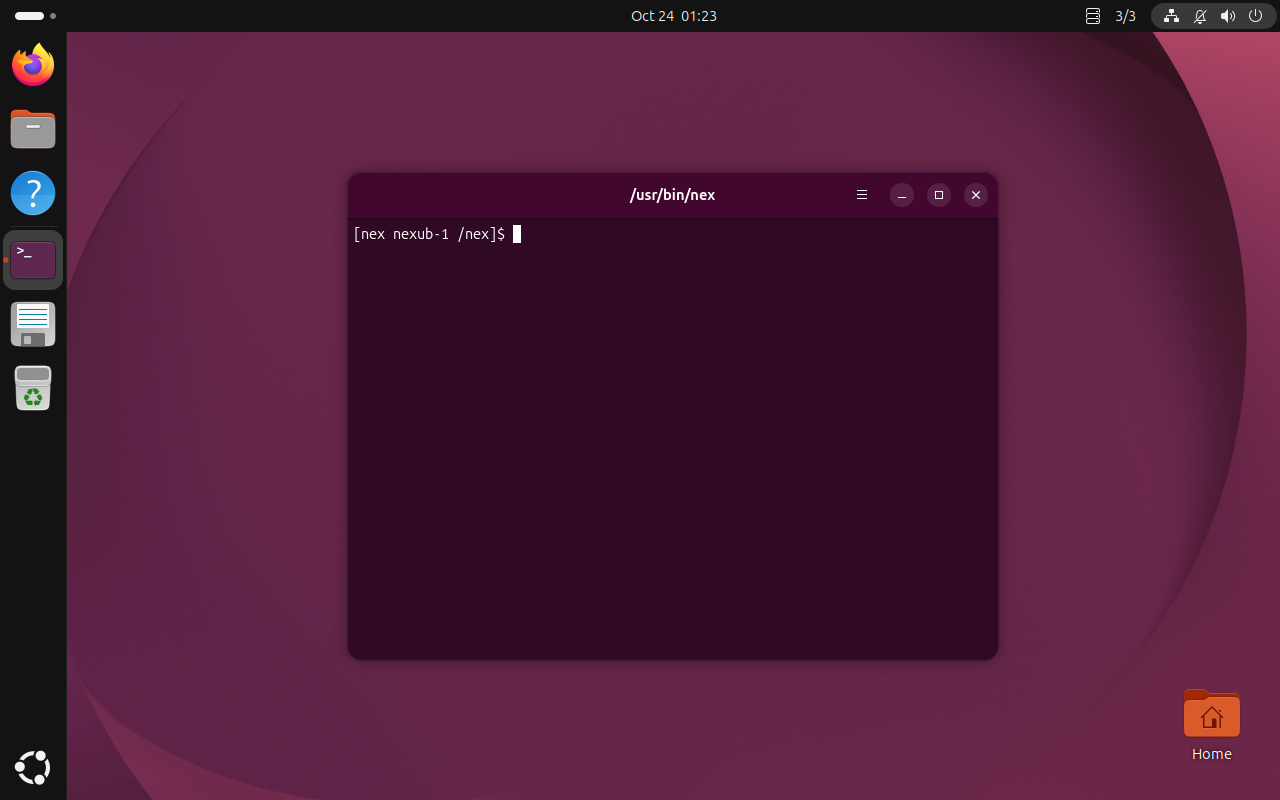
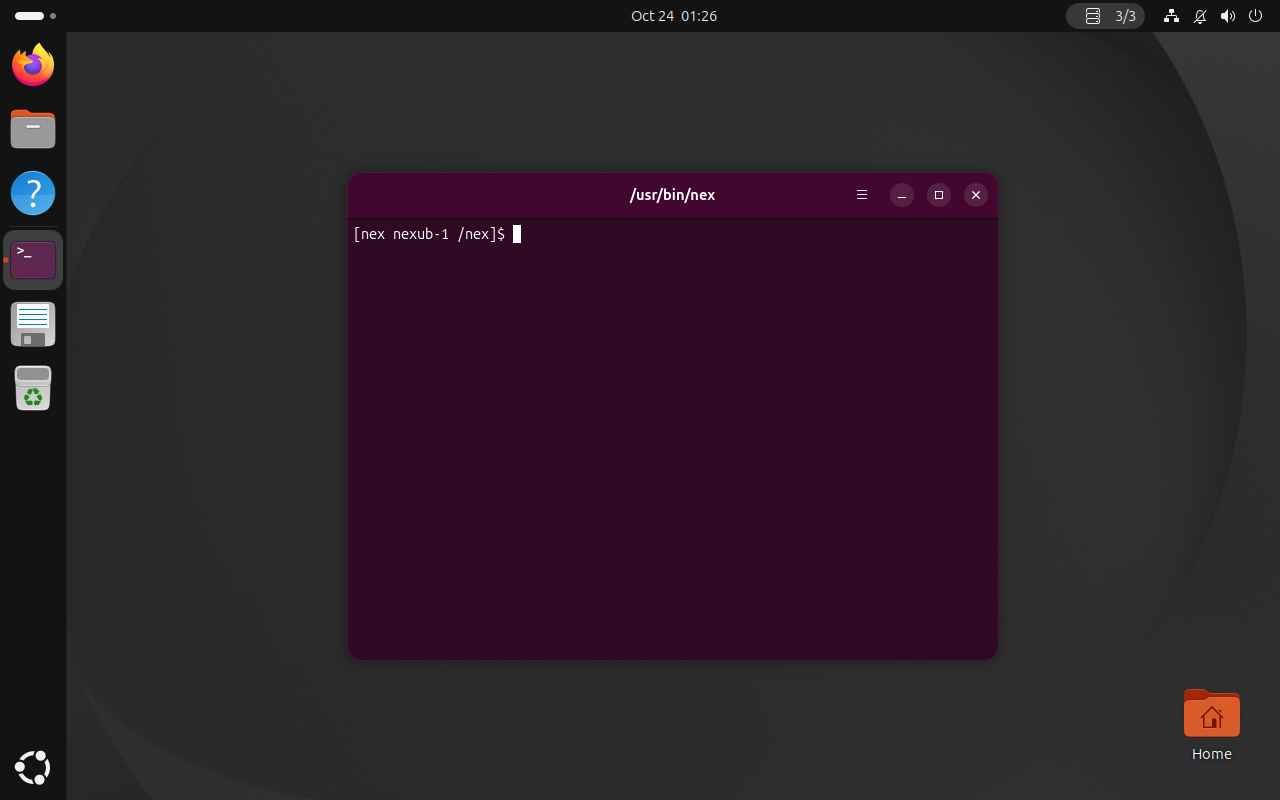
A terminal on another node, and a program of another node shown on your own desktop.
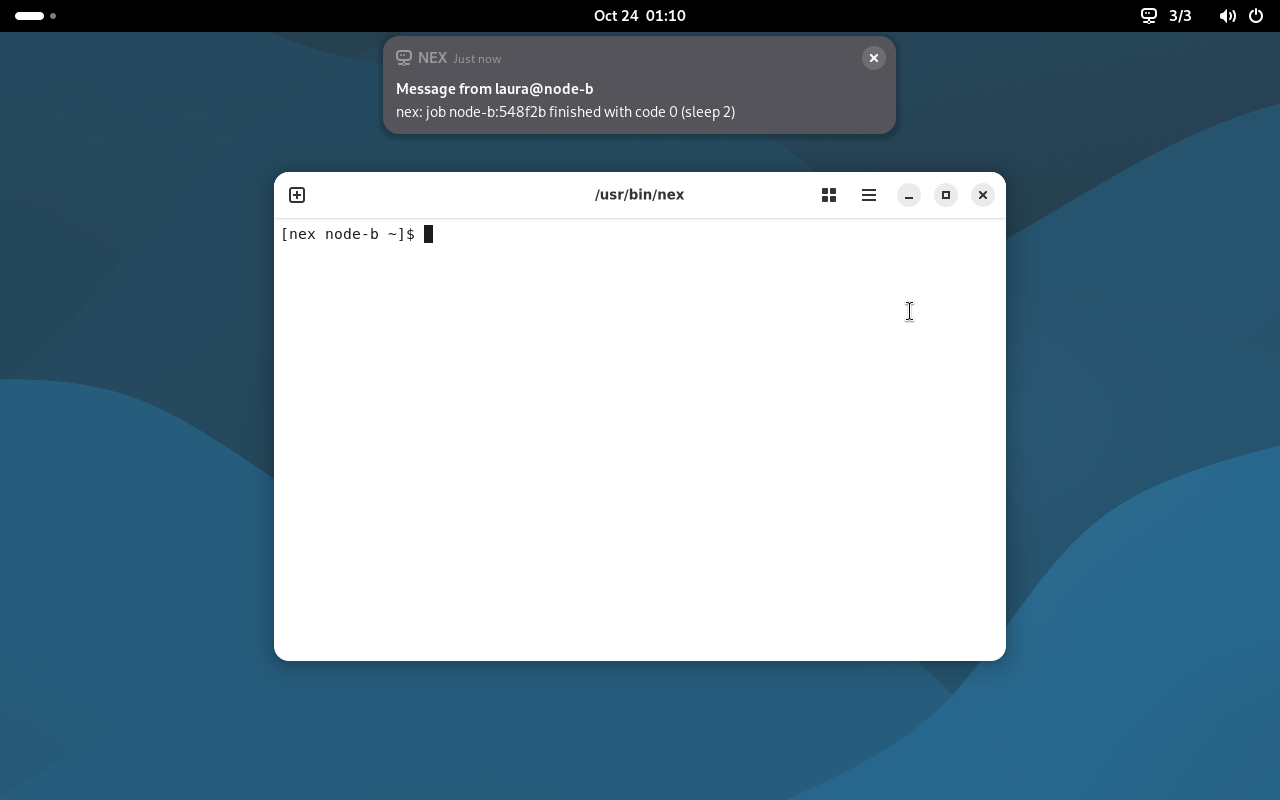
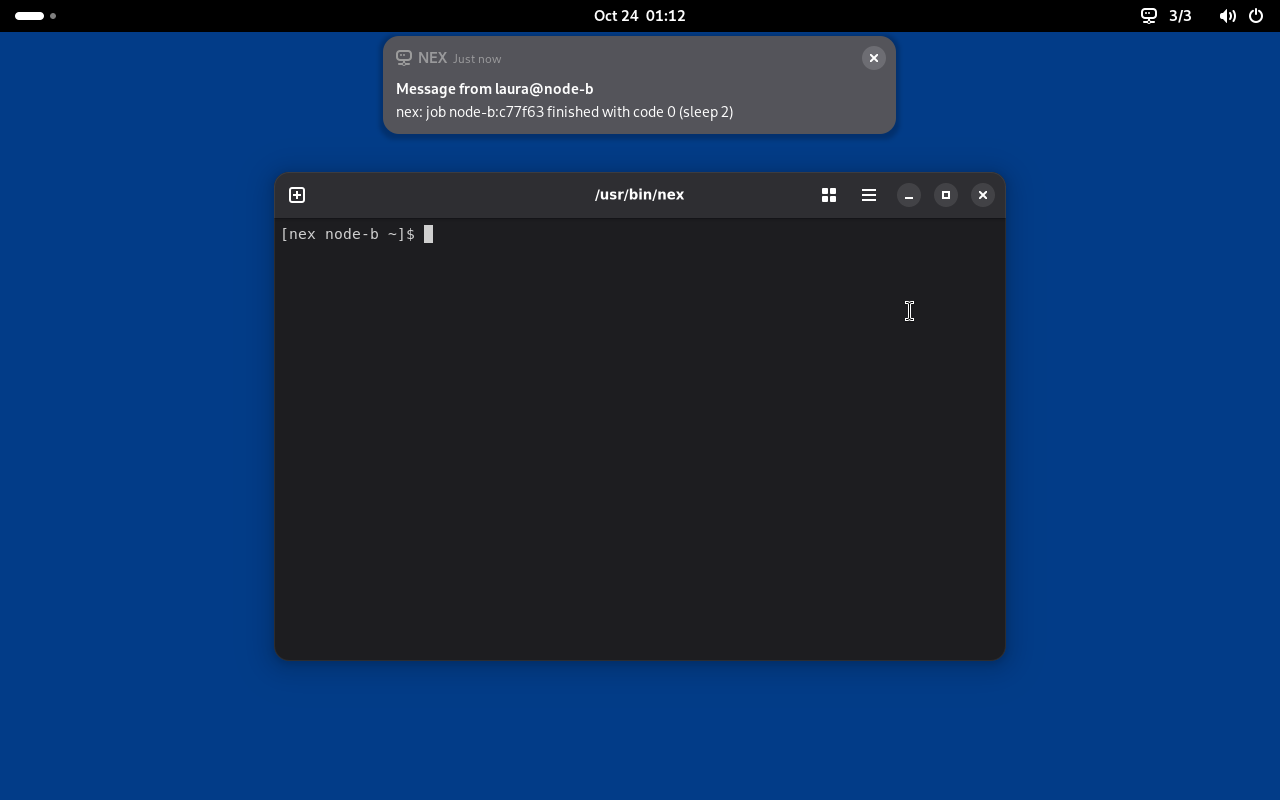
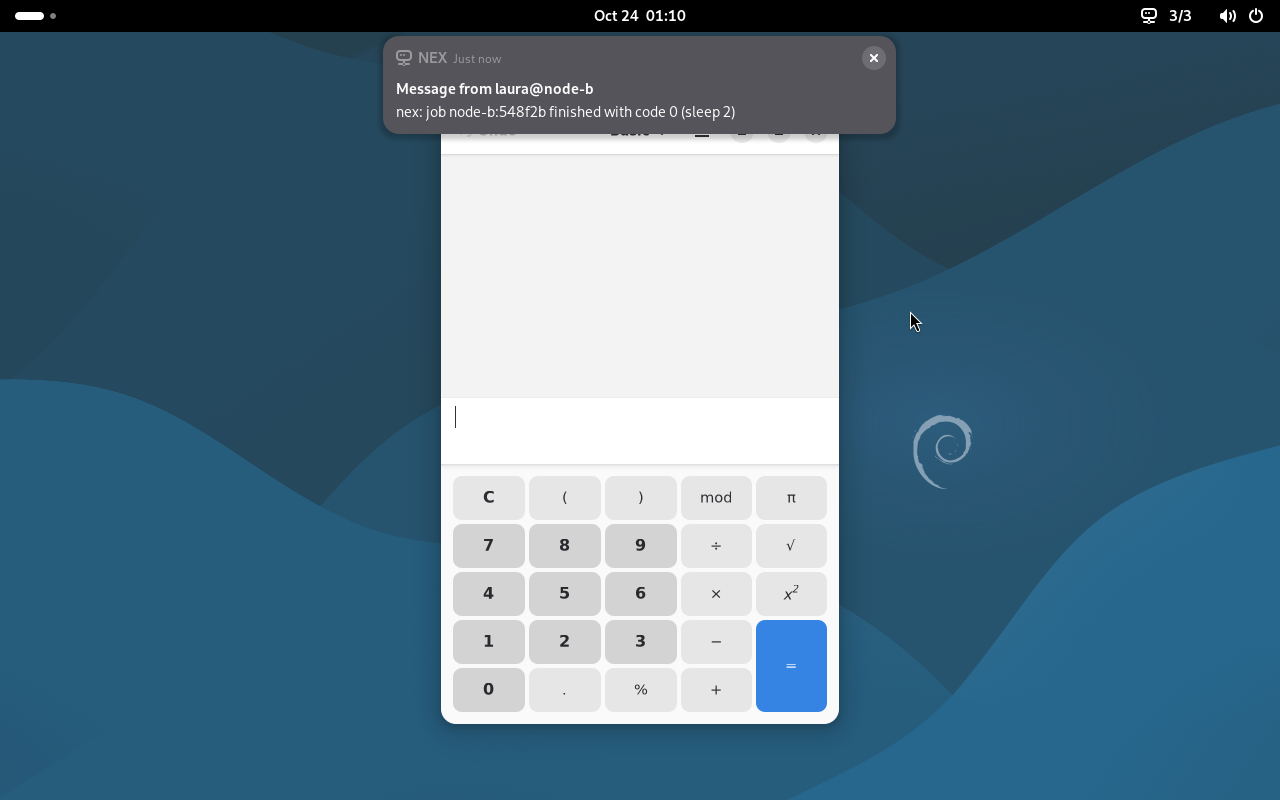
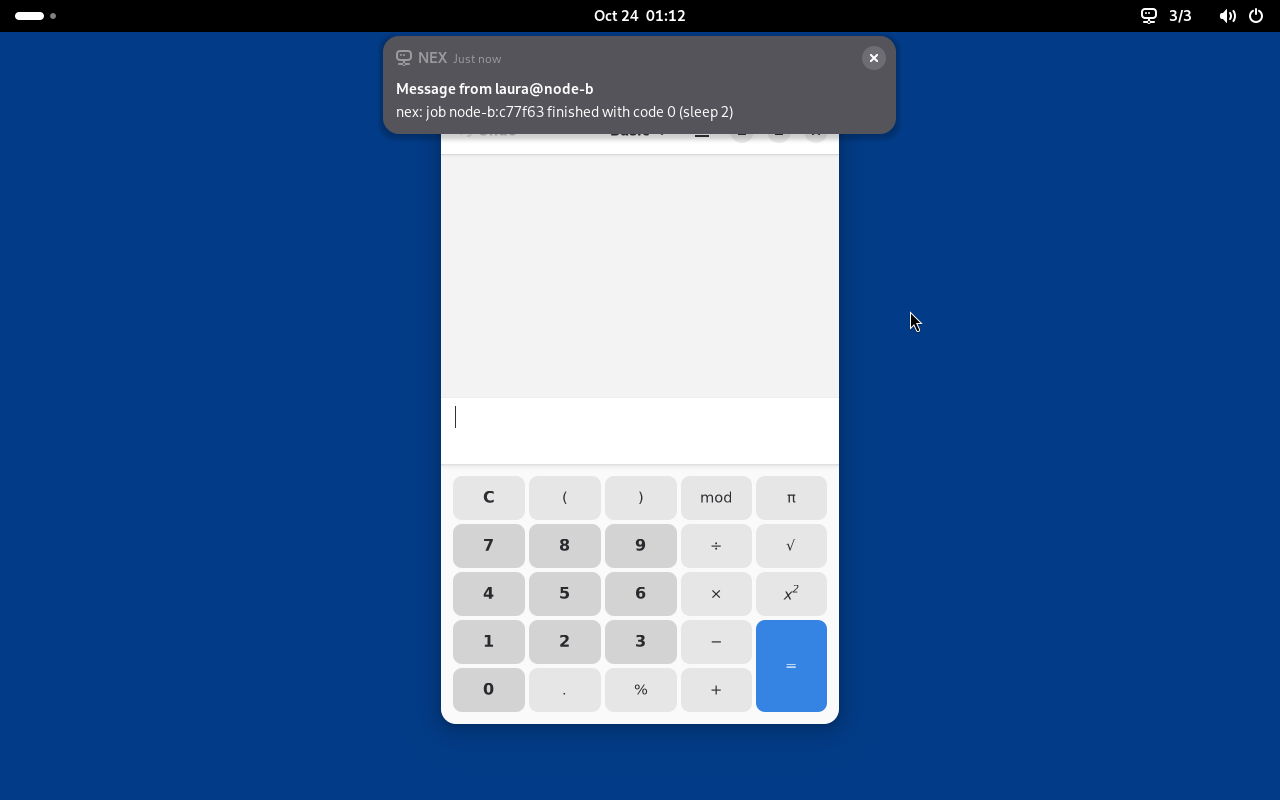
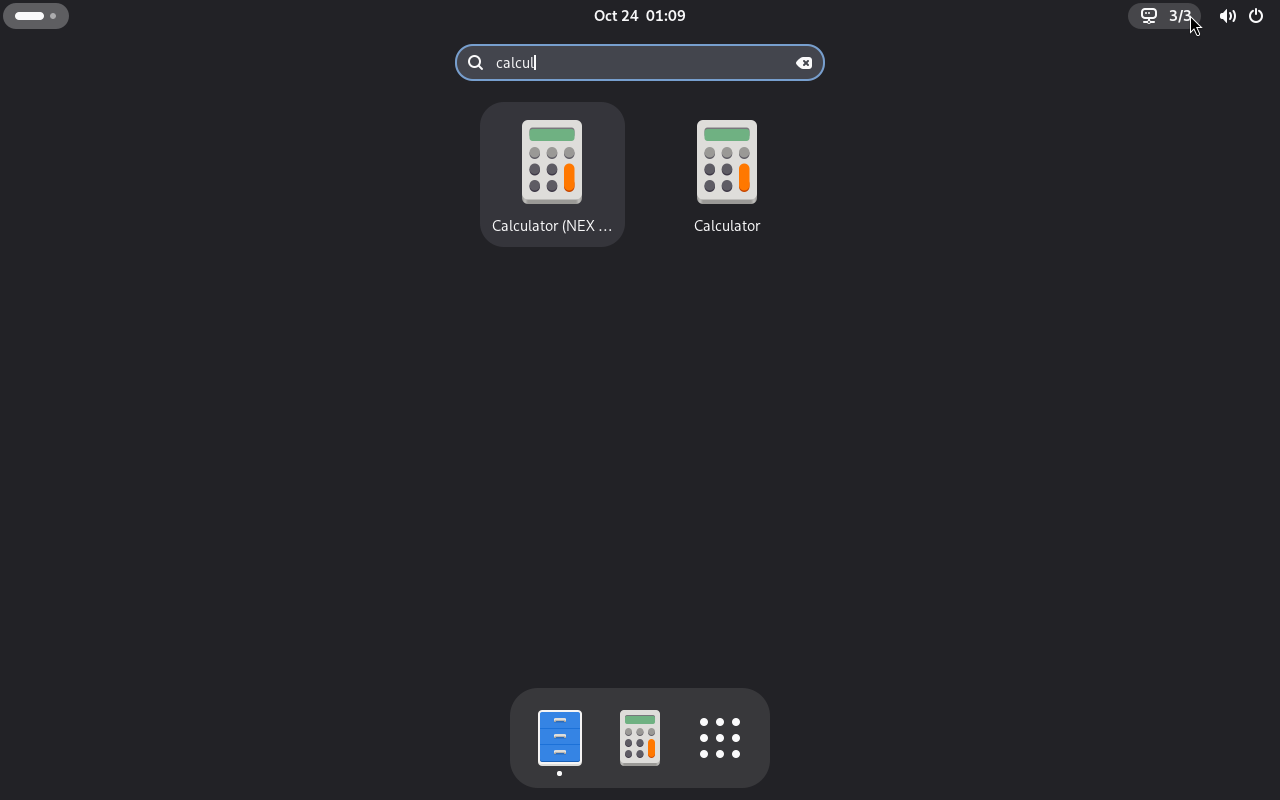
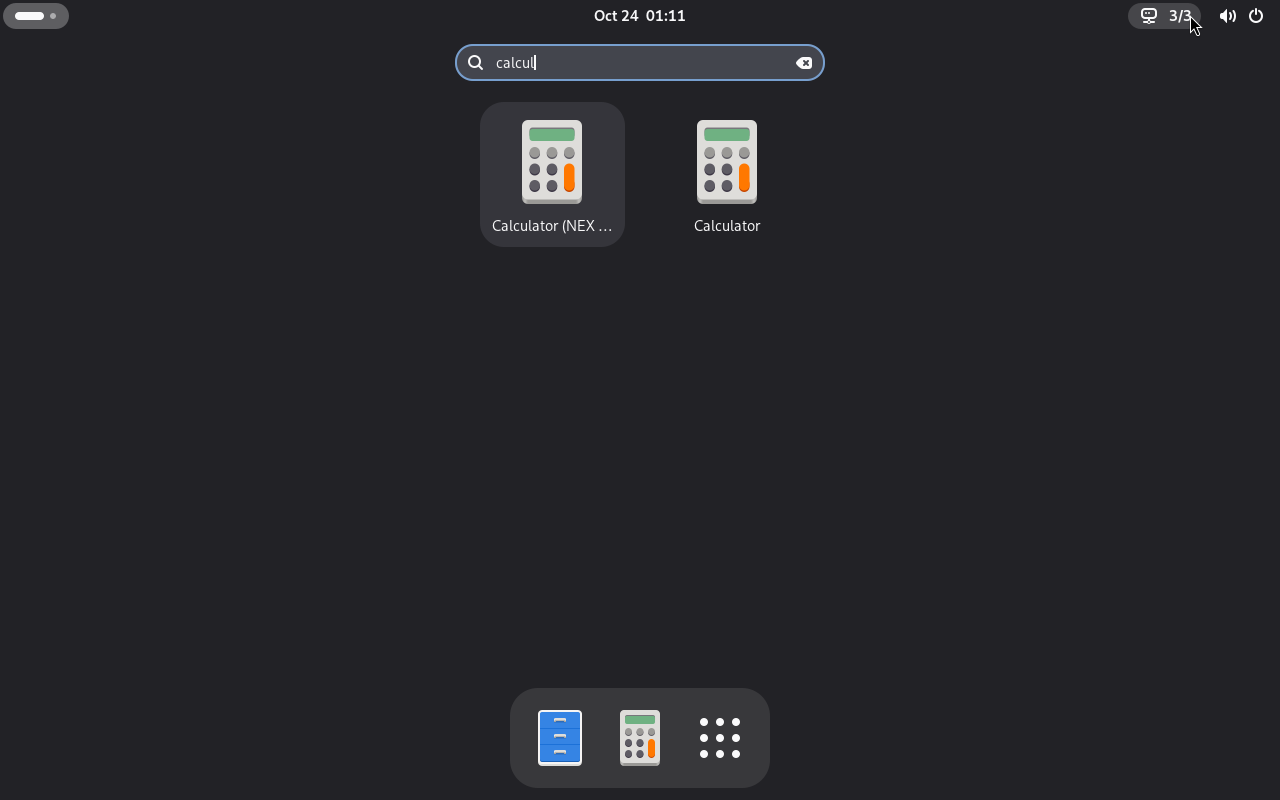
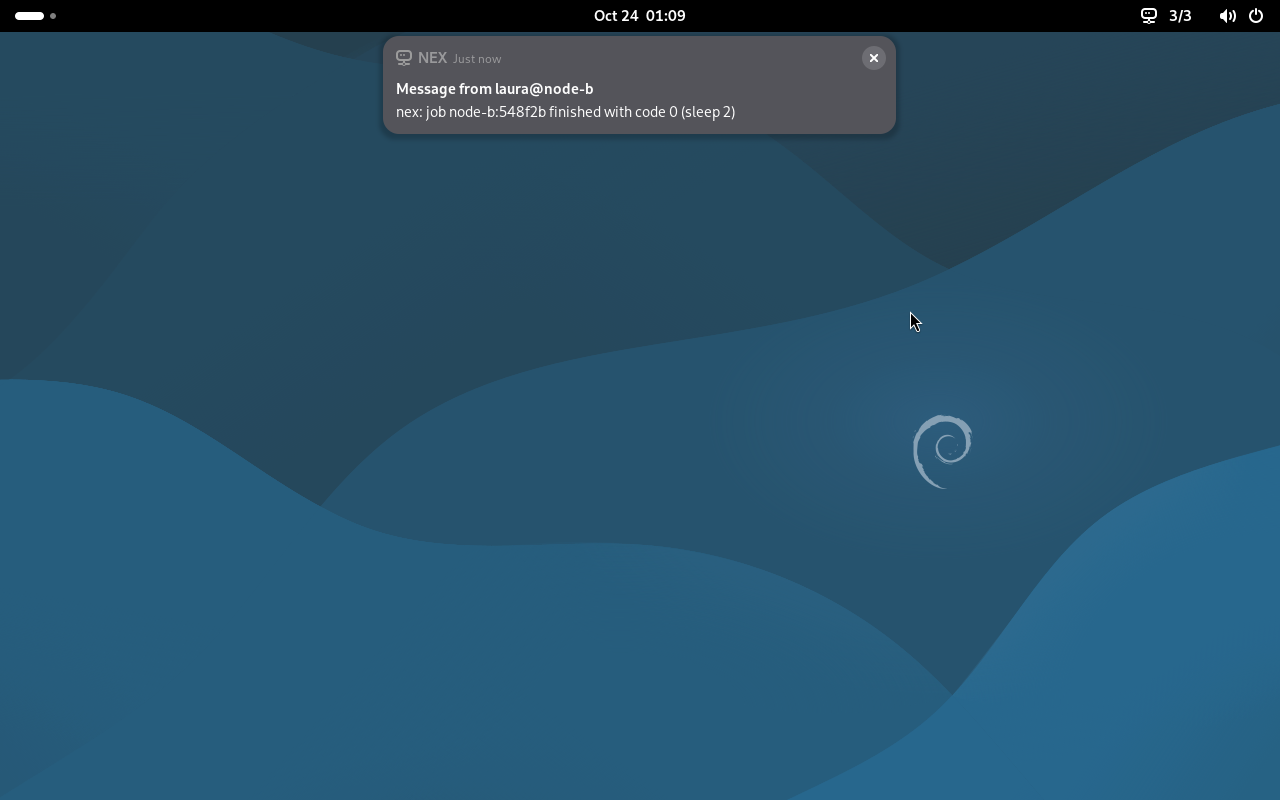
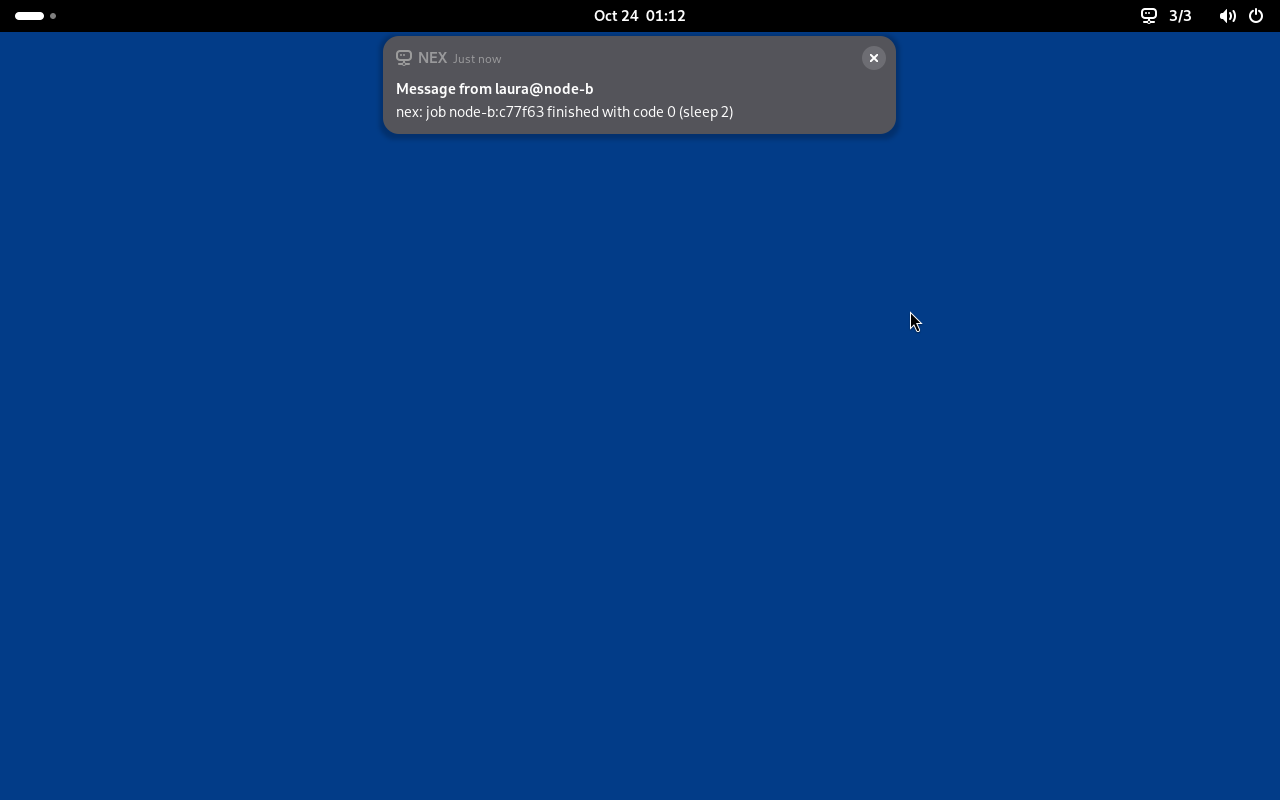
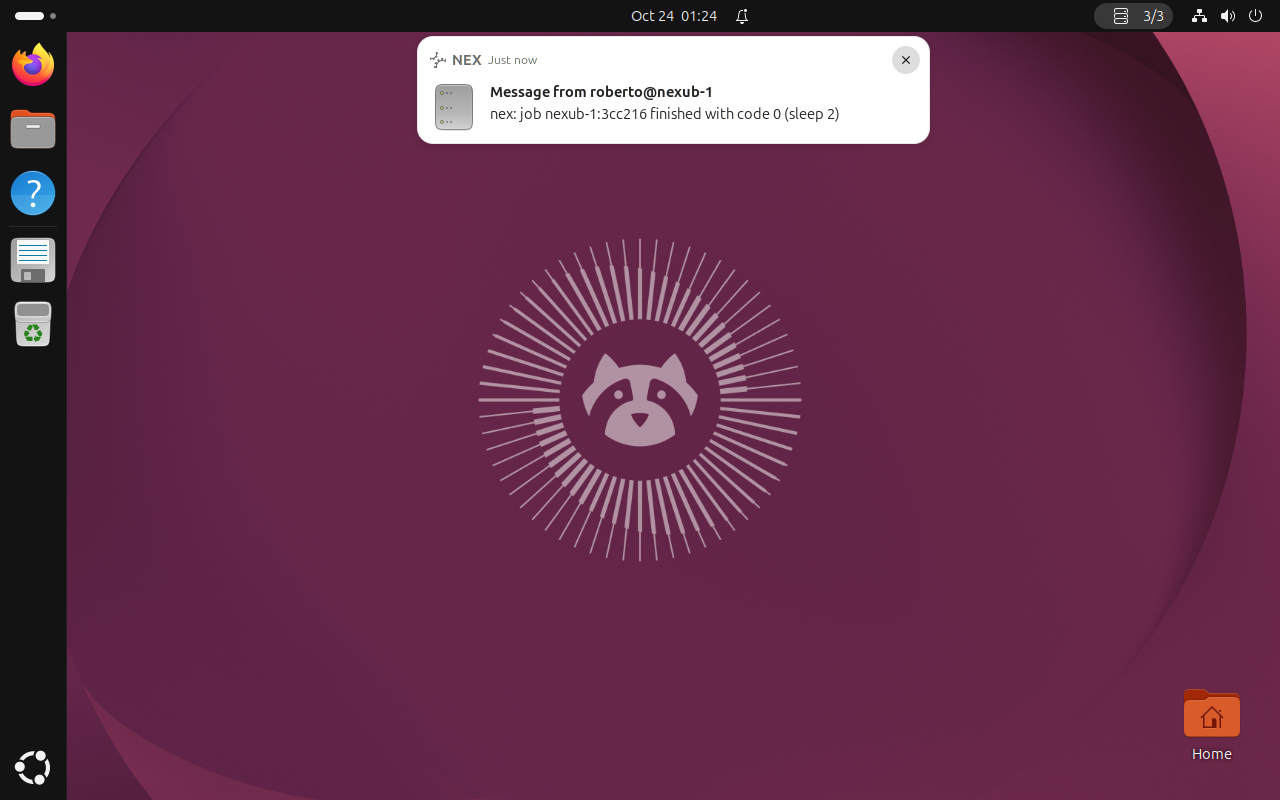
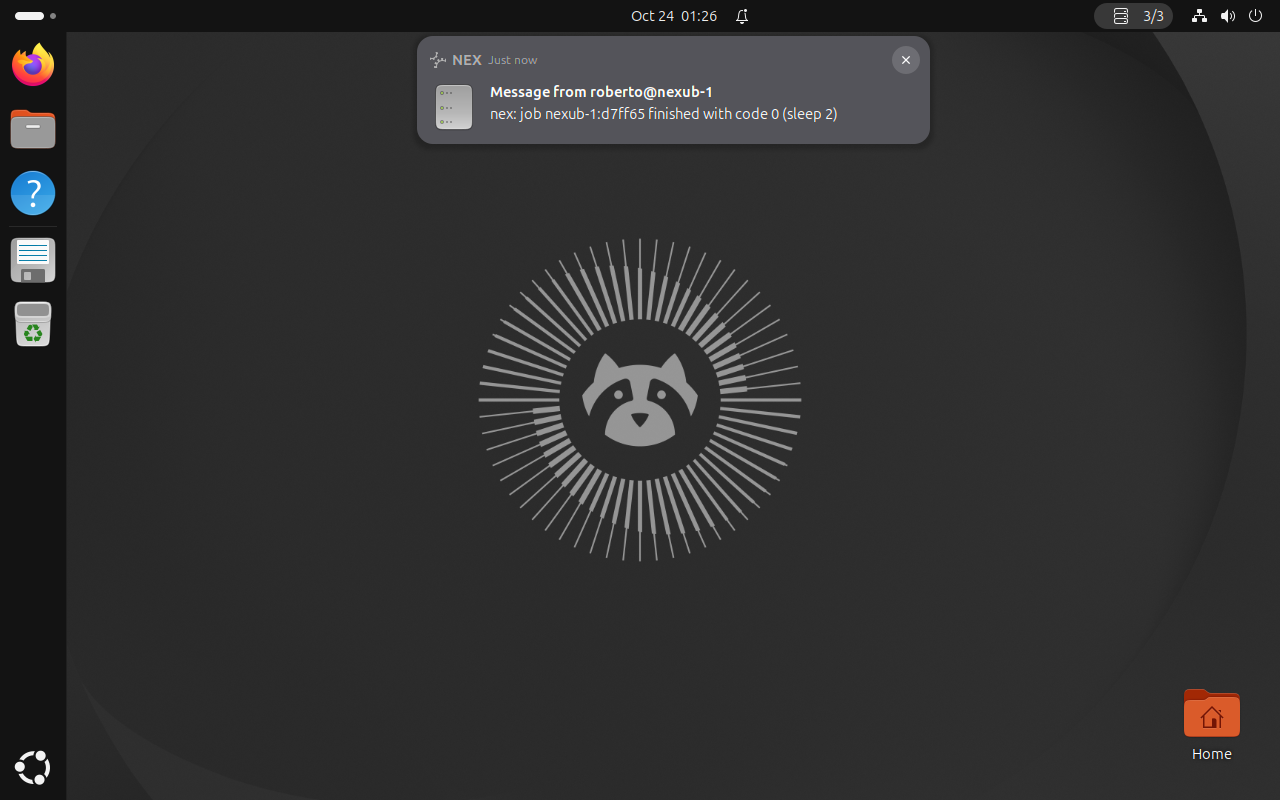
Every application can be started on the cluster from the launcher, and a notification arrives when a job ends.
GNOME on Ubuntu 26.04 LTS
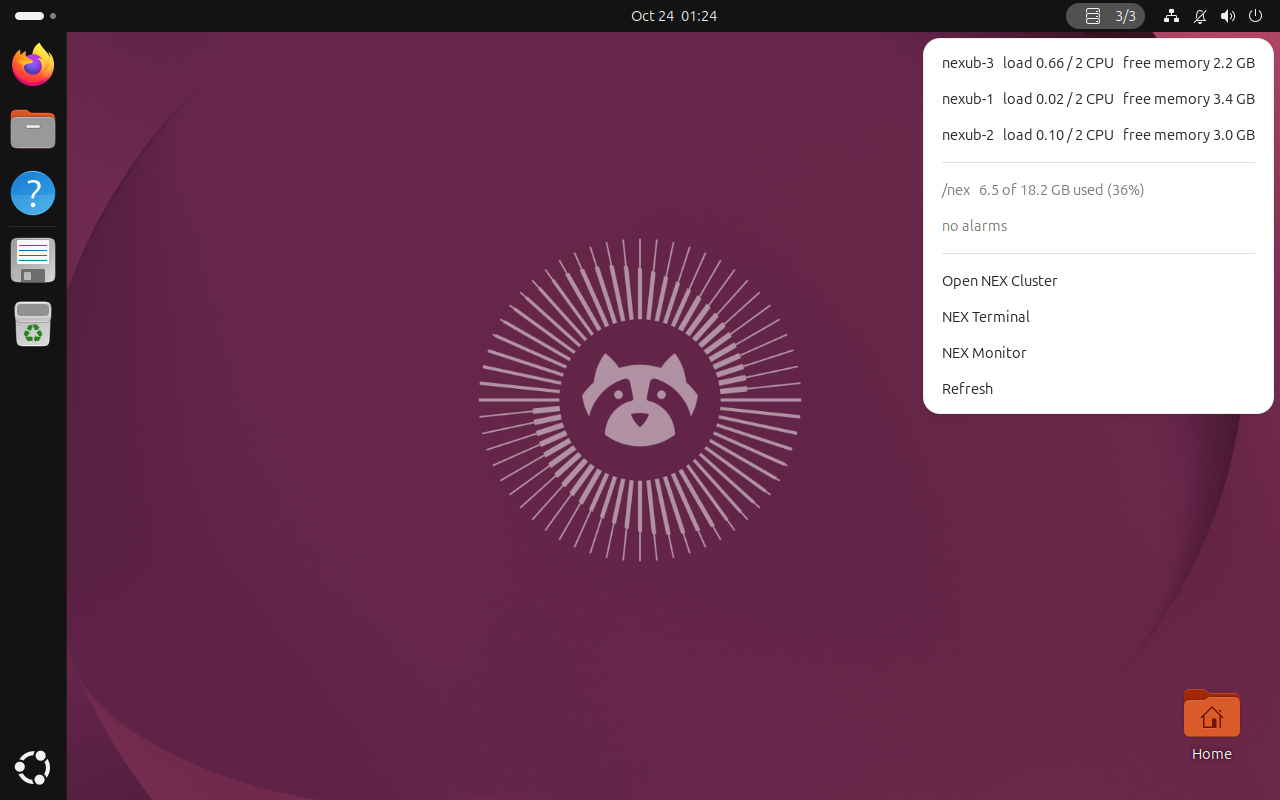
The same integration on Ubuntu 26.04 LTS, with GNOME 50 and the Ubuntu look: the NEX indicator in the top bar, the cluster bookmark in Files, a terminal on another node, notifications and NEX Monitor.
KDE Plasma
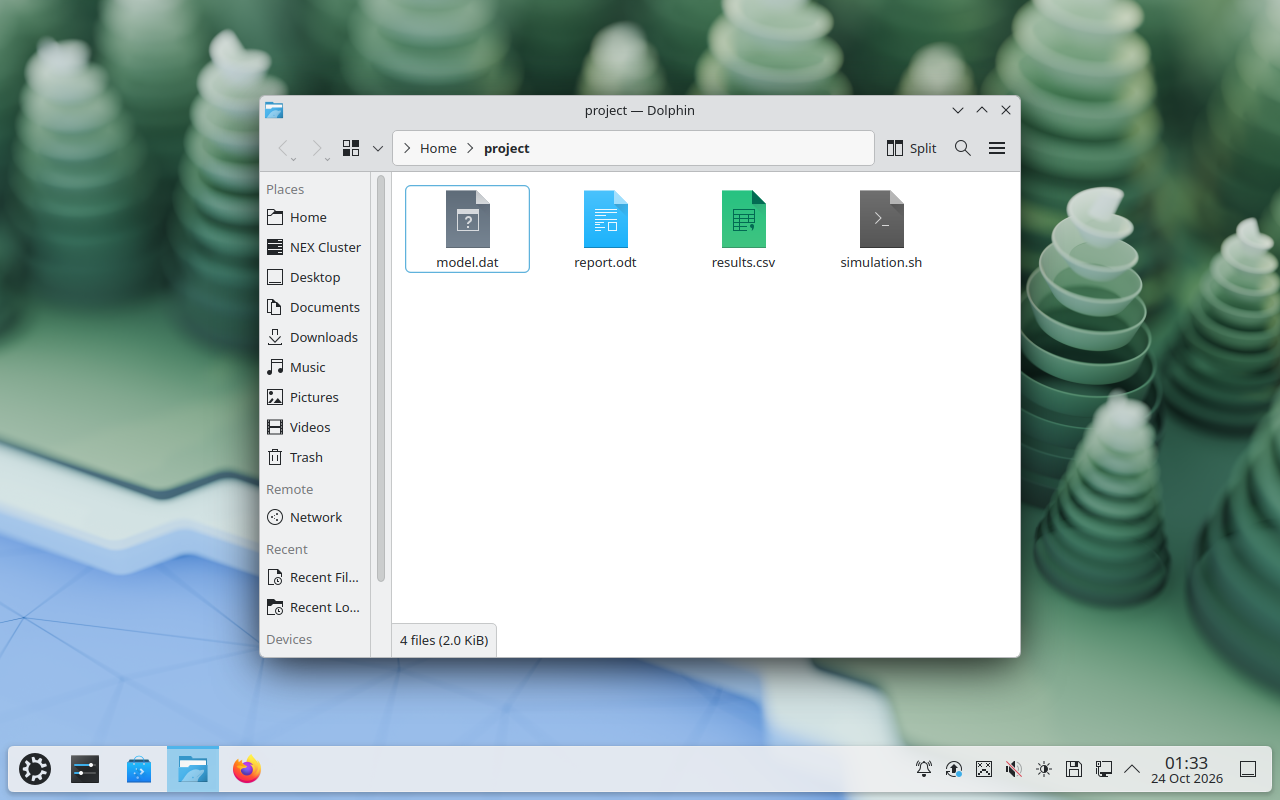
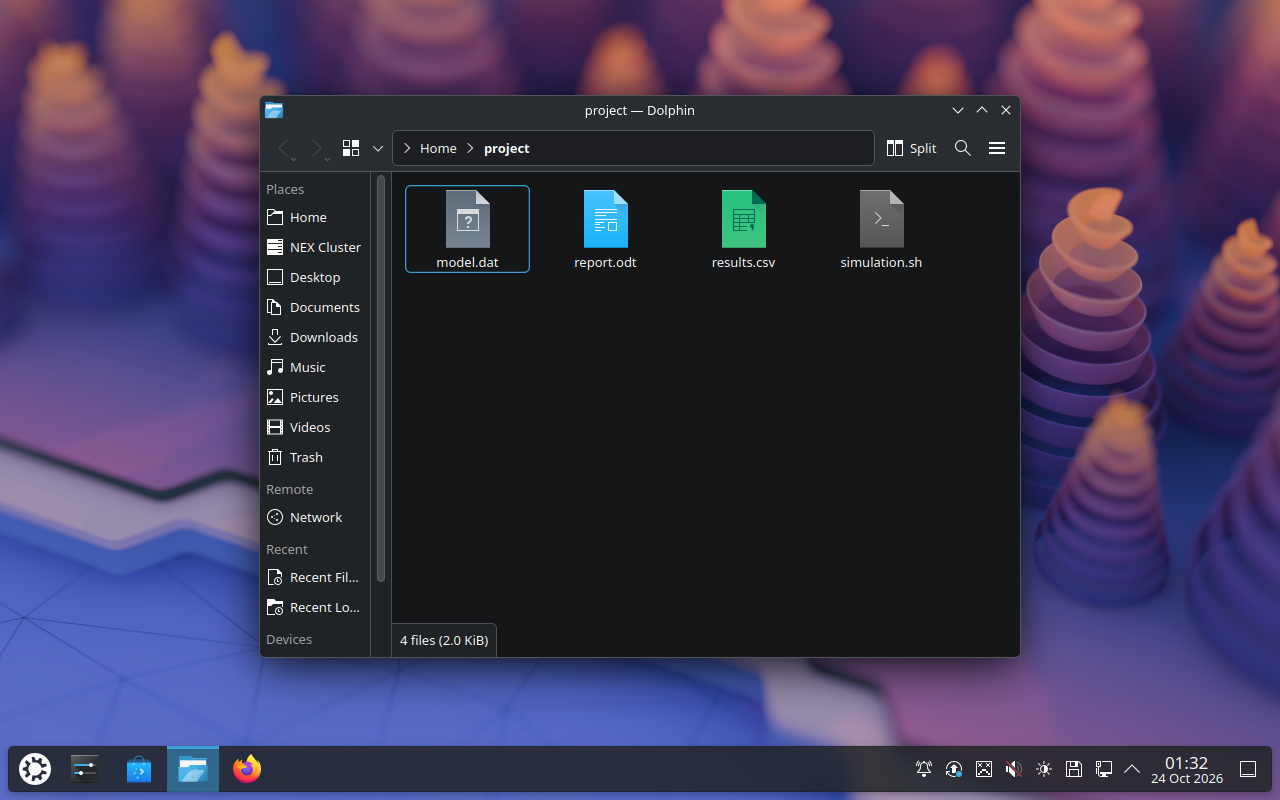
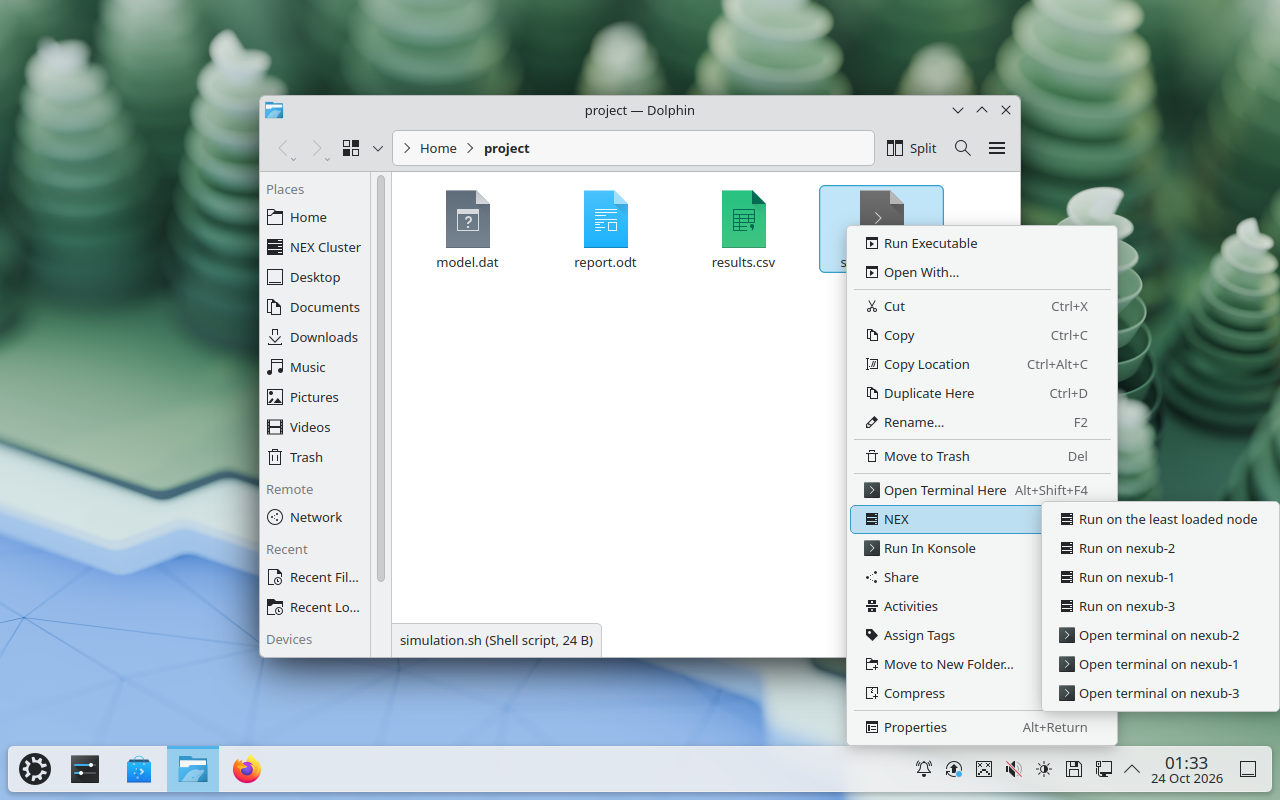
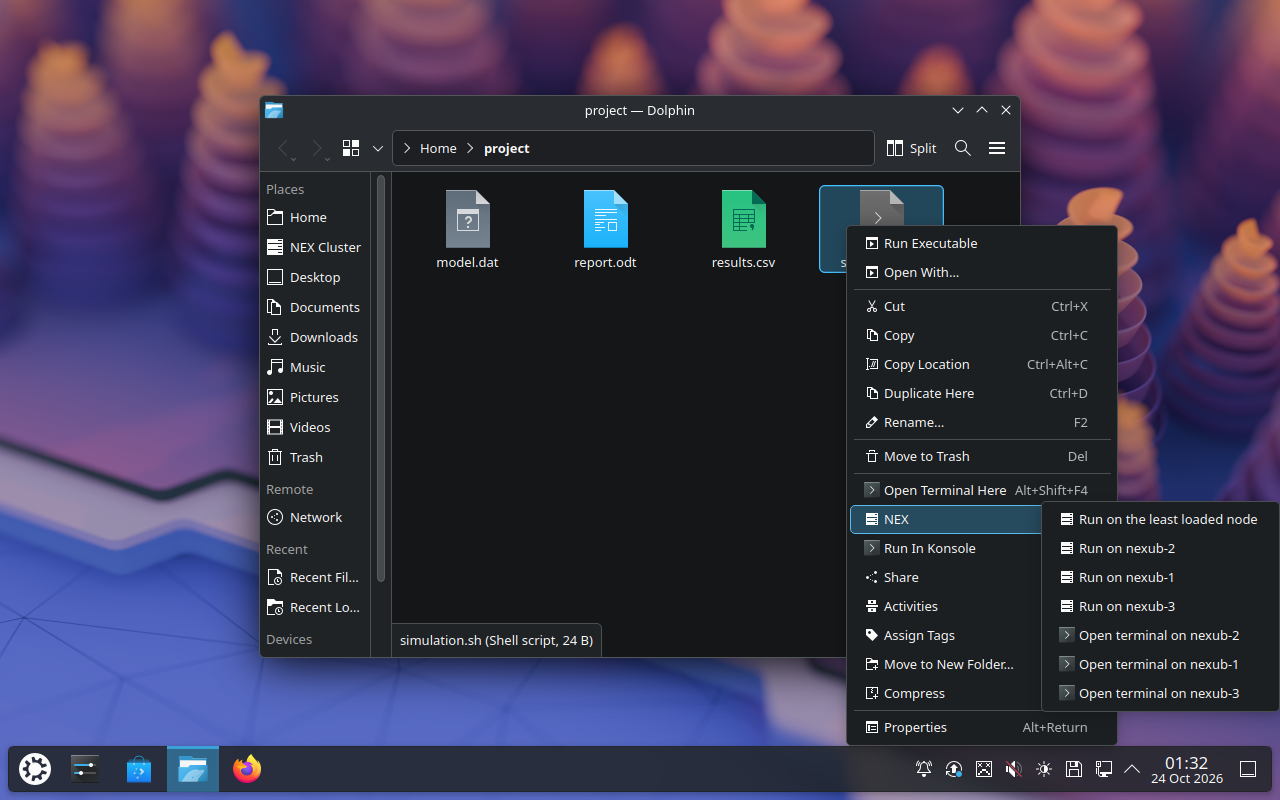
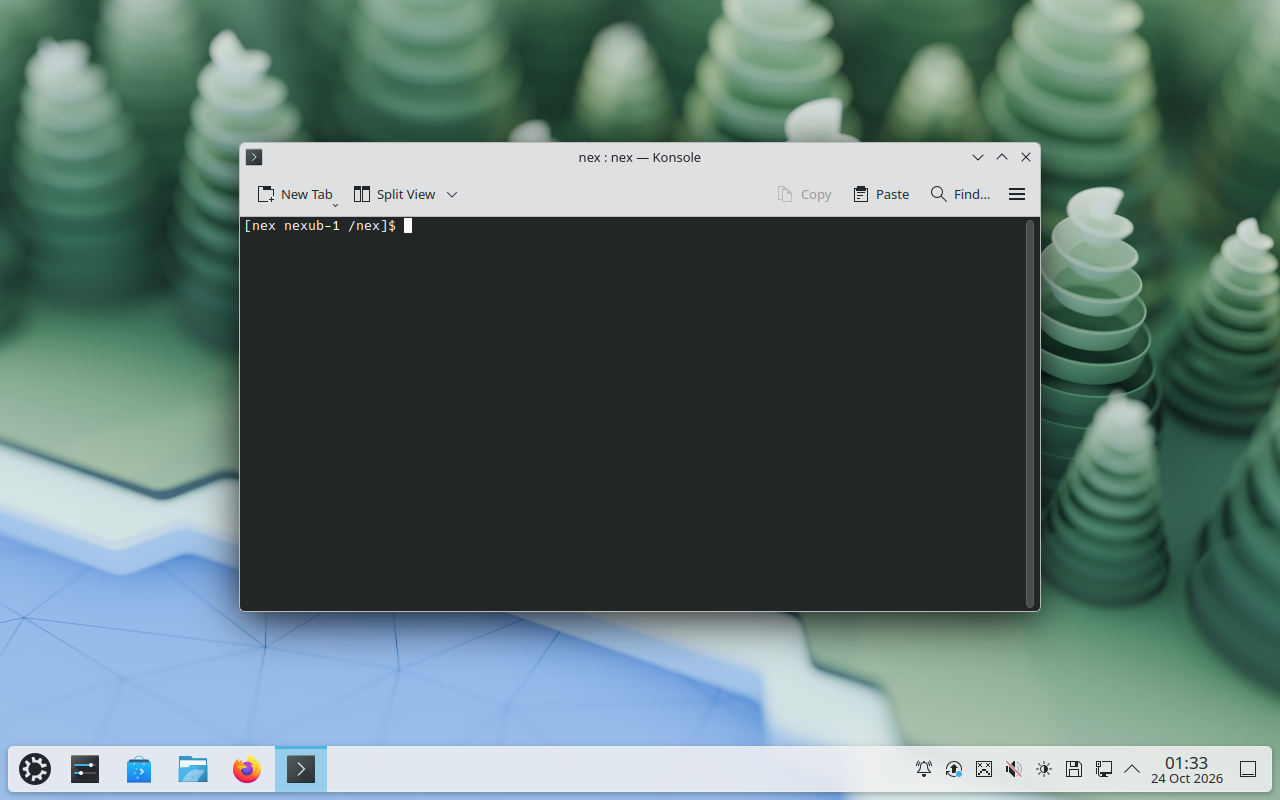
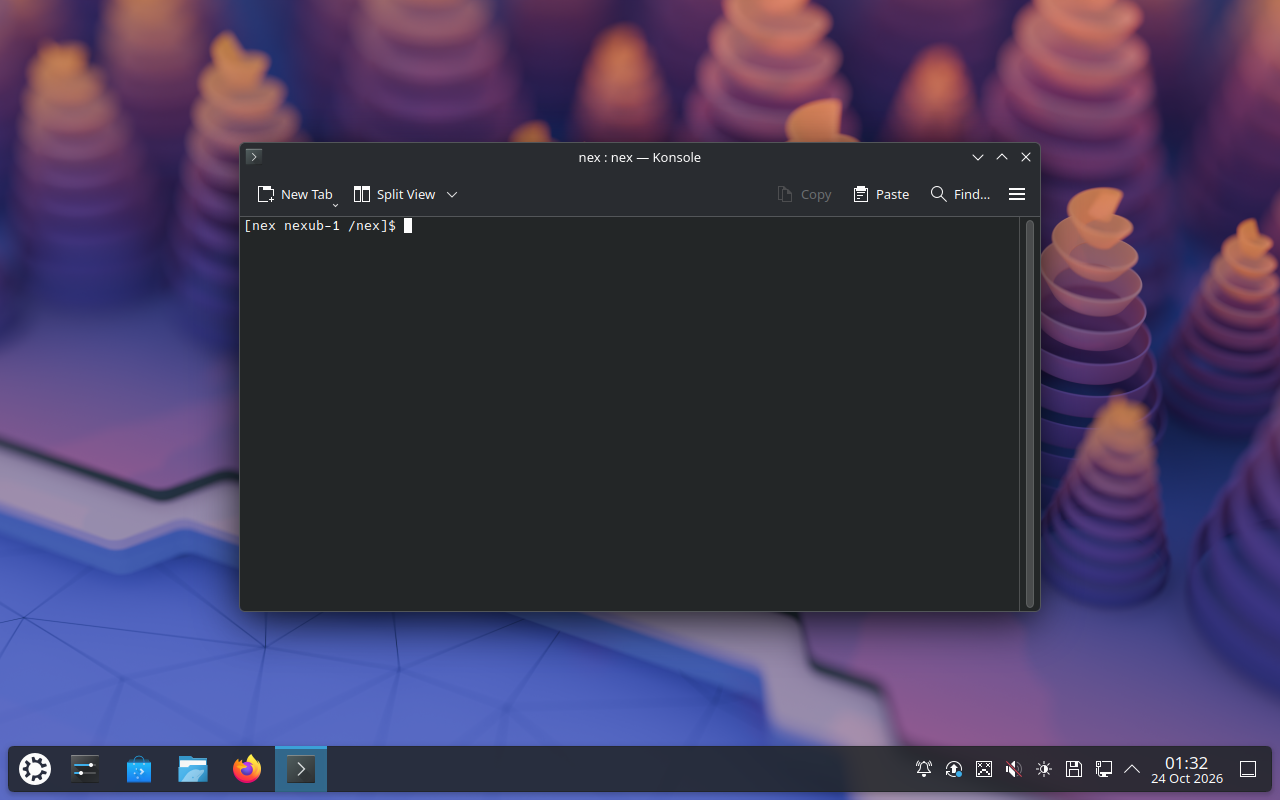
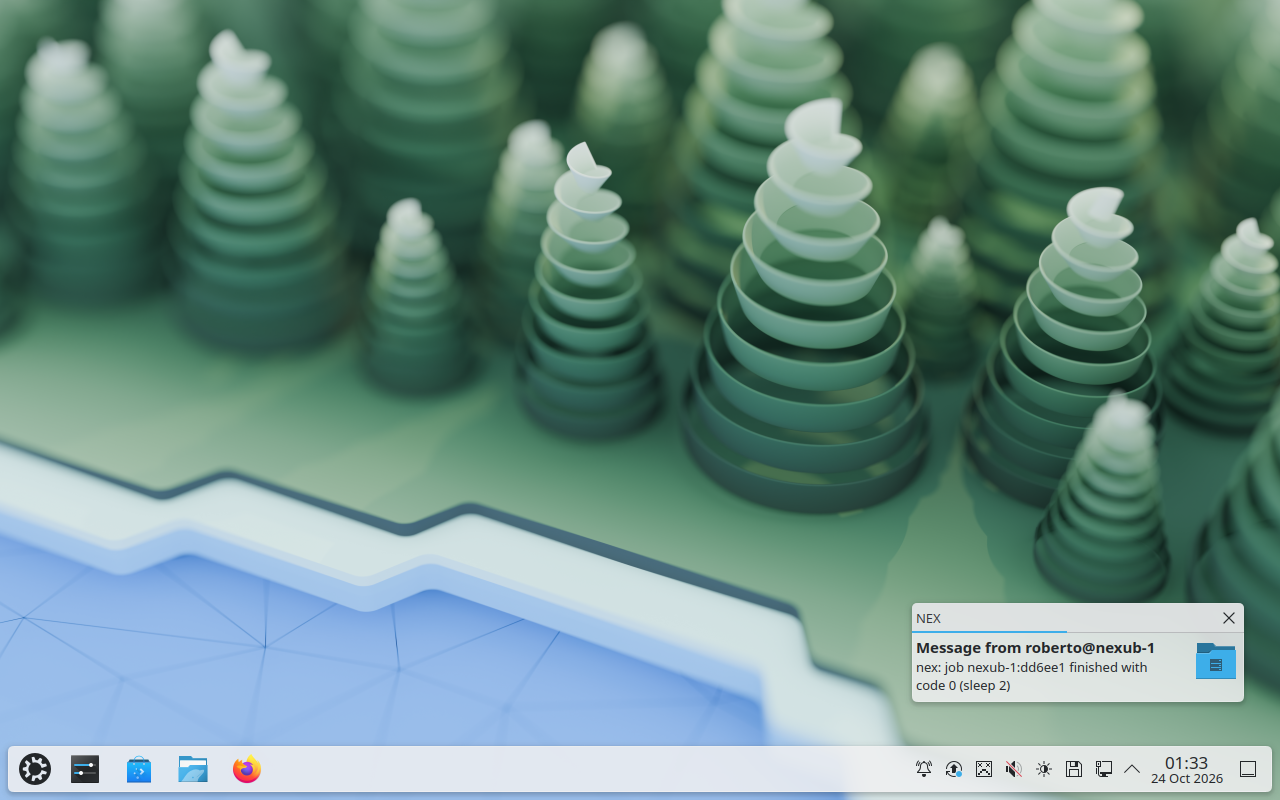
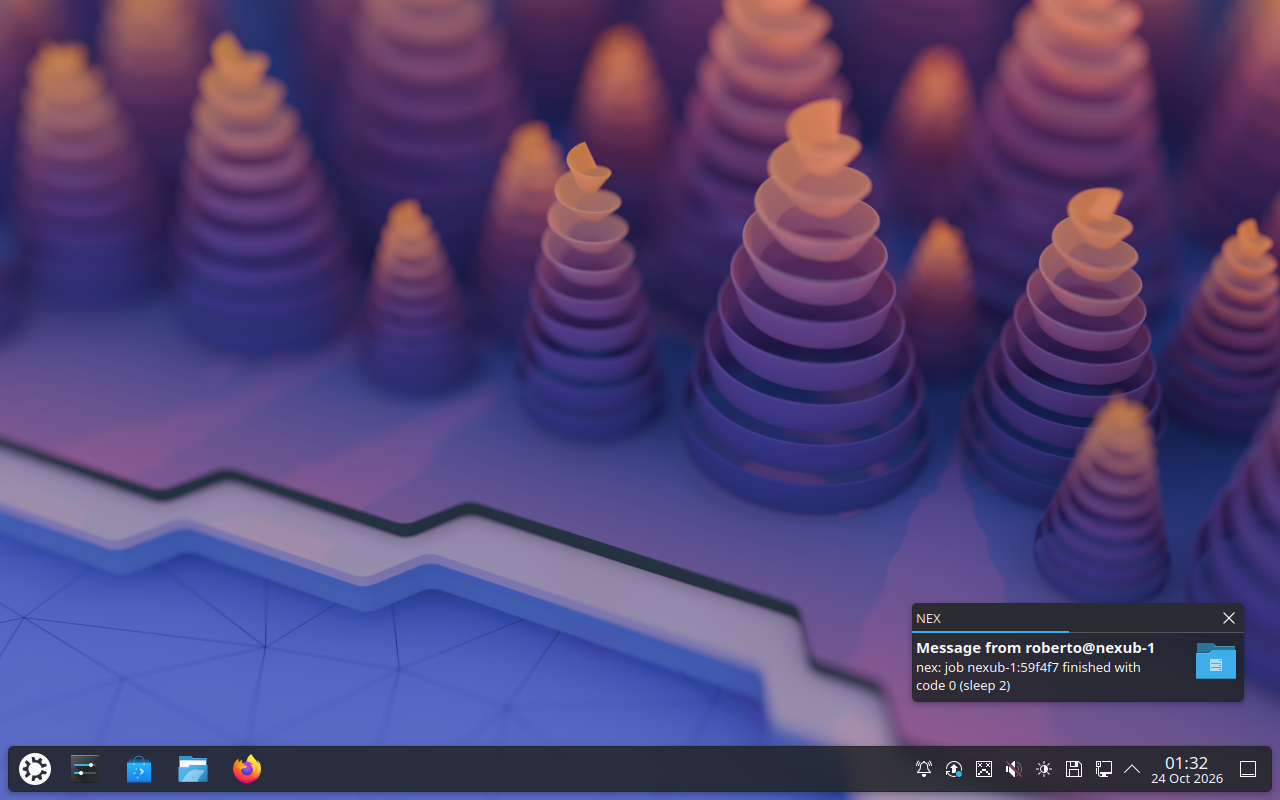
On a node with KDE Plasma (here Ubuntu 26.04 LTS with Plasma 6), the cluster appears in Dolphin and in Konsole: the NEX Cluster place, the NEX actions in the right-click menu (run a program on a node, open a terminal there), notifications at the end of a job, and NEX Monitor.
Installing a node
NEX Setup, the graphical setup, creates a cluster or joins one in a few
clicks. It opens by itself on the NEX Live USB stick and on
the virtual machine images with a desktop, and it is in the applications
menu of every computer with the nex-desktop package.
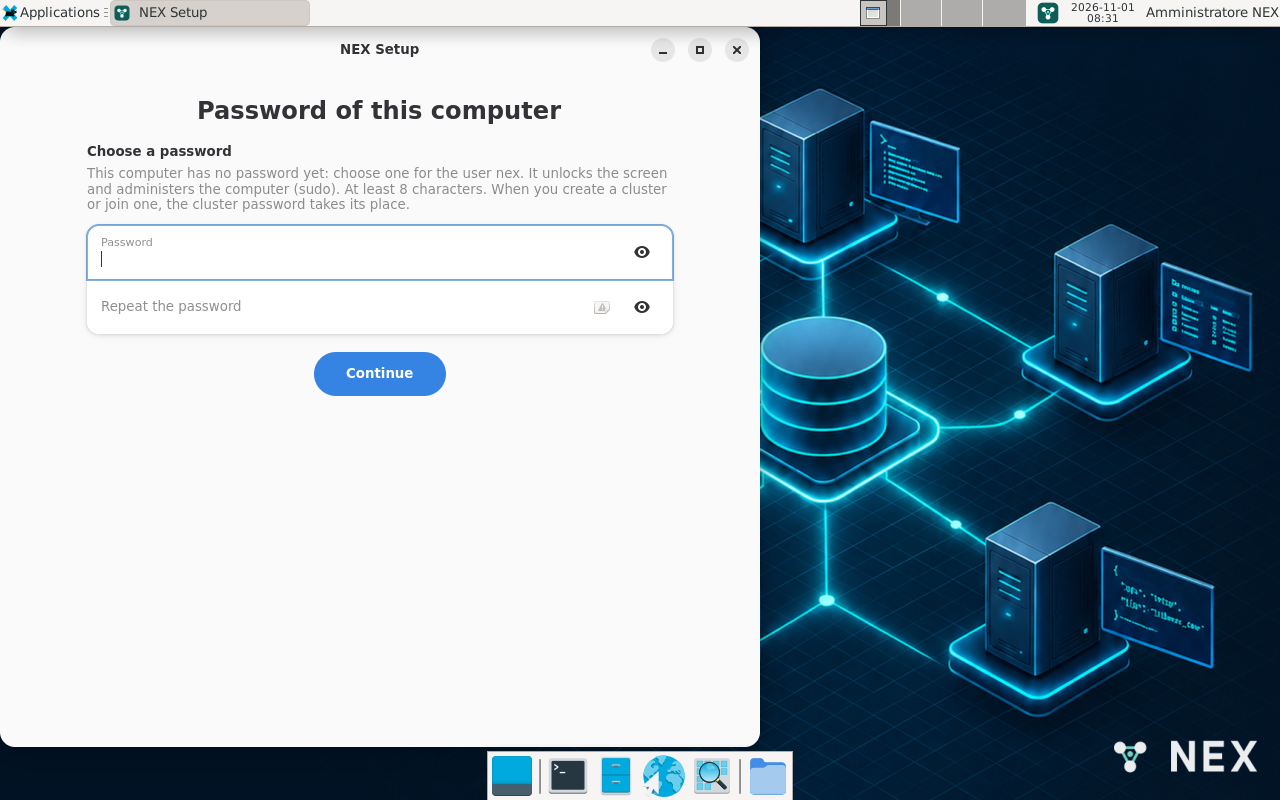
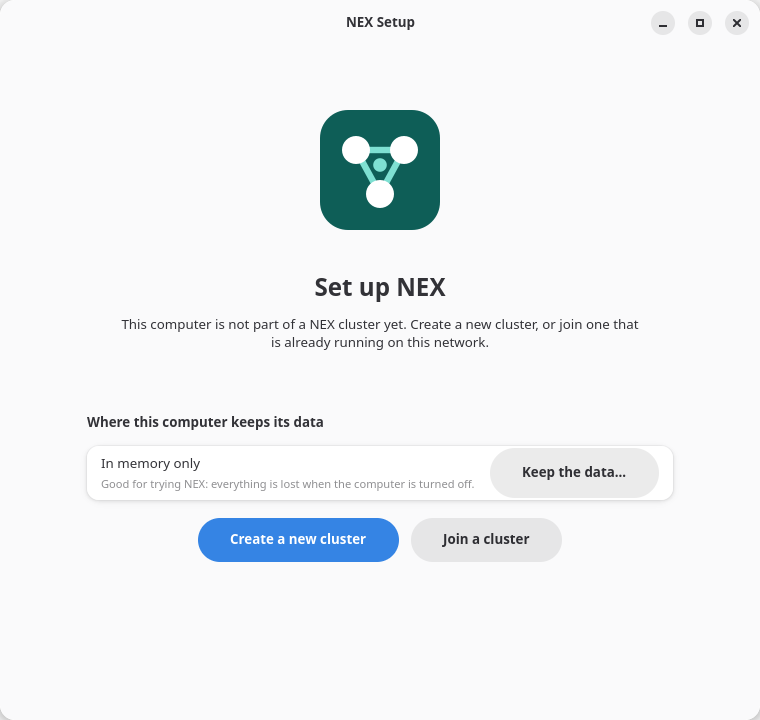
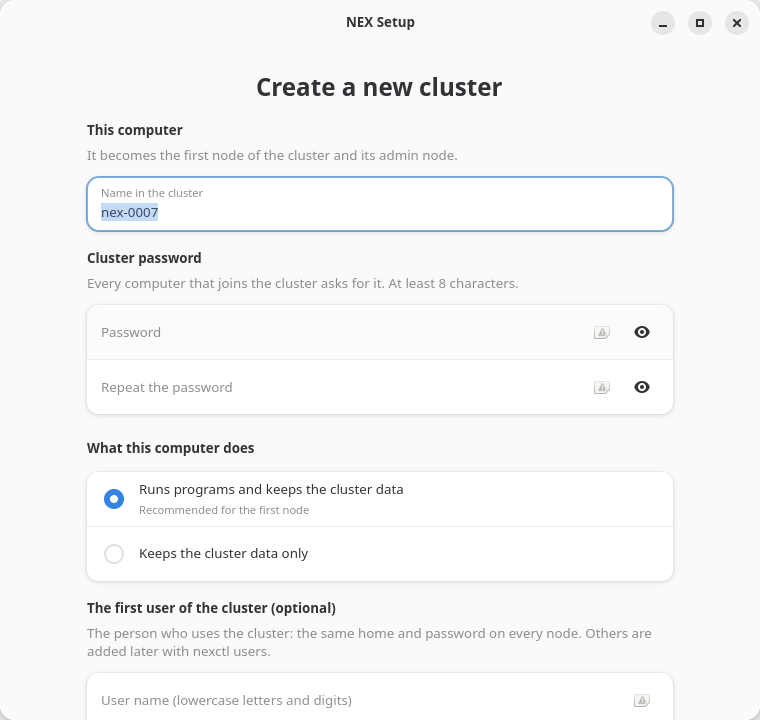
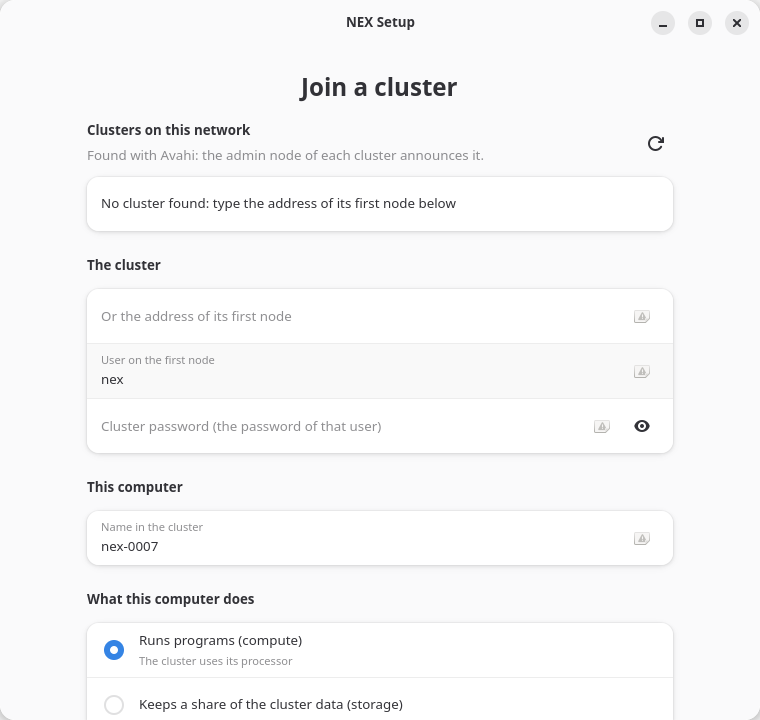
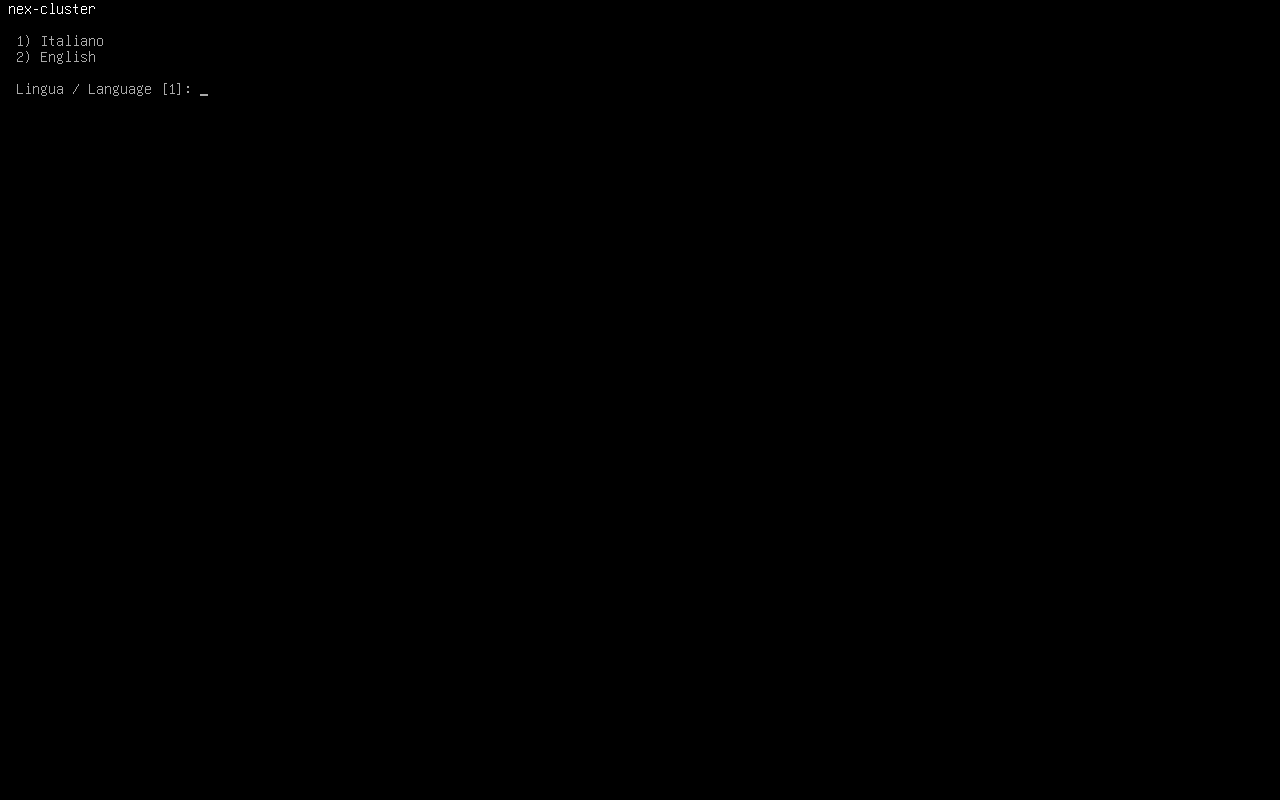
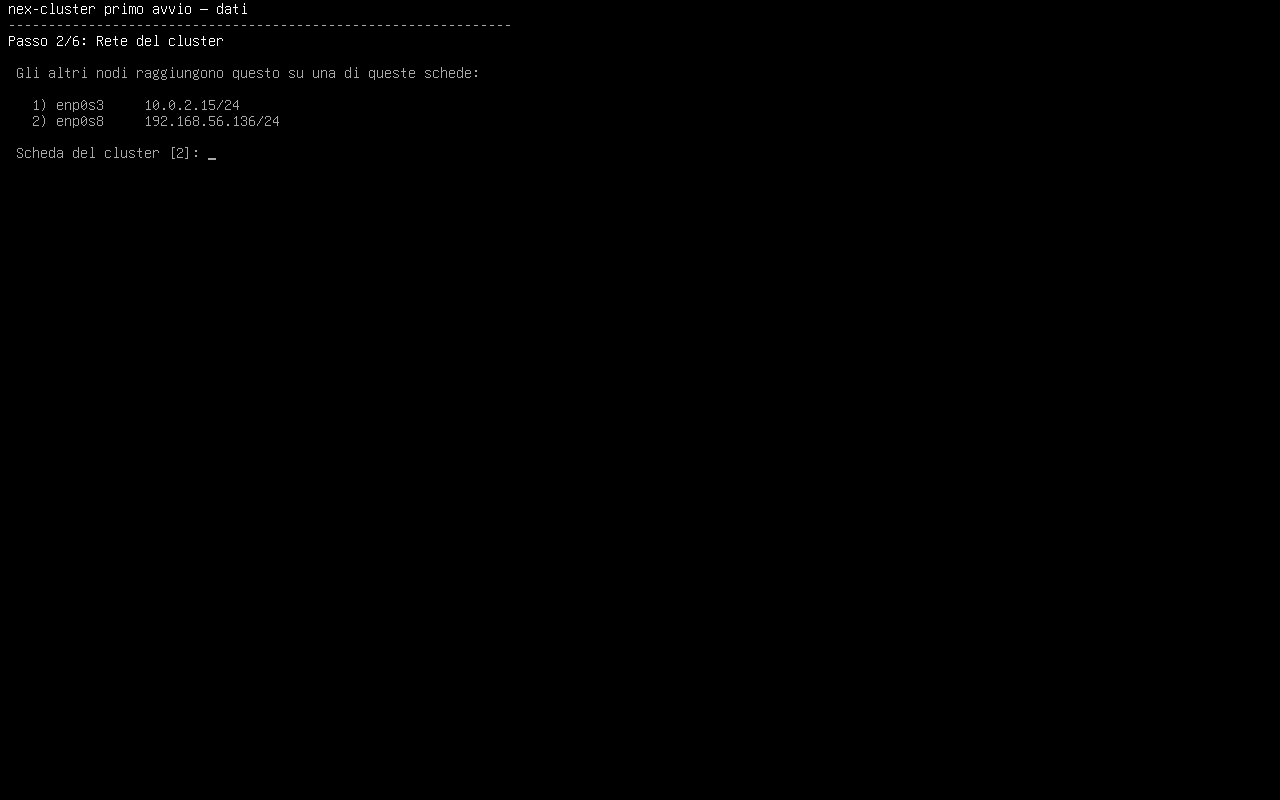
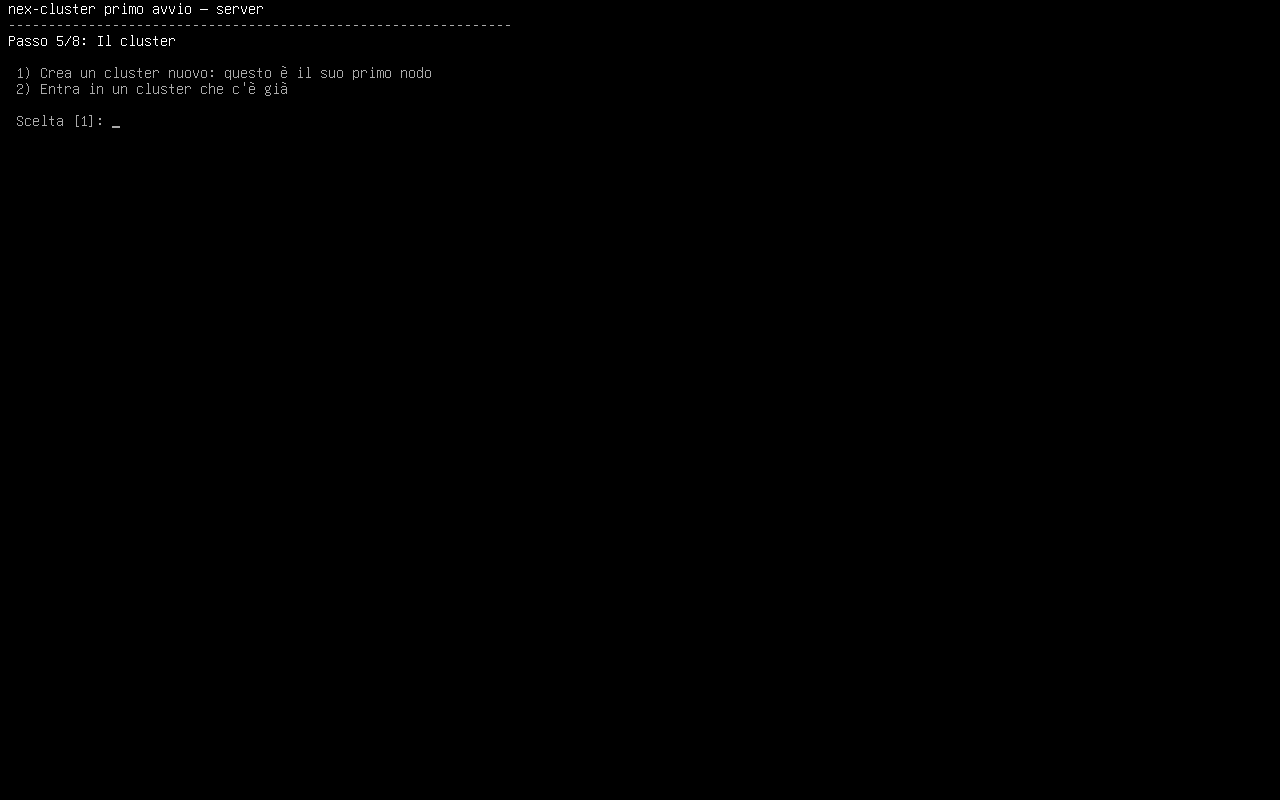
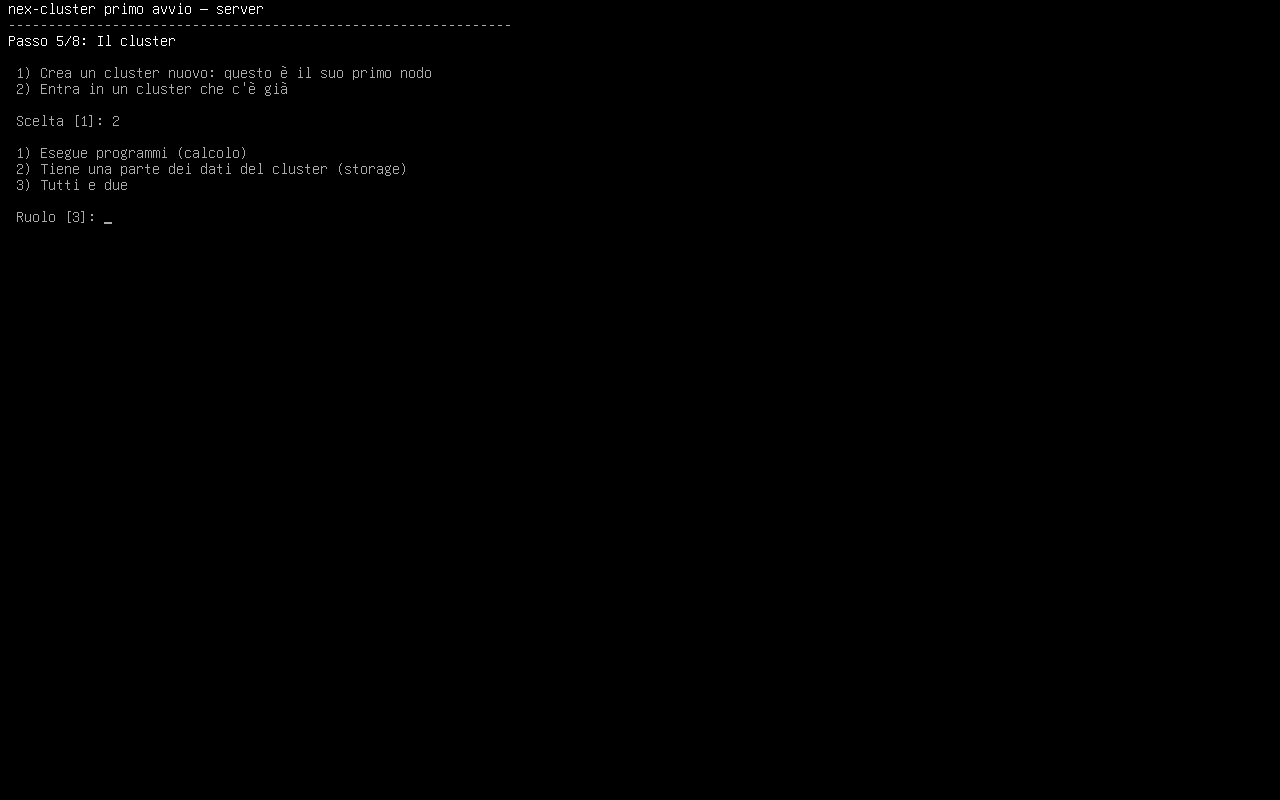
The image without a desktop asks the same on the console at the first boot: language, cluster network, node name, then whether to create a cluster or join one, and what the node does. The steps are in the virtual machine images guide.