
The GNOME desktop with NEX
By Roberto Arato of aratoingegneria.it
This guide is for those who work on the cluster from the desktop: GNOME on a compute node, or on a PC that is a node of the cluster. Every image comes from the development lab (GNOME 48, Debian 13, three nodes: node-a and node-b for computing, nex-stor for storage).
Contents
- What you need
- The indicator in the top bar
- Search in the overview
- Cluster files in Nautilus
- The terminal on another node
- Graphical programs from other nodes
- Notifications
- NEX Monitor
- The shared clipboard
- When something is wrong
- With KDE Plasma
- With XFCE
1. What you need
The nex-desktop package on the node where you use GNOME (versions 47
to 50, Debian 13 and Ubuntu 26.04):
sudo apt install nex-desktop
It contains:
- the GNOME Shell extension (the indicator in the top bar);
- the overview search provider;
- NEX Monitor;
- the
nex-desktopprogram, which does everything else.
After installation:
- Log out and back in, so that GNOME loads the extension and starts the
nex-desktopdaemon by itself (bookmark, Nautilus menu, notifications). - Enable the extension, if it is not already:
gnome-extensions enable nex@aratoingegneria.it, or from the Extensions app.
Nothing to configure: nex-desktop reads the nodes from the node's agent
and updates menus and entries by itself when you add or remove a node.
2. The indicator in the top bar
At the top right there is the NEX icon with how many nodes respond ("3/3"). If a node goes down it becomes "2/3 !"; a "!" on its own means that this node's agent does not respond.
A click opens the menu:
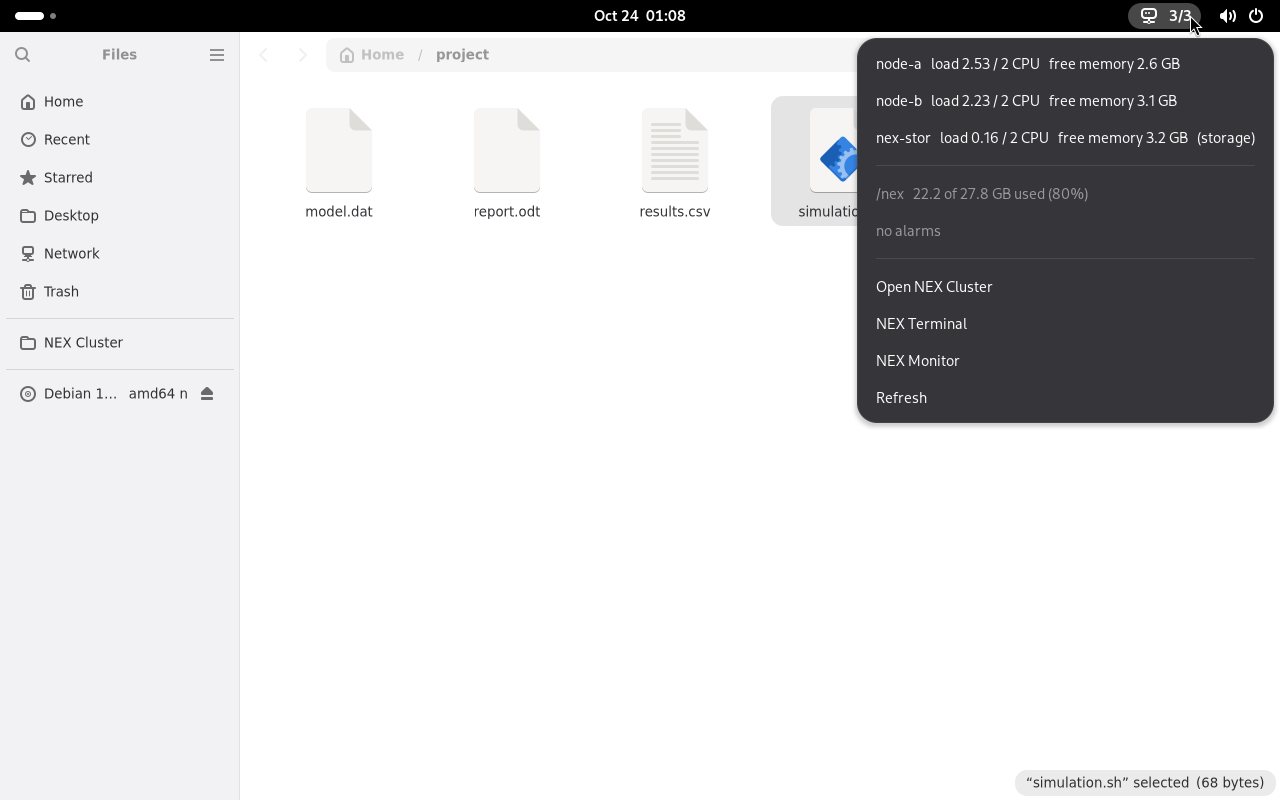
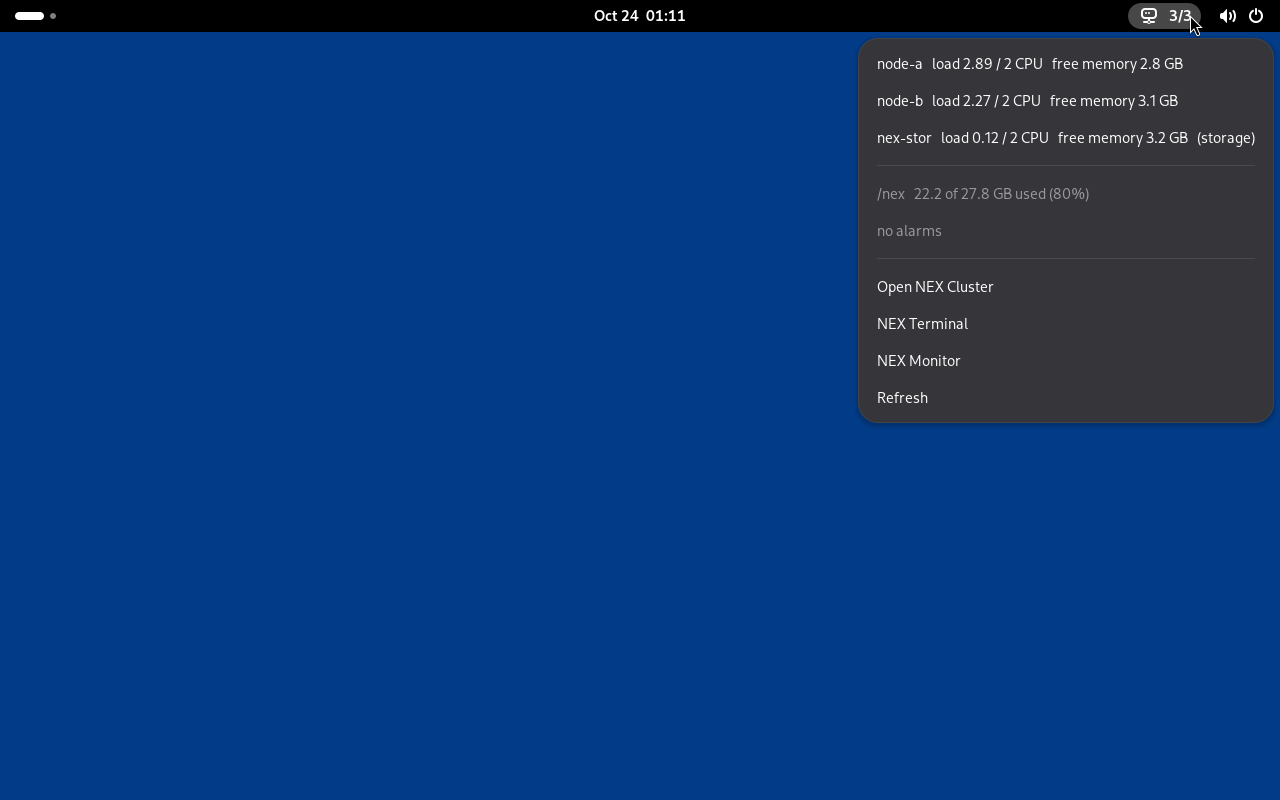
- One line per node: load (out of the number of CPUs) and free memory;
(storage)for storage-only nodes. /nex: how much space is used in the shared filesystem.- Alarms: "no alarms", or how many and how many are
critical (see
nex alarm). - Actions:
- Open NEX Cluster: the
/nexfolder in Nautilus; - NEX Terminal: a terminal with nexsh;
- NEX Monitor;
- Refresh: reads again immediately, instead of waiting for the next round.
- Open NEX Cluster: the
3. Search in the overview
Press the Super key (the one with the logo) and type: besides applications and files, GNOME asks NEX.
A node: type part of its name.
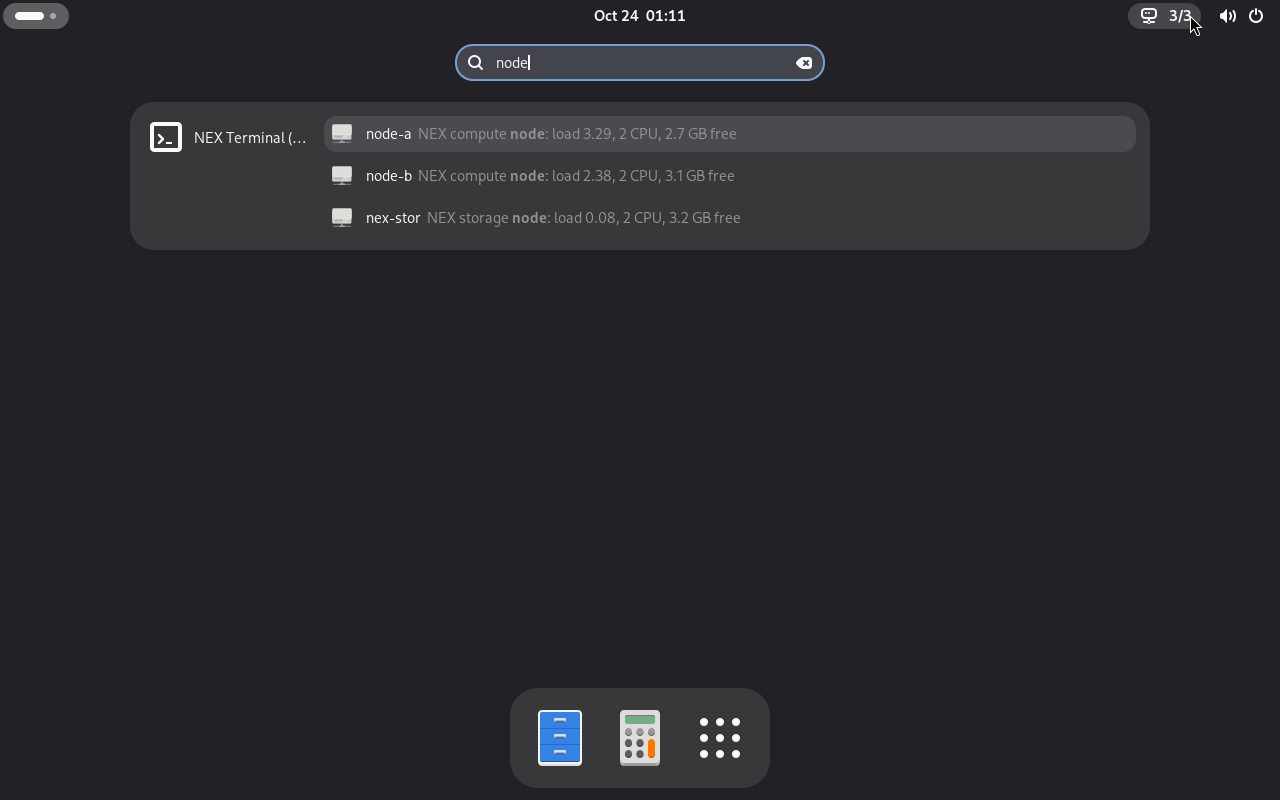
- What you see: the role, the load, the CPUs and the free memory.
- Enter: opens a terminal on that node.
One of your processes: type the name of the program (at least 3 letters).
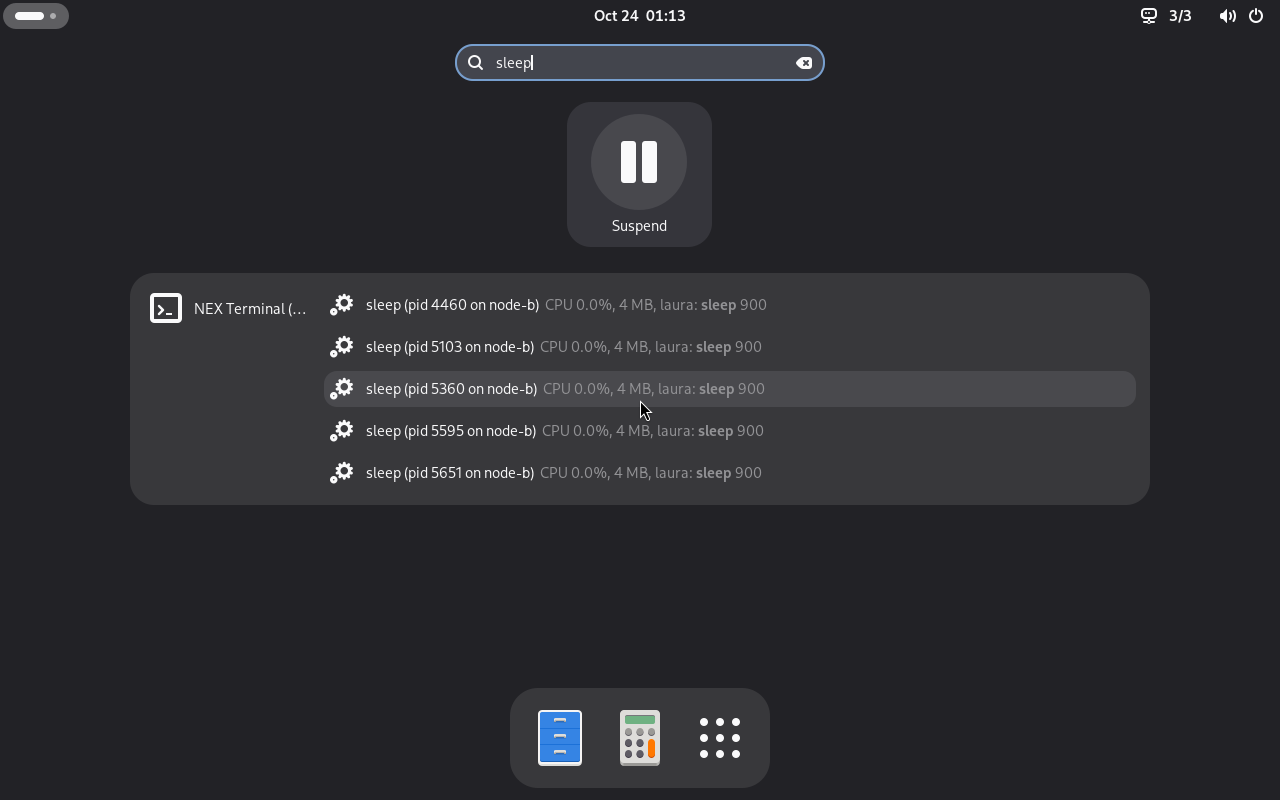
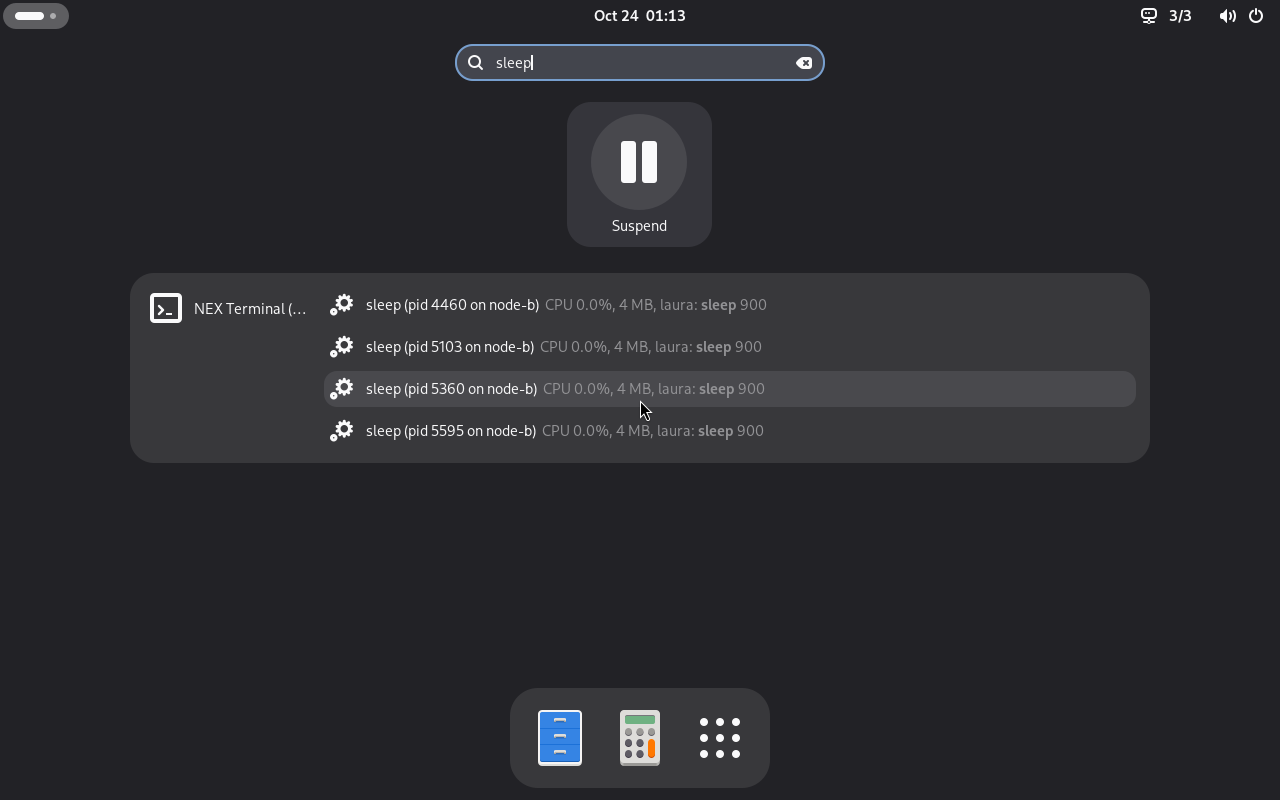
- Where it searches: on all nodes, but only among your processes.
- What you see: which node it runs on, CPU, memory and command.
- Enter: opens a terminal on that node, where you can for example stop
it with
kill. - Shortcut: clicking on NEX Terminal to the left of the results (or "Search again") opens NEX Monitor.
4. Cluster files in Nautilus
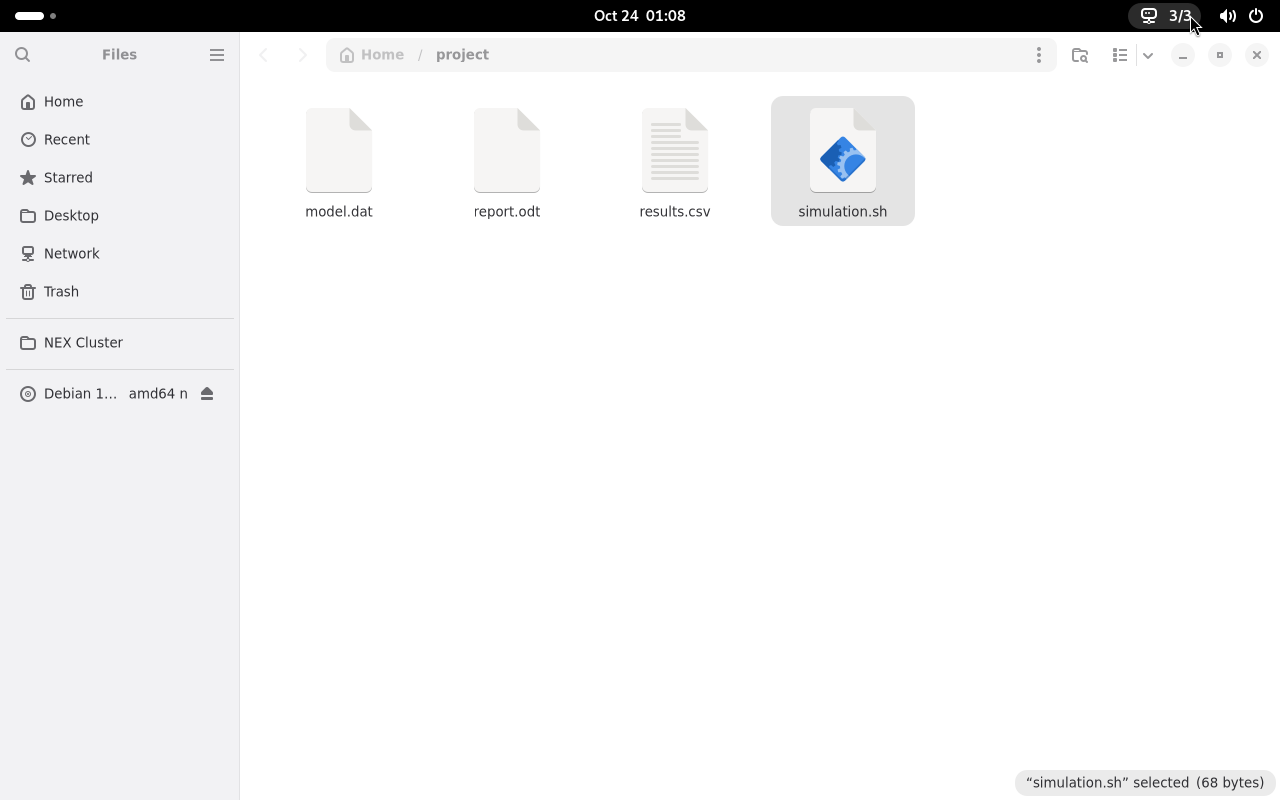
In the Nautilus sidebar there is NEX Cluster: it is /nex, the shared
filesystem, the same from every node.
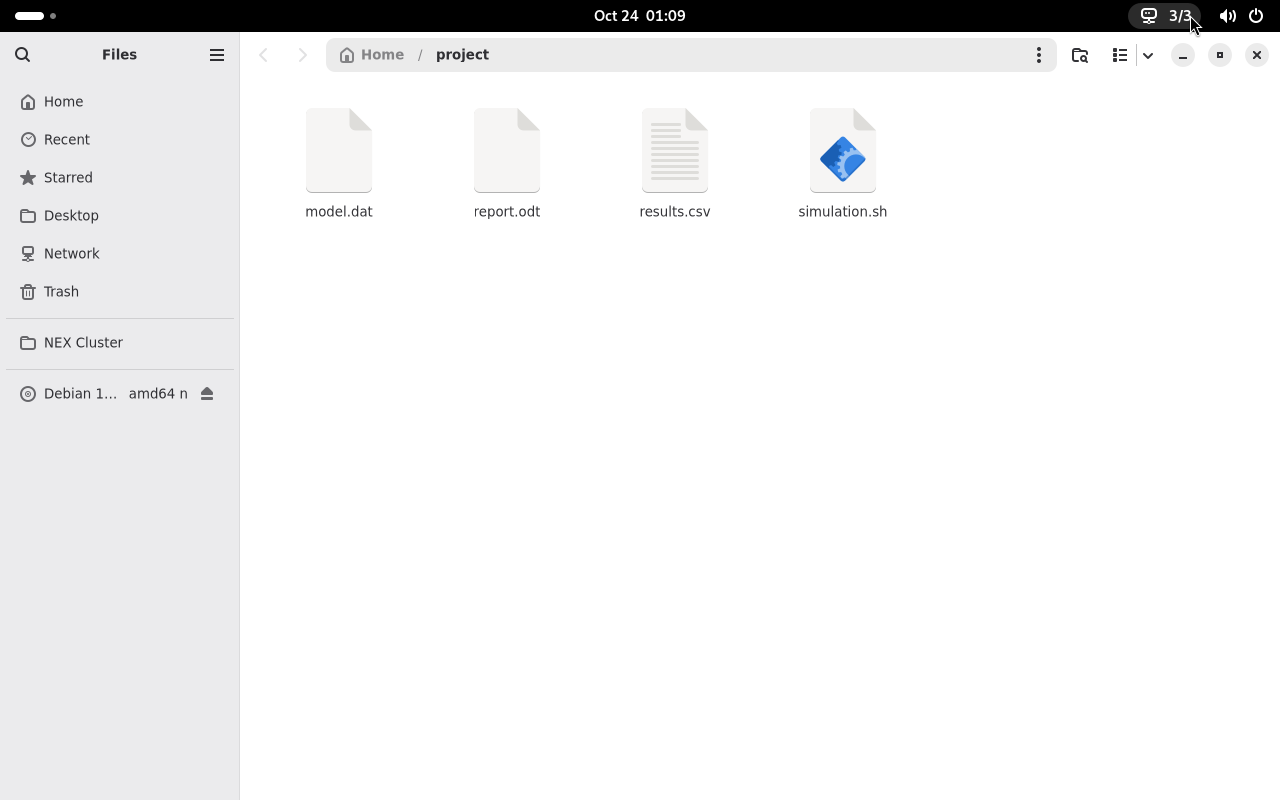
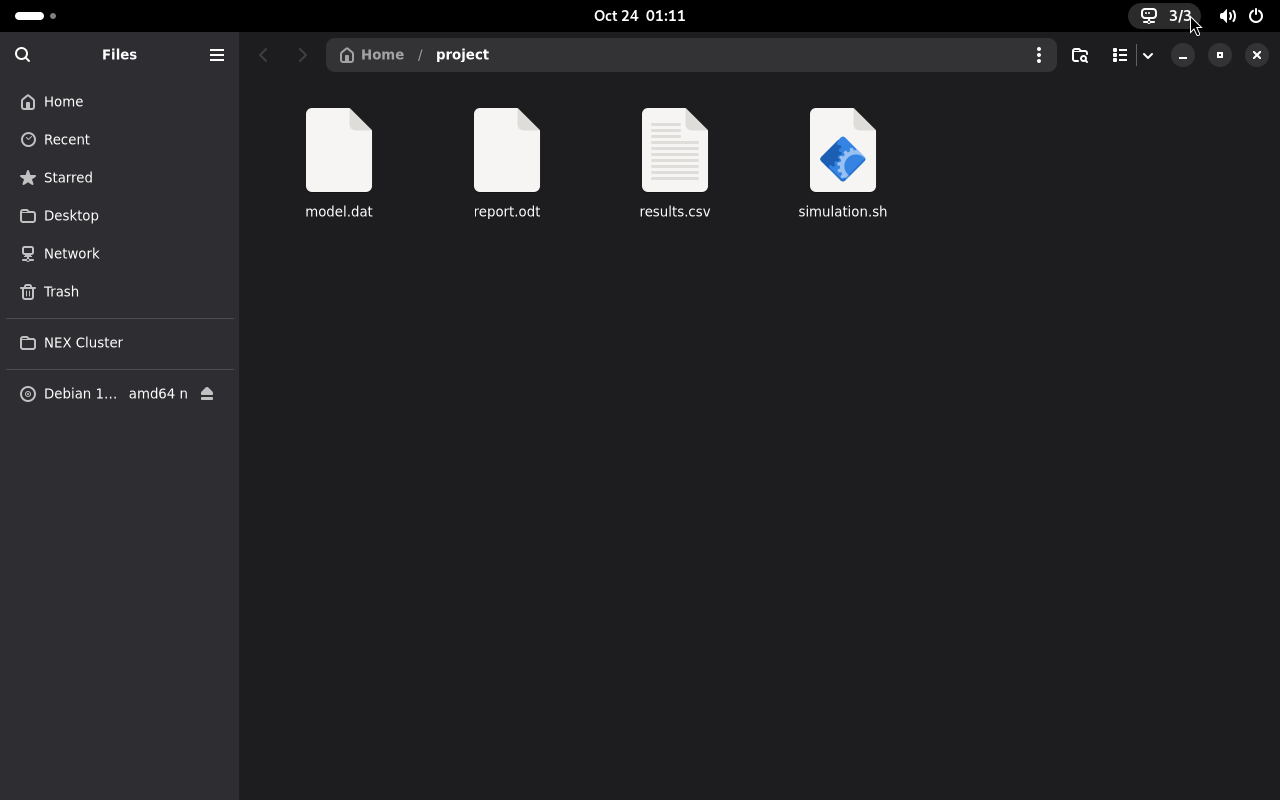
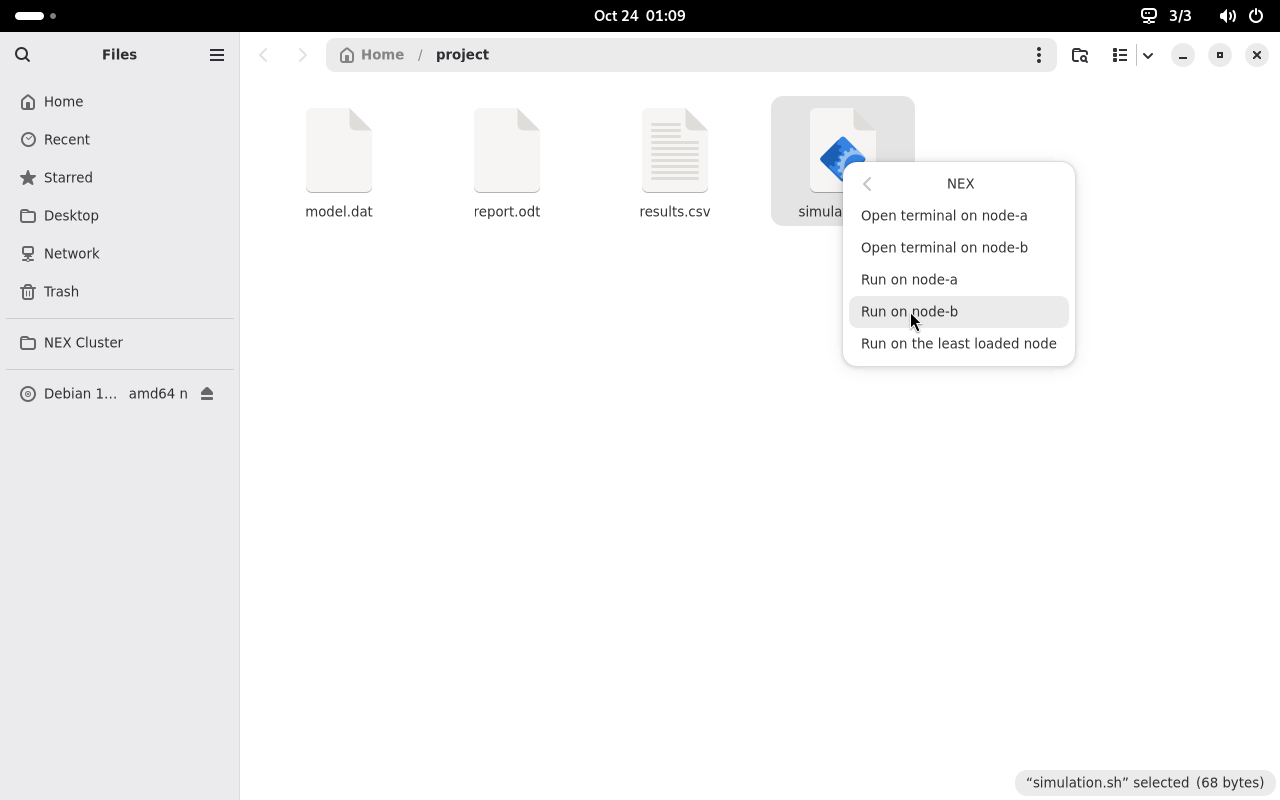
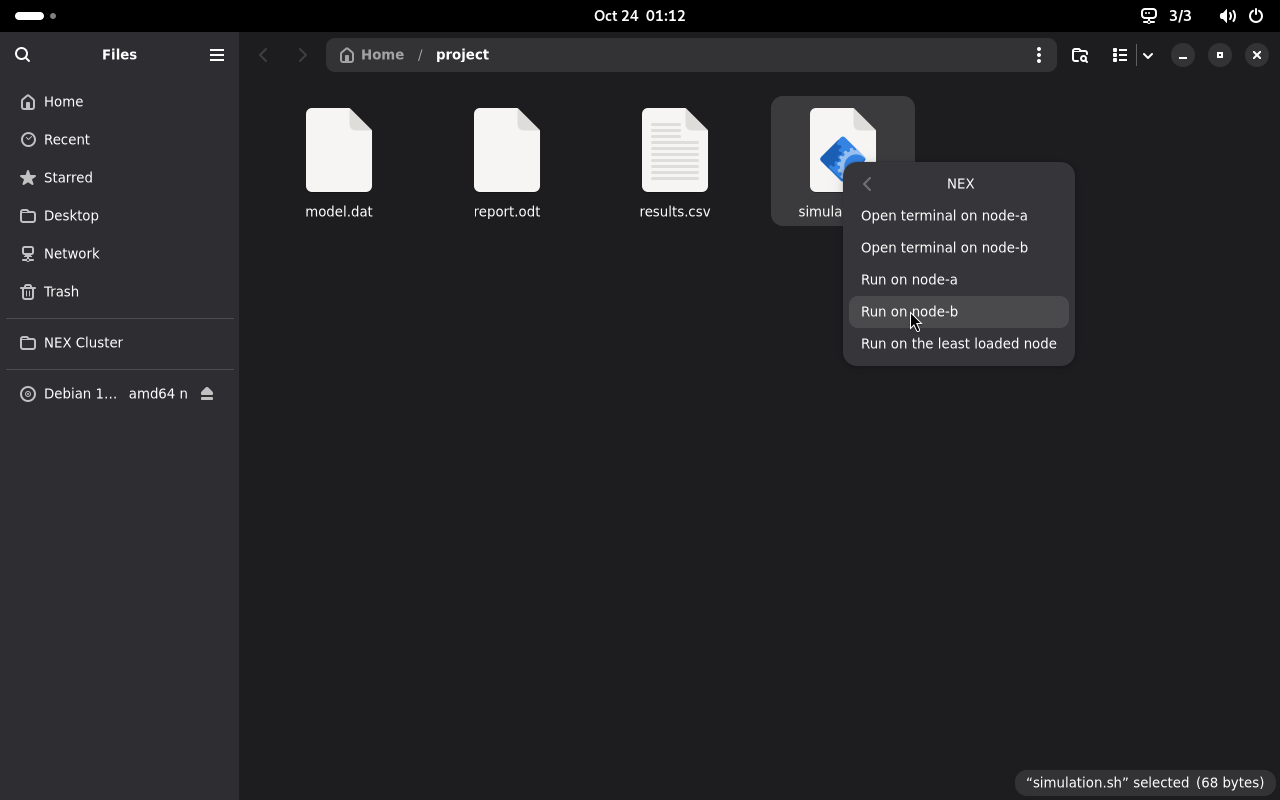
With a right click on a file or a program, Scripts → NEX:
| Entry | What it does |
|---|---|
| Run on the least loaded node | runs the file (a program or a script) on the least busy node, in its folder |
| Run on node-a, node-b, … | runs it on that node |
| Open terminal on node-a, … | opens a terminal on that node, in the file's folder |
- Nautilus does not wait: the program runs on the cluster and Nautilus stays free.
- If something goes wrong (file outside
/nex, node not responding) a notification arrives with the reason. - The program's output: if you need to read it, have it written to a
file or use a detached job (
nex run -d, section 7).
The entries update by themselves when the nodes change.
5. The terminal on another node
NEX Terminal (from the applications menu, the indicator or the search) opens a terminal with nexsh, the NEX shell. Open terminal on node-b opens it directly on node-b, in the same folder.
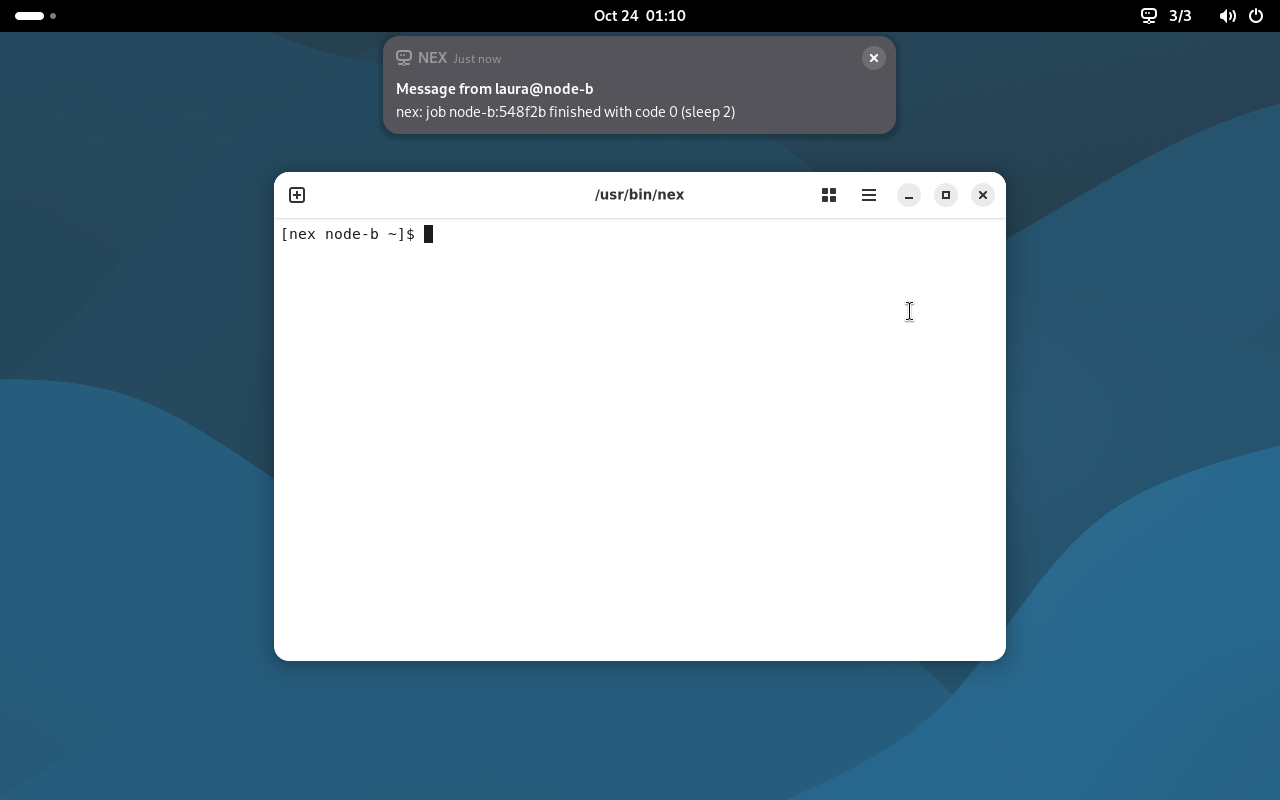
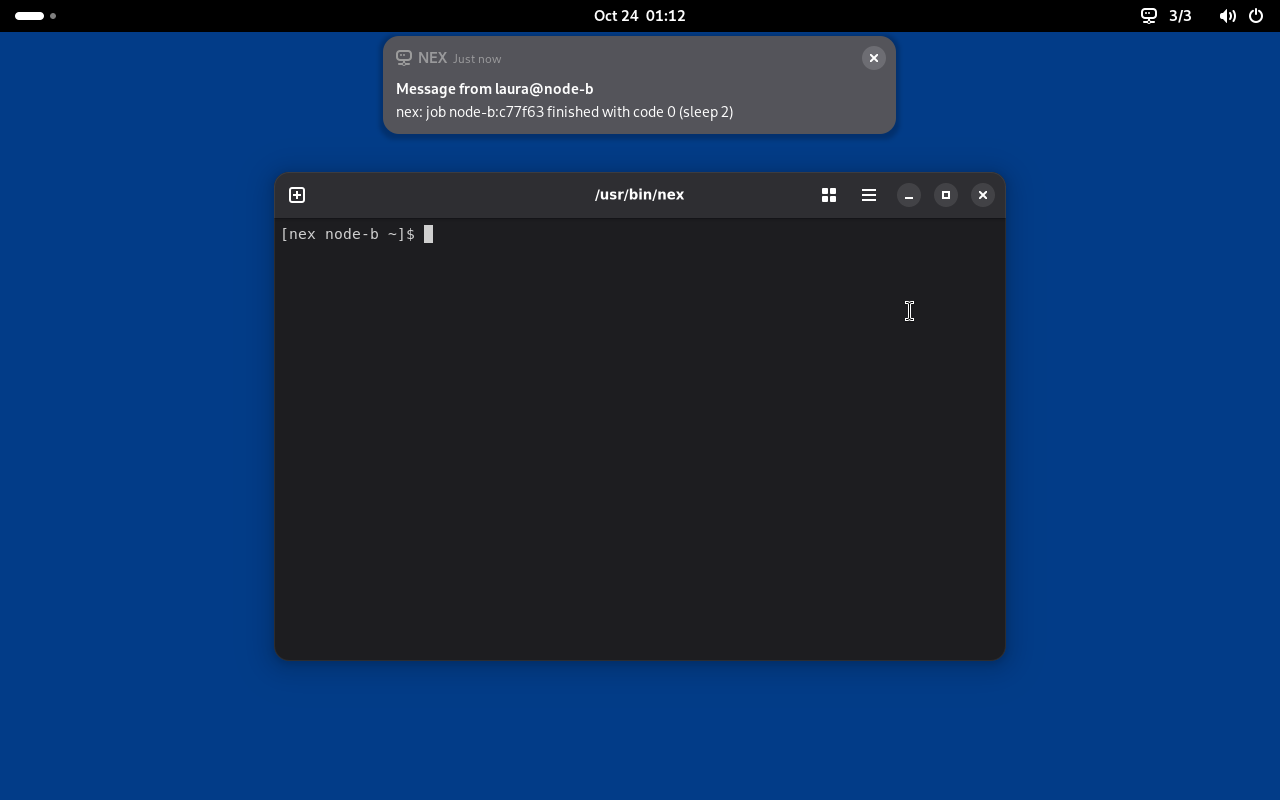
In the image:
- the prompt says where you are:
[nex node-b ~/project]; nodesshows the cluster;on any ./simulation.shruns the script on the least loaded node (here node-a:[nex: node-a]says so), and the result ends up in the same file, because the folder is the same everywhere.
The terminal used is Ptyxis, GNOME Console or GNOME Terminal, whichever is there. For everything you can do in nexsh see nexsh.md.
6. Graphical programs from other nodes
A graphical program can run on another node and show its window on your screen, as if it were local. This is useful, for example, to use the memory or CPU of a more powerful node.
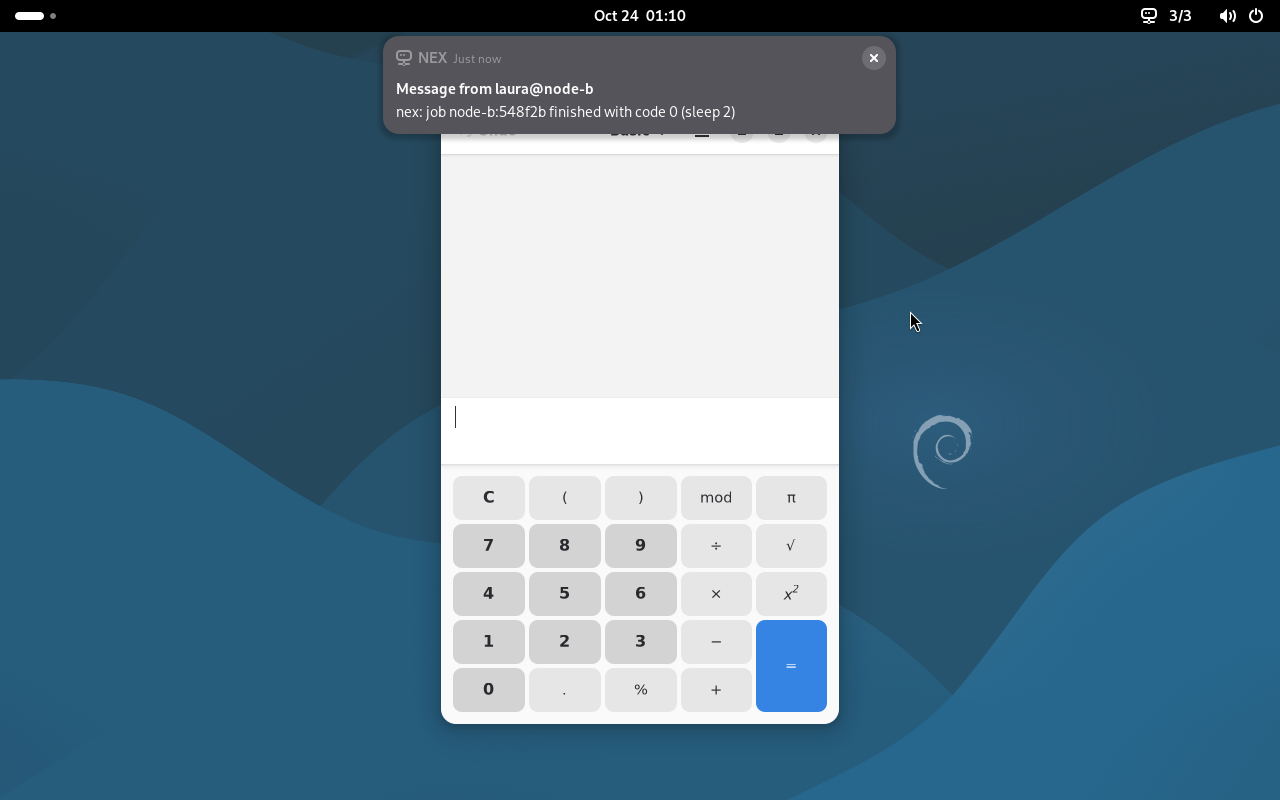
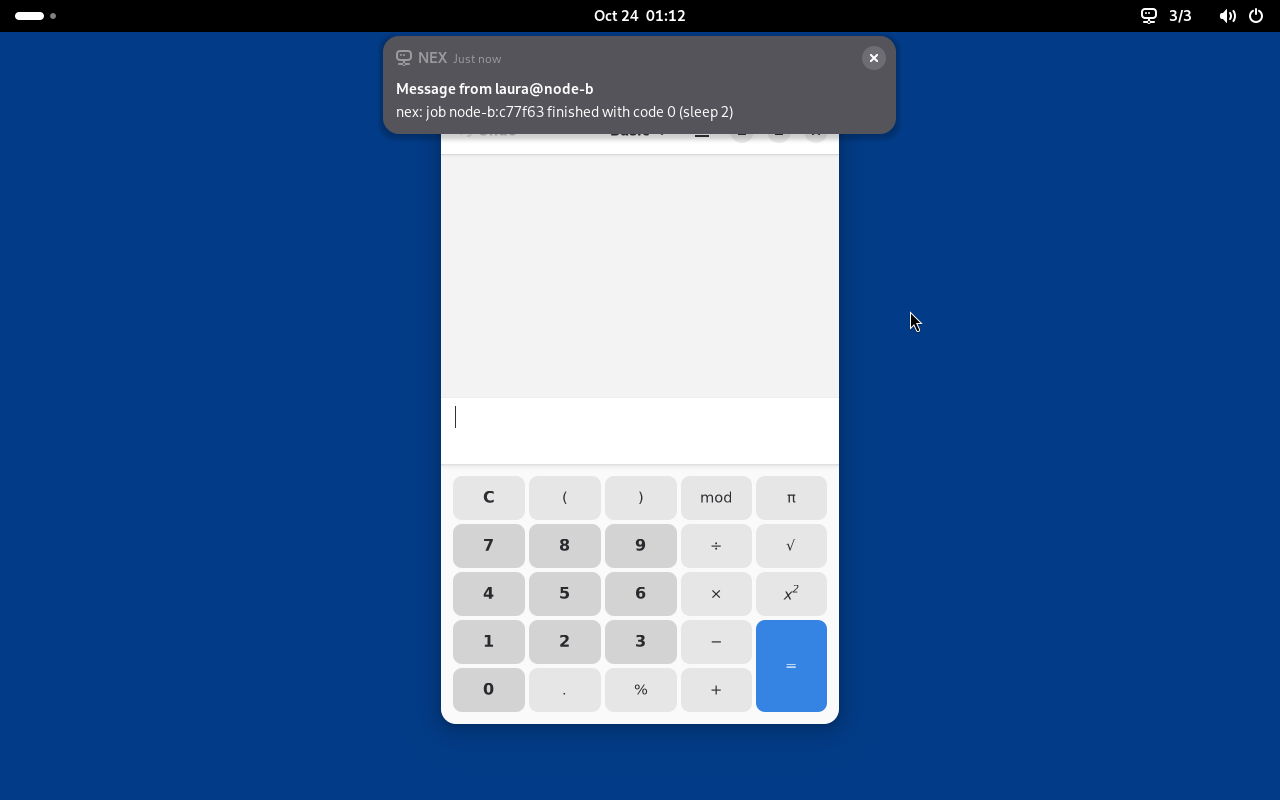
Three ways:
From the terminal:
on node-b gnome-calculator(nexsh), ornex run -X --node node-b -- gnome-calculator.From Nautilus: right click, Scripts → NEX → Run on node-b.
From the applications menu, with a cluster launcher:
nex-desktop launcher org.gnome.Calculator --node node-b
nex-desktop launcher org.gnome.Calculator --remove     # to remove it
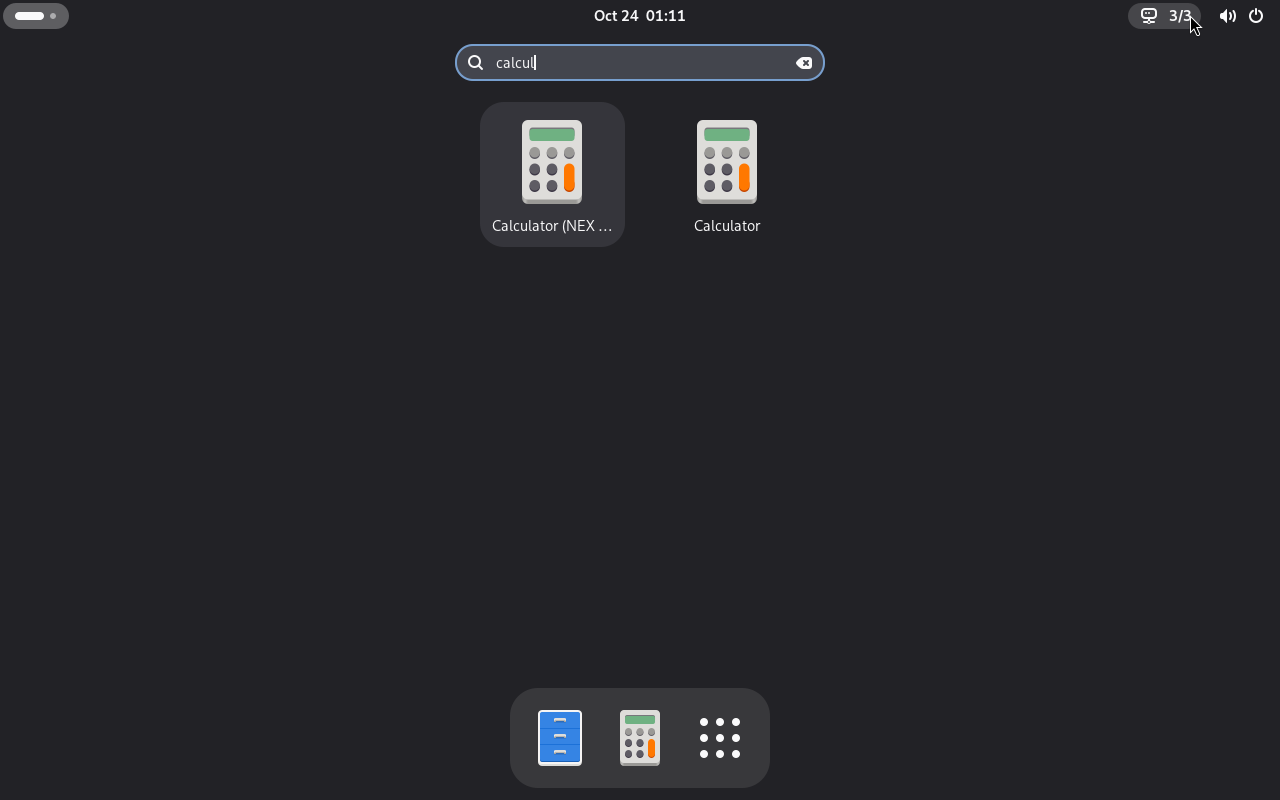
The same application appears in the menu with "(NEX cluster)": that one runs on node-b, the other one here. Without
--nodeit goes to the least loaded node.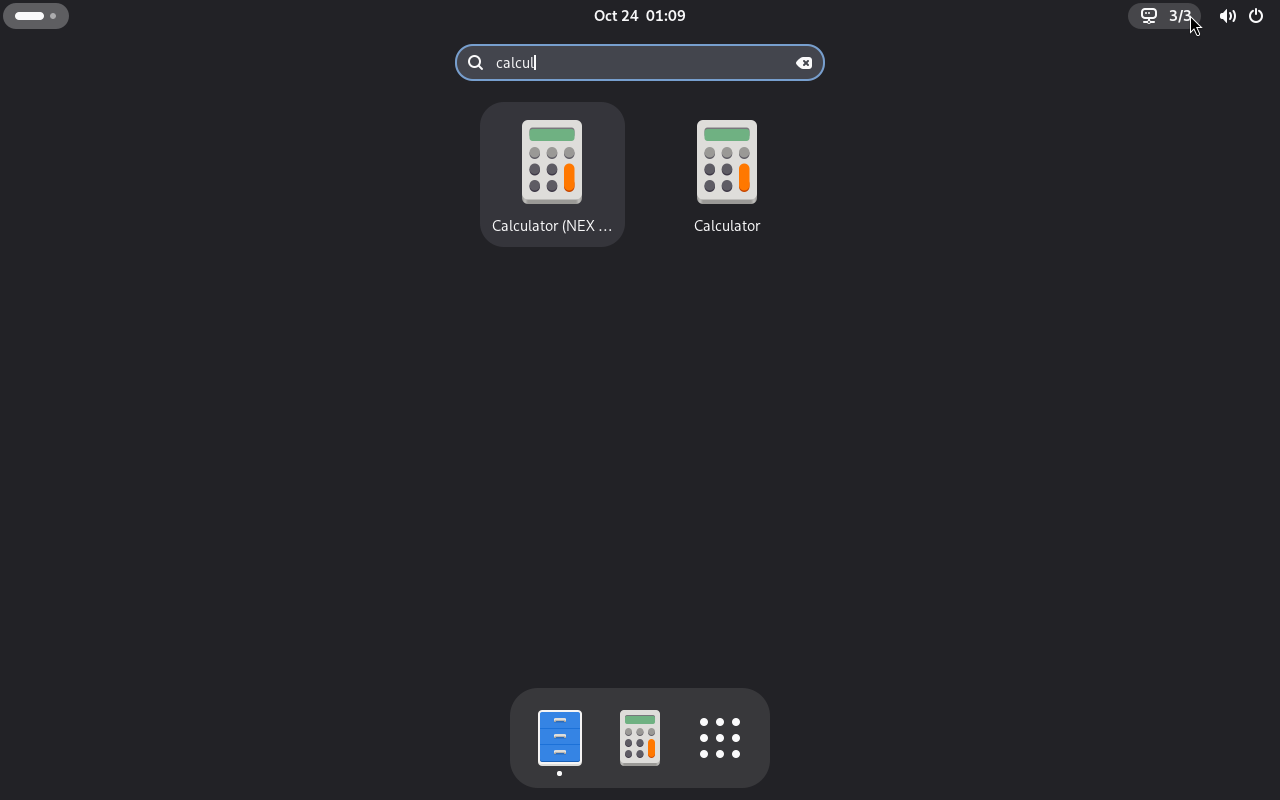
Good to know:
- The program must be installed on the node where it runs.
- Graphics: they go through X11 (or Wayland with waypipe, if
installed). With X11 forwarding NEX makes GTK4 and Qt draw without OpenGL
(
GSK_RENDERER=cairo,QT_X11_NO_MITSHM=1), because the screen's shared memory does not cross the network; with--envyou can choose another renderer. Programs with forwarded graphics also getNO_AT_BRIDGE=1: the accessibility service belongs to your desktop and is not on the other node, and without this variable every GTK program printed adbind-WARNINGin the terminal. - Audio: if the program plays sound, the audio comes out of your node
(
nex run -A). - Language: the program uses yours (
LANG,LANGUAGE). If that node does not have your language installed, it starts in English instead of giving errors.
7. Notifications
nex-desktop turns into GNOME notifications:
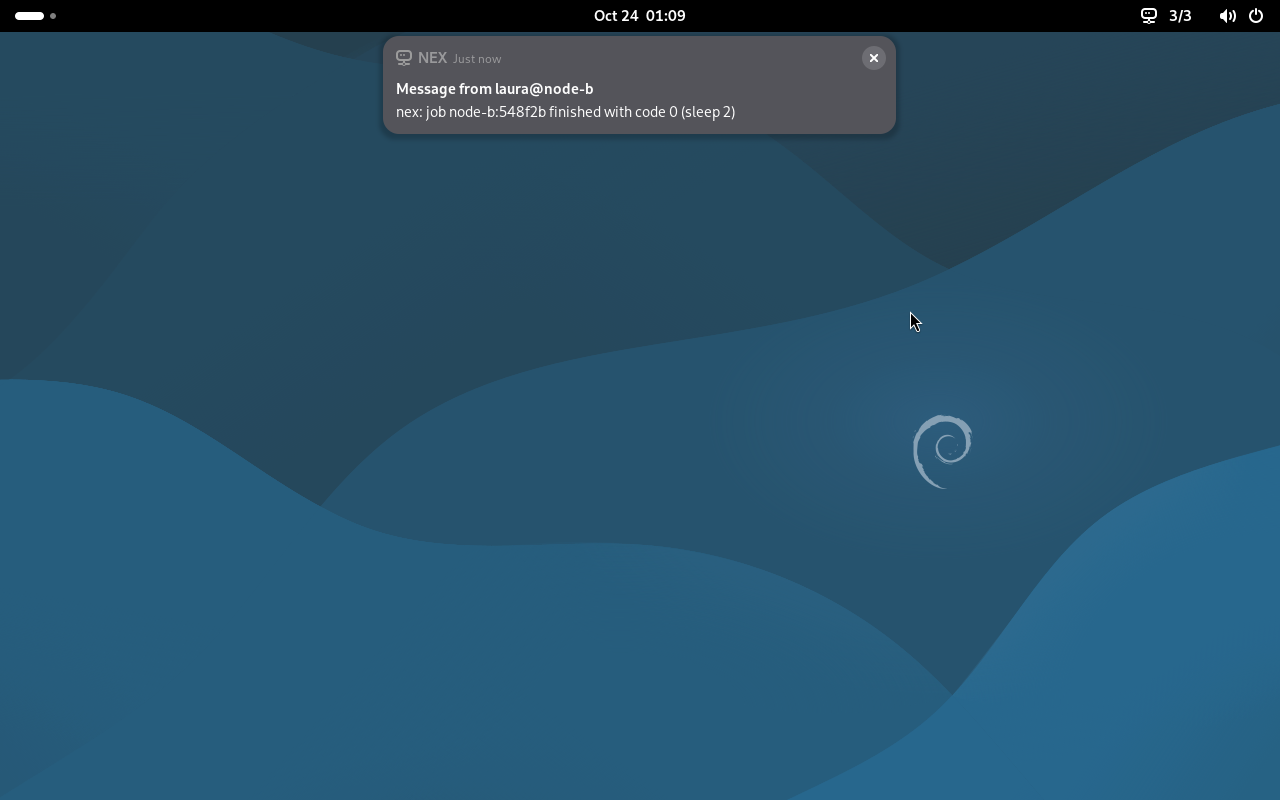
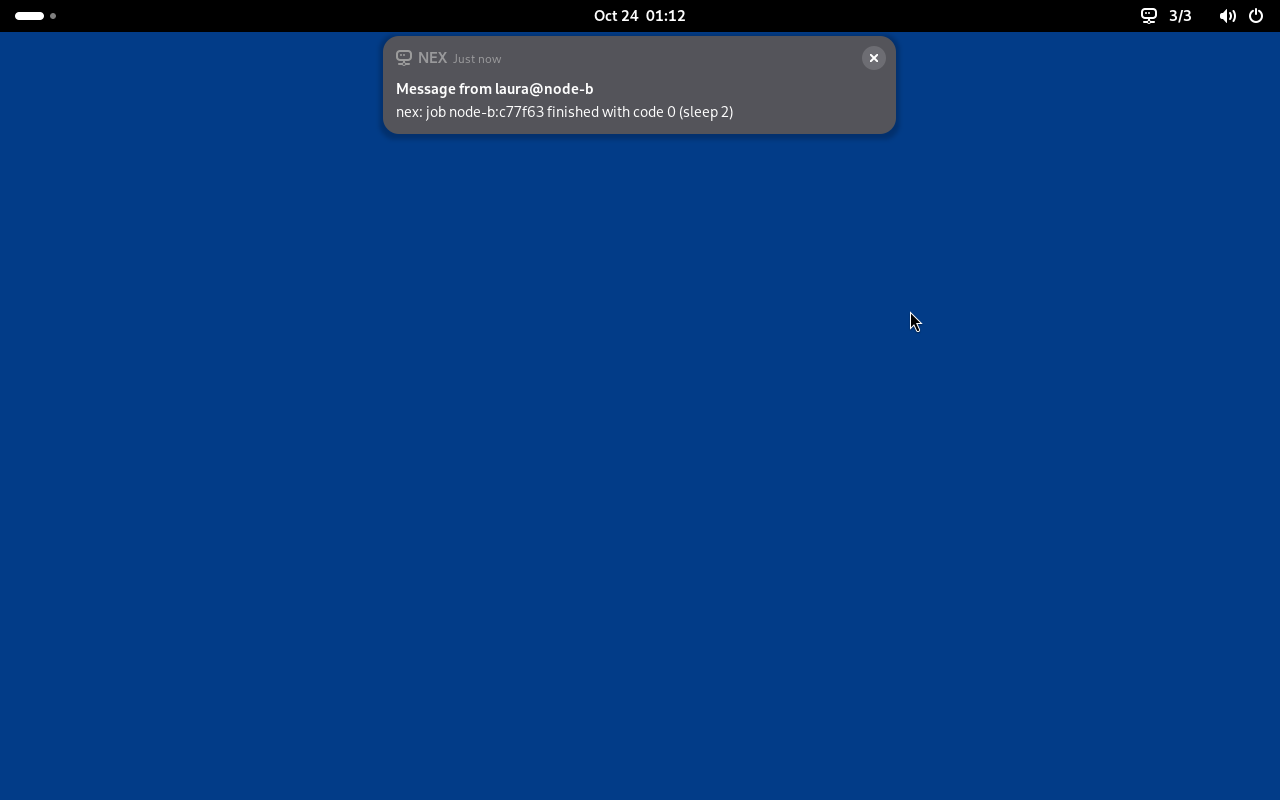
- the end of a detached job (
nex run -d), with the exit code; - messages (
nex msg YOURUSER text,nex wall); - cluster alarms (node down, disk almost full, storage not in good health).
cd ~/project
nex run -d --node node-b -- ./simulation.sh     # prints node-b:f7d750
# ... when it ends: "nex: job node-b:f7d750 finished with code 0 (./simulation.sh)"
nex attach node-b:f7d750                         # its output, even after the job has finished
nex run -d -q (quiet) does not send the end notification.
8. NEX Monitor
The "System Monitor" of the whole cluster: from the applications menu, the indicator or the search.
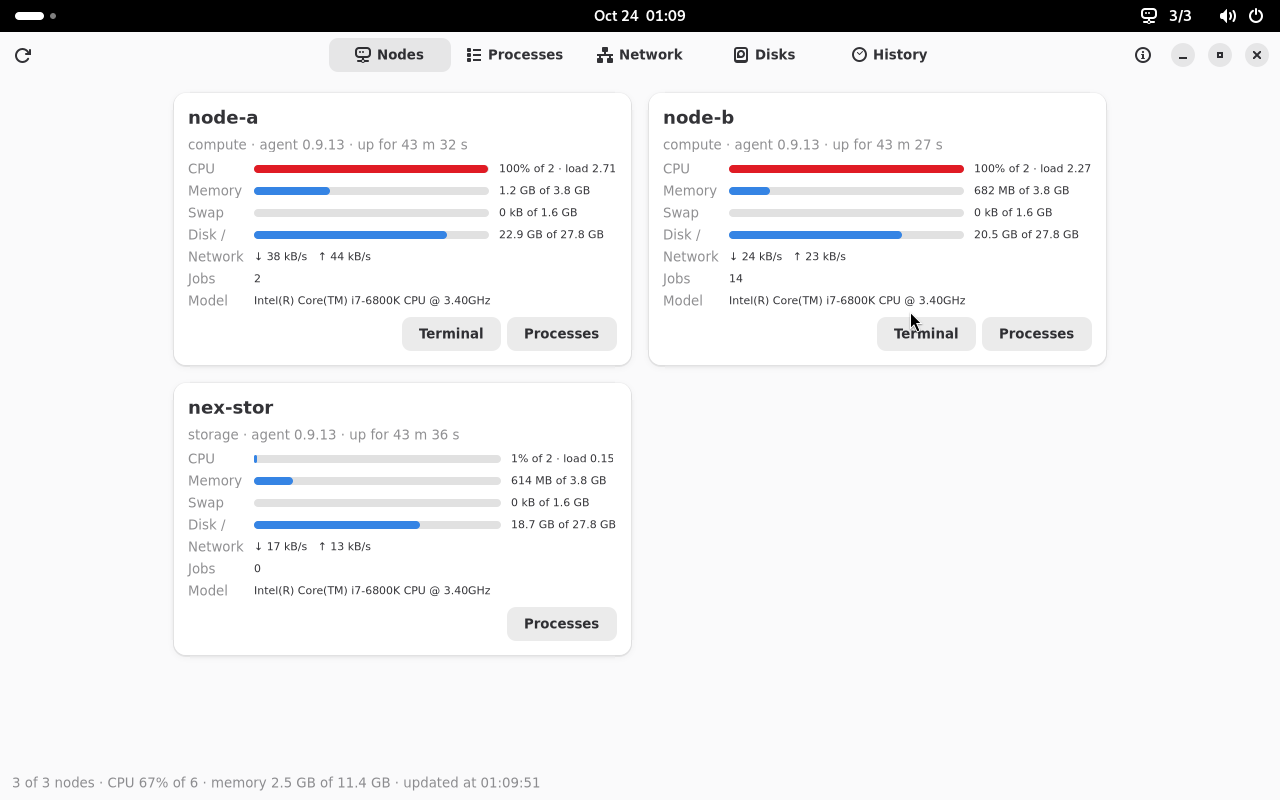
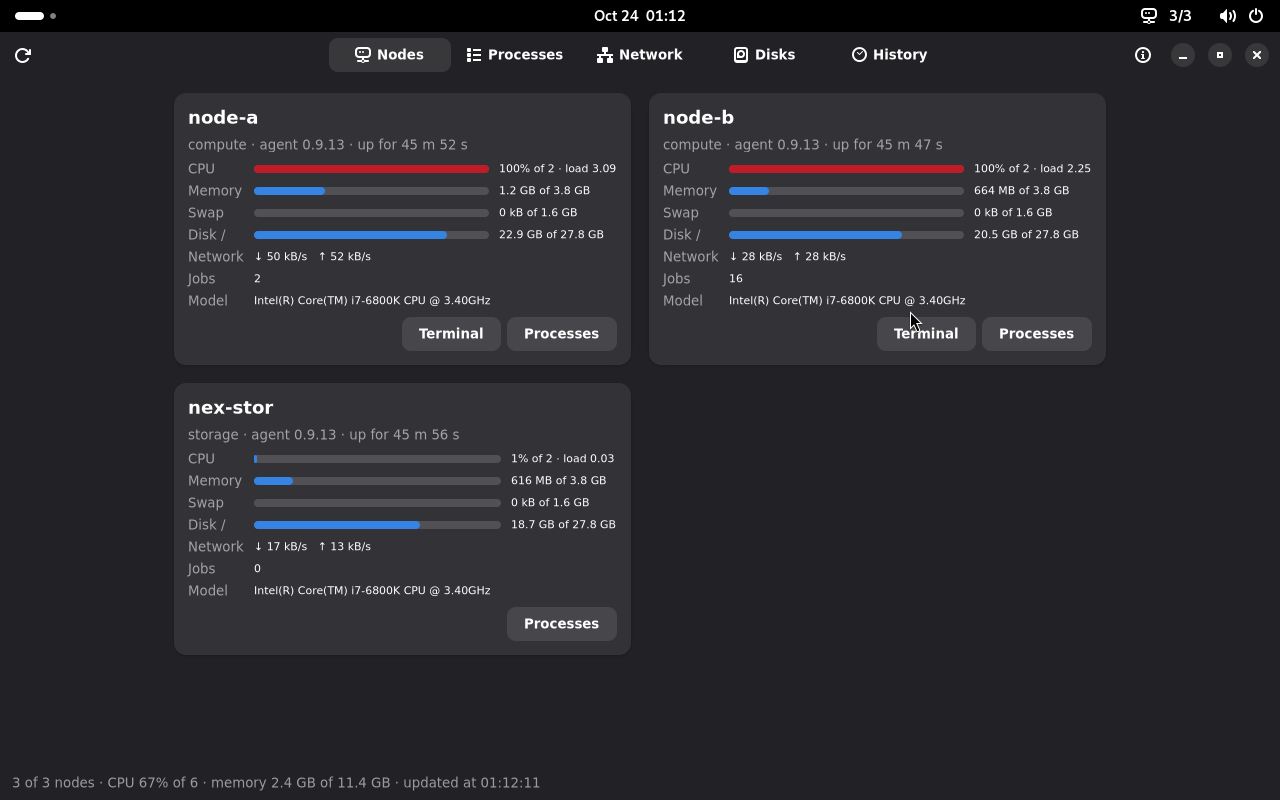
- Nodes: CPU and load, memory, swap, disk, network and jobs of each node, with the Terminal and Processes buttons.
- Processes: all your processes on all nodes, with search, sorting and sending of signals (with confirmation).
- Network and Disks: interfaces and traffic, space of
/nexand of the disks. - History: CPU, memory and network of each node from one hour to 30 days.
All the pages are described, with images, in man nex-monitor.
9. The shared clipboard
You copy on one NEX desktop and paste on another (for example from your PC to a node with GNOME). It is off until you turn it on:
nex-desktop clipboard on       # on (applies to all your NEX desktops)
nex-desktop clipboard status
nex-desktop clipboard off
The copied text passes between the nodes (nex pub) without being stored
in the cluster.
10. When something is wrong
| What you see | Why | What to do |
|---|---|---|
| No NEX icon at the top | extension disabled, or GNOME not restarted yet | gnome-extensions enable nex@aratoingegneria.it, then log out and back in |
| The icon says "!" | this node's agent does not respond | systemctl status nexagentd (ask the administrator) |
| "2/3 !" | a node does not respond | open the menu: the missing node; see also the alarms |
| No NEX Cluster in Nautilus or no NEX entries | the nex-desktop notify daemon has not started |
log out and back in, or run nex-desktop notify & |
| Search does not find the processes | fewer than 3 letters, or the process belongs to another user | type at least 3 letters of the program's name |
| The remote program does not open | it is not installed on that node | install it on all compute nodes |
| Notification "is not on the shared filesystem" | the file is outside /nex |
move it into /nex (the other nodes cannot see it) |
| Notification "no graphical terminal" | a terminal is missing | install ptyxis or gnome-console (on KDE: konsole) |
11. With KDE Plasma
nex-desktop works on KDE Plasma too (tested on Kubuntu 26.04: Plasma
6.6, Dolphin 25.12). After sudo apt install nex-desktop, log out and back
in: the daemon starts by itself, as on GNOME.
| On GNOME | On KDE Plasma |
|---|---|
| "NEX Cluster" in the Nautilus sidebar | "NEX Cluster" among the Dolphin places (added at the login after Dolphin's first start) |
| right-click → Scripts → NEX in Nautilus | right-click → NEX in Dolphin: the same entries (least loaded node, a chosen node, terminal on a node) |
| terminal: Ptyxis, GNOME Console or GNOME Terminal | terminal: Konsole |
| notifications | the same, shown by Plasma |
| NEX Monitor | the same application (GTK4: it runs on Plasma as it is) |
| indicator in the top bar | the NEX icon in the notification area (nex-tray), with the same entries |
| search in the overview | not available on Plasma |
The Dolphin entries are in ~/.local/share/kio/servicemenus/nex.desktop;
nex-desktop servicemenu rewrites them, nex-desktop places adds the place.
12. With XFCE
nex-desktop works on XFCE too, the light desktop of the
NEX Live USB stick and of computers used as terminals of the
cluster. After sudo apt install nex-desktop, log out and back in: the
daemon starts by itself.
| On GNOME | On XFCE |
|---|---|
| "NEX Cluster" in the Nautilus sidebar | "NEX Cluster" in the Thunar sidebar (the same bookmark file) |
| right-click → Scripts → NEX in Nautilus | right-click → NEX in Thunar: the same entries |
| terminal: Ptyxis, GNOME Console or GNOME Terminal | terminal: xfce4-terminal |
| notifications | the same, shown by XFCE |
| NEX Monitor, NEX Setup | the same applications |
| indicator in the top bar | the NEX icon in the notification area (nex-tray), with the same entries |
| search in the overview | not available on XFCE |
The Thunar entries are custom actions in ~/.config/Thunar/uca.xml: only the
NEX ones are rewritten at every login, and when a node joins, leaves or comes
back (nex-tray does it); the user's own actions stay as they are. Thunar
reads them again only when it restarts, though: a node that has just joined
appears in the NEX menu after the next login (or after thunar -q, which
closes the Thunar windows).
nex-desktop thunar-actions rewrites them by hand. The package also installs
the NEX desktop backgrounds in /usr/share/backgrounds/nex/.
The NEX icon in the notification area. On XFCE and KDE Plasma the place
of the GNOME indicator is taken by nex-tray, an icon in the notification
area that starts by itself at login (/etc/xdg/autostart/nex-tray.desktop,
not on GNOME, which already has the indicator). Its menu has the same
entries:
- the cluster status, for example NEX: 3 of 3 nodes ok, refreshed every 10 seconds;
- NEX Monitor, NEX Terminal (a terminal with nexsh) and Cluster
files (
/nexin the file manager); - NEX Setup, only while the computer is not a node yet. Afterwards it stays in the applications menu: on a node that keeps data it is used for Add a disk.
It uses the StatusNotifierItem standard, which the notification areas of XFCE 4.20 and Plasma show without extra plugins. The texts are in English or Italian according to the system language.